Polling rate is how many times per second your controller sends data to your PC. 125Hz means one update every 8ms. 1000Hz means one update every 1ms. This tool measures your exact Hz in real time including average, peak, and update interval.
Move your analog sticks rapidly to generate data points.
For the most accurate result, move both analog sticks in fast circles for at least 20 seconds. This ensures a consistent data stream for the browser to calculate the frequency.
Most controllers such as DualSense actually poll faster over Bluetooth (up to 1000Hz) than default Wired (250Hz) unless overclocked on PC.
Higher Hz leads to lower Input Lag. A 1000Hz rate reduces the delay between your physical move and the screen response to just 1ms.
Polling rate is how many times per second your controller sends its current state to your PC measured in Hz. Higher Hz means more frequent updates and lower theoretical input latency. At 125Hz your PC receives new data every 8ms. At 1000Hz every 1ms. For competitive gaming, a higher polling rate reduces the window where an input could be missed between updates.
Use a rear motherboard USB port directly with no hubs or front panel ports. If you are on a laptop, plug into power first. Windows battery saving mode throttles USB polling and will drop your reading by 30 to 50 percent on battery.
Your browser needs active tab focus before the Gamepad API activates. Click once anywhere. Press any button. The controller wakes and begins transmitting data immediately.
This step is required not optional. An idle controller sends fewer packets to save power. Rotating the stick forces continuous position changes that make the controller transmit at its full rated speed.
The first few seconds are unstable as samples accumulate. Wait for the average Hz to settle before recording your result. A reading that stabilizes is accurate. A reading that keeps swinging indicates a jitter problem worth investigating.
Your expected result depends on your controller and connection type. Use this table before assuming something is wrong with your hardware.
| Controller | USB Wired | Bluetooth | Proprietary Wireless |
|---|---|---|---|
| PS5 DualSense / Edge | ~1000Hz | ~250Hz+ | N/A |
| Scuf Reflex Pro | ~1000Hz | ~250Hz | N/A |
| PS4 DualShock 4 | ~125-250Hz | ~125Hz | N/A |
| Xbox Series X/S | ~125Hz | ~125Hz | ~1000Hz (Adapter) |
| Xbox Elite Series 2 | ~125Hz | ~125Hz | ~1000Hz (Adapter) |
| Steam Deck (Internal) | ~500Hz | N/A | N/A |
| Backbone One | ~125-250Hz | N/A | N/A |
| Nintendo Switch Pro | ~125Hz | ~125Hz | N/A |
| 8BitDo (Most Models) | ~125-500Hz | ~125Hz | ~1000Hz (2.4G) |
| Generic / Budget | ~125Hz | ~125Hz | N/A |
Xbox Series wired is 125Hz only. Most players assume a USB cable means maximum polling rate. It does not. Xbox Series controllers use standard USB HID at 125Hz over cable. The Xbox Wireless Adapter 2.4GHz proprietary is the only path to 1000Hz on Xbox.
The Backbone One and Steam Deck benefit from direct connection. Steam Deck's internal controls typically poll at a stable 500Hz, while the Backbone One depends on your phone's processor handling the USB-C/Lightning HID stack, usually averaging 125Hz-250Hz.
PS5 DualSense and high-end mods like Scuf Reflex are the outliers. They run 1000Hz wired (can be overclocked higher) and maintain impressive stability over Bluetooth, making them the best choice for competitive PC gaming.
Compare your device results with industry standards. High polling rates are essential for competitive gaming to ensure every move is registered instantly. If you are experiencing unexpected results, check the official hardware troubleshooting guides to ensure your connection isn't throttled by system settings.
| Connection Type | Expected Polling Rate | Optimization Tip |
|---|---|---|
| Next-Gen Wired (8K Tech) | 2000Hz โ 8000Hz | Ensure your CPU can handle high interrupt rates. |
| Pro Gaming Wired | 1000Hz Stable | Use motherboard USB ports for direct connection. |
| Xbox Wireless Adapter | 500Hz โ 1000Hz | Keep the adapter away from other 2.4GHz interference. |
| DualSense / DualShock (BT) | 250Hz โ 500Hz | Bluetooth latency varies by PC antenna quality. |
| Standard Bluetooth | 125Hz Fixed | The default polling limit for most HID devices. |
Understanding the math behind the speed. Lower milliseconds equal faster response times in-game.
| Polling Rate (Hz) | Delay (Milliseconds) | Gaming Usage | Verdict |
|---|---|---|---|
| 8000Hz | 0.125ms | Pro Esports / Ultra-Fast Displays | Next-Gen |
| 1000Hz | 1.0ms | Competitive Gaming Standard | Gold Standard |
| 500Hz | 2.0ms | High-Performance Action | Excellent |
| 250Hz | 4.0ms | Standard Smooth Gameplay | Good |
| 125Hz | 8.0ms | Casual Gaming Default | Fair |
| 60Hz | 16.6ms | Non-Gaming Devices | Slow |
For 99% of gamers, a stable **1000Hz (1ms)** is the perfect balance. If you notice your Hz numbers jumping wildly, itโs better to use a stable lower rate than an unstable high rate for consistent aim and movement.
Your peak Hz number means less than your consistency. Inconsistent update intervals mean inputs arrive at unpredictable times which your game cannot smooth out effectively.
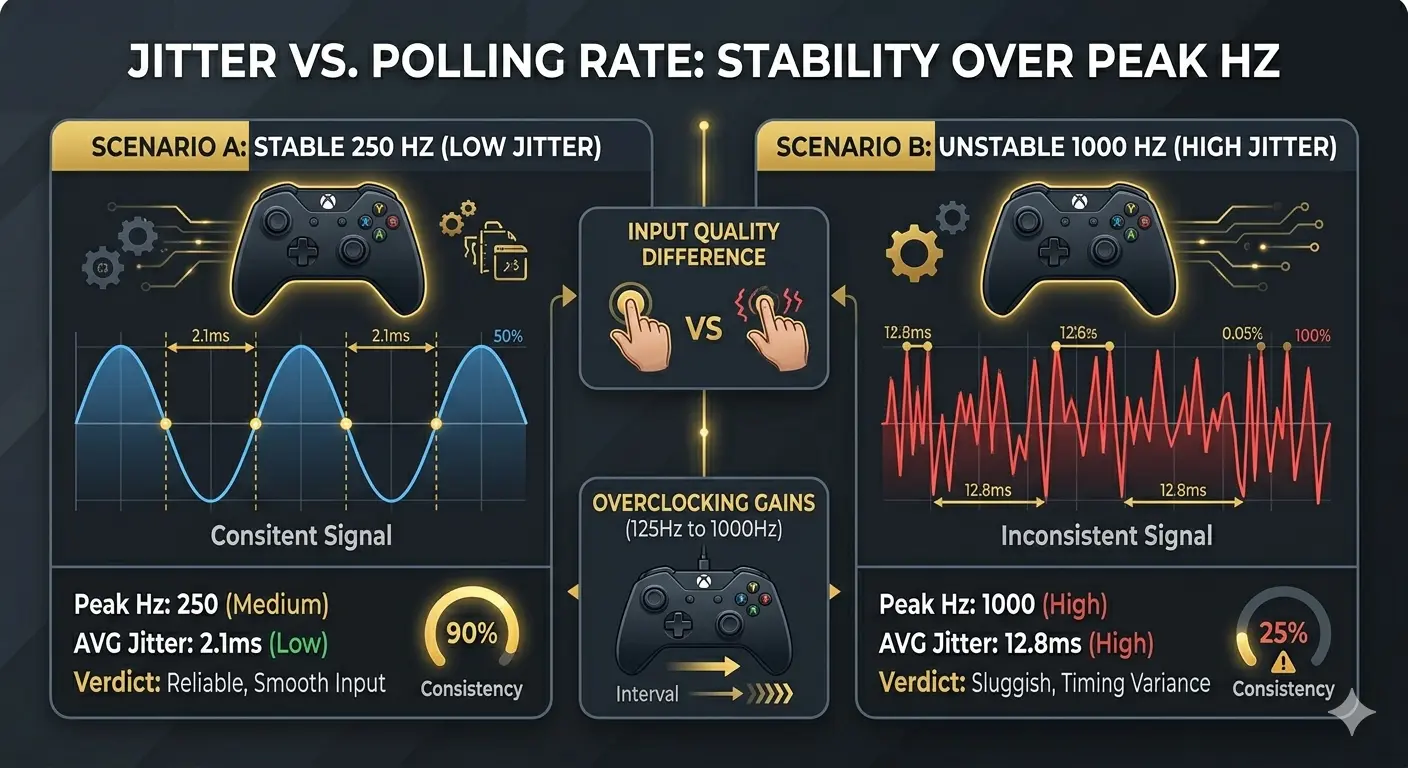
A controller at 1000Hz with 400Hz jitter feels less responsive than a stable 250Hz with 20Hz jitter. Low jitter equals smooth and predictable inputs while high jitter causes timing variance you feel as sluggishness.
Bluetooth interference from other 2.4GHz devices, USB hub signal degradation, or Windows power saving mode interrupting the USB polling cycle are the most common culprits. Fix stability first then look at absolute numbers.
Stability Rule: If your jitter reading is above 30 percent of your average Hz, your connection has a significant stability problem that needs troubleshooting.
Yes, for many wired USB controllers running at 125Hz. A free Windows tool called hidusbf can force USB HID polling up to 1000Hz for compatible controllers.
Xbox Series wired users benefit significantly as jumping from 125Hz to 1000Hz reduces the update interval from 8ms to 1ms. PS4 DualShock 4 wired users also see measurable performance gains.
PS5 DualSense wired already runs at 1000Hz by default. Xbox controllers using the official Wireless Adapter also hit 1000Hz already. There is no benefit for these specific setups.
Risk Level Moderate: Overclocking increases CPU usage slightly due to more frequent polling interrupts. Stick to 1000Hz maximum as some controllers become unstable above 2000Hz. This is not supported by manufacturers.
Yes, using tools like LordOfMice (hidusbf) is generally safe. It forces Windows to check the USB port more frequently. It doesn't damage the hardware, but it might slightly increase CPU usage. Always test stability after overclocking.
Stock DualSense controllers often show lower latency on Bluetooth (0.5ms - 2ms) compared to out-of-the-box wired (4ms). However, once you overclock the wired connection to 1000Hz-8000Hz, wired becomes the superior, more stable choice.
Yes. Processing 8,000 updates every second puts a heavy load on your CPU. If you have a mid-range processor, you might notice "micro-stuttering" or a drop in average FPS. High polling rates are best paired with modern, high-core-count CPUs.
They are different but related. A 240Hz monitor updates every 4.16ms. If your controller is at 125Hz (8ms), your monitor is literally waiting for the controller. To sync perfectly, your polling rate should always be higher than your refresh rate.
USB hubs share bandwidth and introduce a "Controller Chip" between your device and the PC. This can cause jitter and inconsistent polling. For competitive play, always plug into the motherboard's rear USB ports.
Most people can't feel 1ms vs 2ms, but almost everyone feels the jump from 8ms (125Hz) to 1ms (1000Hz). It shows up as "floaty" aim or a slight delay in fast-paced games like Call of Duty or Rocket League.
This is normal. Windows background tasks and browser scheduling can cause small fluctuations. As long as your average is above 900Hz and the jitter is low, your controller is performing perfectly.
For casual gamers, yes. For 0.01% of pro players on 540Hz monitors, it provides the most "raw" input possible. For everyone else, 1000Hz is more than enough and much more stable.
Optimize your hardware using our professional-grade testing methodology.
How we calculate precision, Hz, and drift values scientifically.
Check the end-to-end response time of your setup in ms.
Measure joystick wear and potentiometer degradation.
Meet the team behind the web's most accurate tester.
The Pro Tip: Stability > Peak Numbers. A stable 500Hz connection with zero jitter will always perform better in-game than a fluctuating 1000Hz one. Always prioritize consistent polling rate!