Online Input Lag Test Tool | PS5, Xbox & PC Controller Latency
Every button press has a hidden delay. This pro-grade tool uses the high-precision gamepad.timestamp API to measure the exact milliseconds between your physical input and system recognition. Identify hardware bottlenecks, compare Wired vs Wireless, and optimize your competitive edge in under 60 seconds.
This measures internal controller-to-browser latency. Total "End-to-End" lag includes your monitor's refresh rate and game engine processing.
4 Simple Steps to Test Controller Polling Rate & Latency
Establish Your Hardware Baseline
Wired removes Bluetooth variability entirely. Test USB first — that's your true hardware baseline. Then test wireless to see the exact millisecond cost of going cordless.
Tip: Use Motherboard USB portsInitialize the Gamepad API
Browsers require active tab focus before the Gamepad API fires. Click once anywhere on this page, then press any button to wake your controller and start polling.
Check: HARDWARE_ACTIVE statusMaintain Steady Input Samples
Press your button at a consistent, rapid pace for 20–30 samples. Don't mash blindly — steady, repetitive presses produce the most reliable sample data for the algorithm.
Logic: High-Freq TimestampsAnalyze Latency & Jitter
Average is your baseline, but Jitter matters more. A steady 12ms connection beats a "fast" one that spikes wildly between 4ms and 28ms.
Goal: Minimize Jitter (ms)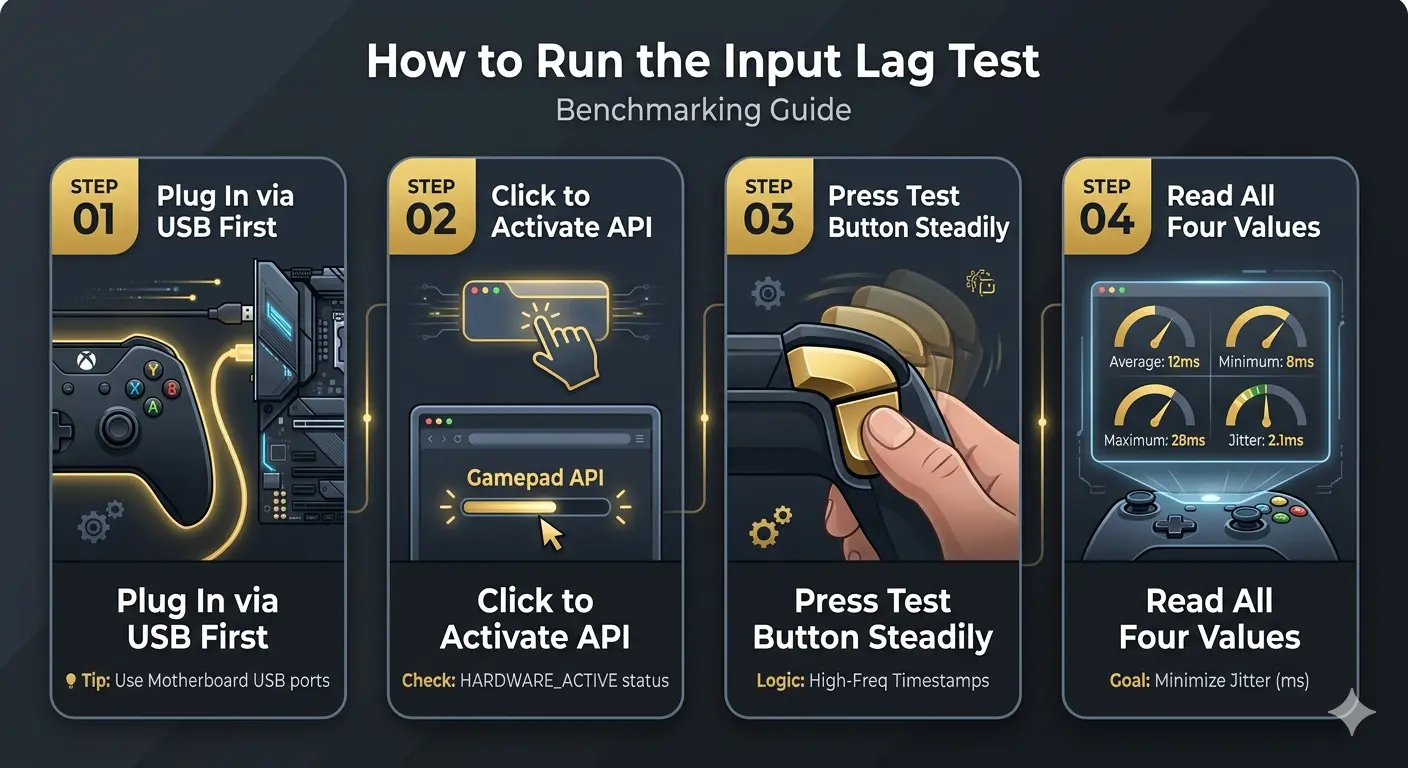
What Your Result Means
| Result | Rating | What It Means | Action |
|---|---|---|---|
| Under 8ms | Excellent | Competitive grade — near-instant | No action needed |
| 8–16ms | Good | Standard wired or modern Bluetooth | Monitor jitter |
| 16–30ms | Noticeable | High BT overhead or CPU load | Switch to wired |
| 30ms+ | Problem | Connection issue or driver fault | Troubleshoot now |
Input Lag Has 3 Parts — This Tool Measures One
Most players think input lag is one number. It's actually three separate delays stacked together. Isolating them is the key to fixing lag.
Controller Latency
The time it takes for a button press to be converted into an electronic signal and leave the controller's internal circuitry.
Connection Latency
The time the signal takes to travel from the controller (via USB or Bluetooth) and be received by your PC's operating system.
Display Latency
The time your PC takes to process the frame and your monitor takes to physically change the pixels on the screen.
If your game still feels laggy with a low result here — your display is next. Enable Game Mode on your TV or switch to a gaming monitor with measured input lag under 5ms. Your controller isn't the problem.
Polling Rate — What Hz Actually Means
Polling rate is how many times per second your controller sends data to your PC. A higher frequency reduces the delay between your physical movement and the game's reaction.
| Polling Rate | Update Interval | Connection Type | Standard For |
|---|---|---|---|
| 1000Hz | 1ms | Overclocked / WebHID | Elite Competitive Gear |
| 500Hz | 2ms | High-performance USB | Pro Tier Controllers |
| 250Hz | 4ms | Mid-tier USB | Xbox Series (Wired) |
| 125Hz | 8ms | Standard USB | Most Wired Controllers |
| ~60Hz | ~16ms | Bluetooth Eco | Wireless (Low Battery) |
Most browsers (Chrome/Edge) cap the Gamepad API at 125Hz - 250Hz. Even if your controller is 1000Hz, the browser may not show it accurately. Use these stats for comparative testing.
Wired vs Wireless — Real Latency Benchmarks
| Connection Method | Typical Latency | Stability | Verdict |
|---|---|---|---|
| USB Wired (Rear Port) | 1.0 – 4.0ms | Perfect | The Gold Standard |
| Xbox Wireless Adapter (2.4GHz) | 2.0 – 8.0ms | High | Near-Wired Performance |
| Bluetooth 5.0+ Modern | 4.0 – 12.0ms | Medium | Reliable for Casual |
| Bluetooth 4.0 / 4.2 Legacy | 15.0 – 30.0ms | Low | Noticeable Input Lag |
| USB Hub / Front Panel Port | +2.0 – 8.0ms | Variable | Adds Electrical Jitter |
Pro Insight: Bluetooth 5.0+ uses improved frequency hopping, preventing spikes. If you must play wireless, ensure your adapter supports BT 5.0.
How to Reduce Input Lag
| Optimization Action | Potential Reduction | Difficulty |
|---|---|---|
| Upgrade to Bluetooth 5.0 Adapter | −10–20ms | Easy |
| Switch from Bluetooth to Wired | −5–25ms | Easy |
| Use Motherboard Rear USB Ports | −2–8ms | Easy |
| Disable Steam Input Overlay | −2–5ms | Easy |
| Update Controller Firmware | −1–5ms | Medium |
| Enable "High Performance" Power Plan | −1–3ms | Easy |
Official Firmware Updates
Reduce latency by keeping your hardware updated via Microsoft and Sony support.
Hardware Tip: Always prioritize the rear USB ports on your PC case for the lowest possible signal path.
Latency & Input Lag FAQs
Everything you need to know about controller and system delay.
How do you test input lag on a PC controller?
You can use our Input Lag Test tool. It uses the Gamepad API to measure the time difference between your physical button press and the system's recognition. For the most accurate hardware test, always use a wired connection.
Is 100ms input delay bad for gaming?
Yes, 100ms is considered very poor for gaming. In competitive play, anything above 30ms is noticeable. 100ms means a 1/10th of a second delay, which can make fast-paced games feel "heavy" or unresponsive.
Is 40ms latency bad for gaming?
40ms is "acceptable" for casual gaming, but for competitive FPS or fighting games, it is borderline. Pro players aim for total system latency under 15-20ms. At 40ms, you may start losing frame-perfect encounters.
Does HDMI 2.1 reduce lag?
Yes. HDMI 2.1 supports ALLM (Auto Low Latency Mode) and higher refresh rates (4K/120Hz). This significantly reduces "Display Lag" compared to HDMI 2.0, providing a much smoother and snappier experience.
How much delay is a 1000Hz polling rate?
A 1000Hz polling rate creates a 1ms delay between updates. In comparison, a standard 125Hz rate has an 8ms delay. Higher polling rates make the cursor or crosshair movement feel significantly smoother.
How to test HDMI lag?
HDMI lag (display lag) is best tested using a dedicated hardware tool like a Leo Bodnar Lag Tester. However, you can estimate it by filming your screen and controller with a high-speed camera (240fps) and counting the frames between press and action.
How to test general latency on PC?
For network latency, use a 'Ping' test. For hardware/system latency, tools like NVIDIA Reflex Latency Analyzer or specialized software like LatencyMon help identify if your OS or drivers are causing delays.
What is the difference between Input Lag and Ping?
Input Lag is the delay from your controller to the PC/Monitor. Ping (Network Latency) is the delay from your PC to the Game Server. You need low values in both for a perfect gaming experience.
Complete Controller Diagnostics
Lag is only half the story. Check your hardware health with our other pro tools.
Benchmark Your Gear
Start Input Lag TestCheck your jitter and average latency. A stable 5ms is always better than a fluctuating 2ms.