If your DualSense shows 250Hz wired, or your Xbox shows 125Hz wired, that does not mean the controller is broken. Those are their normal native rates (Tier 3 typical, not vendor specifications). This guide explains what the Hz number means, what to expect for your controller and connection, and when a result points to a real fault.
Quick Answer
Polling rate, measured in hertz (Hz), is the number of times per second your controller sends an updated input report to your device.
- 125Hz = a report every 8 milliseconds
- 250Hz = a report every 4 milliseconds
- 500Hz = a report every 2 milliseconds
- 1000Hz = a report every 1 millisecond
The formula is simple: milliseconds = 1000 ÷ Hz.
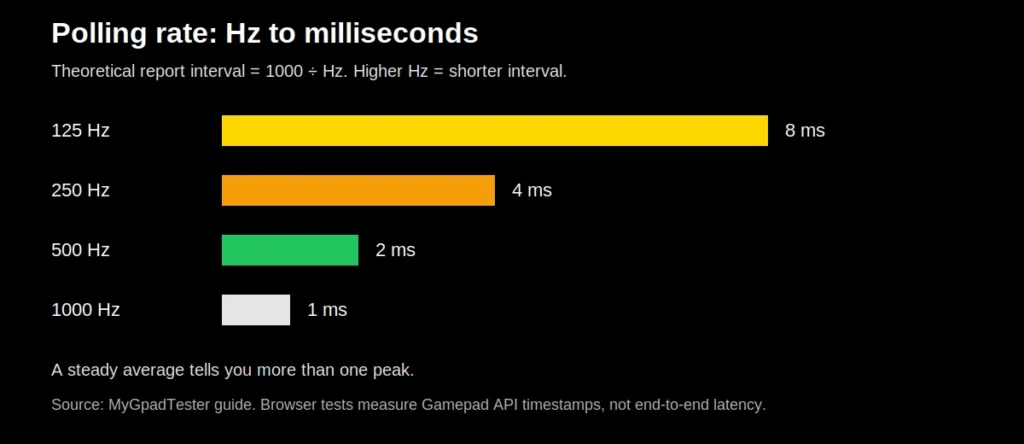
| Polling rate | Theoretical report interval |
|---|---|
| 125 Hz | 8 ms |
| 250 Hz | 4 ms |
| 500 Hz | 2 ms |
| 1000 Hz | 1 ms |
So a higher polling rate does not make your stick move faster. It makes your device hear about the movement sooner, and more often. In a fast shooter, that 7ms difference is the difference in report interval only, from 8ms to 1ms. It is one part of total lag, so it does not on its own decide whether a flick feels clean or late.
Test yours now: Connect your controller, press any button, and use our free Polling Rate Test to see your live Hz, average Hz and jitter. No download, no account.
Five terms, not one number. Polling rate: how often a controller reports input, in Hz. Report interval: the nominal time between reports, 1000 divided by Hz, not a guaranteed delay. Input latency: the total delay from input to game or screen response. Jitter: variation in measured intervals or update timing. Browser measurement: the timing the browser sees in Gamepad API data, not a physical press to photon measurement. No site sample size, firmware list, or measured range is claimed for the controller table until a dated test run is published; those ranges are Tier 3 typical, not vendor specifications and not site measurements.
Polling rate vs input lag: they are related, but they are not the same thing
Polling rate is only one slice of latency: the report interval between reports.
This is the confusion most guides get wrong, and it costs readers good decisions.
- Input lag is the whole journey: thumb movement → sensor → controller firmware → connection (USB, Bluetooth or dongle) → operating system → game → screen.
A 1000Hz controller can still feel laggy if it is on a weak Bluetooth link, if the game has high render latency, or if your display is slow. Likewise, a stable 125Hz controller on a clean wired link can feel perfectly fine for casual and story games.
Think of it like this: polling rate sets the maximum delay from this one step. At 125Hz that step can add up to 8ms. At 1000Hz it can add up to 1ms. Everything else in the chain still matters.
For the full chain, also run our Input Lag Test and compare wired vs wireless on the same controller.
What polling rate should you expect? Real numbers, not marketing numbers
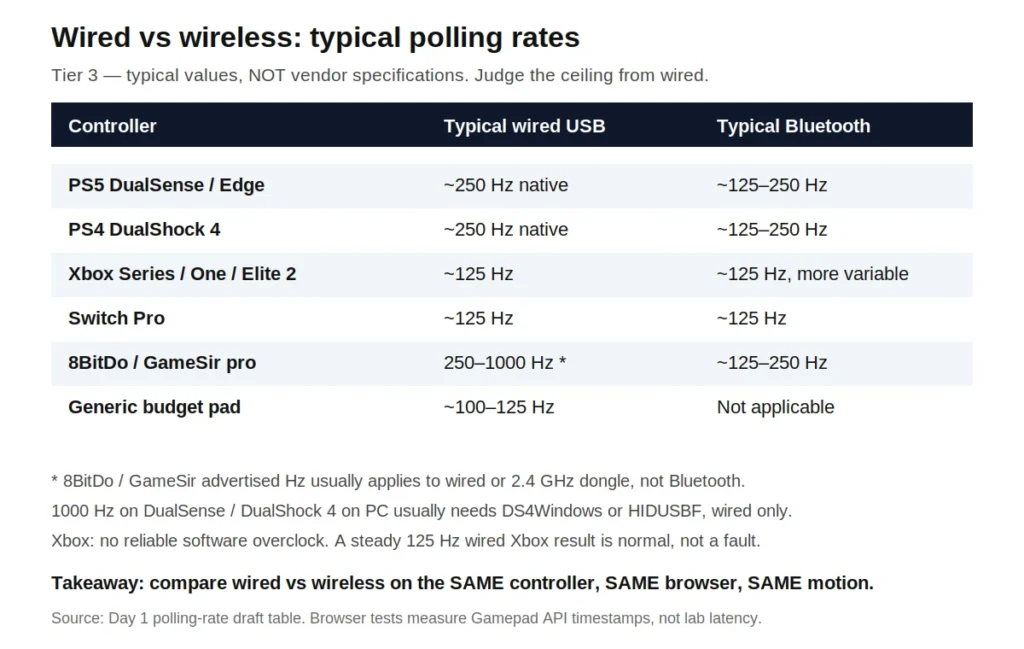
Expect the native rate for your controller and connection, not the box peak. A steady result inside the table range for your connection is normal, and instability is the fault sign. Marketing pages often quote the best possible number. Real browser and PC tests are messier, and that is normal. Use this table as your reality check before you assume your controller is broken.
How to read the table: Tier 3 typical means a community-tested range, not a vendor specification.
| Controller | Typical wired USB | Typical Bluetooth | Notes |
|---|---|---|---|
| PS5 DualSense / DualSense Edge | ~250Hz native, up to 1000Hz with PC tools | ~125–250Hz | Native USB is often 250Hz, not 1000Hz. 1000Hz usually needs DS4Windows or a similar PC tool, wired only. |
| PS4 DualShock 4 | ~250Hz native, up to 1000Hz with PC tools | ~125–250Hz | Same pattern as DualSense: overclock is a PC-driver change, not a console change. |
| Xbox Series X/S, Xbox One, Xbox Elite Series 2 | ~125Hz | about 125 Hz, lower and more variable on Bluetooth (Tier 3 typical) | Xbox controllers are built around a 125Hz HID report. There is no reliable software overclock on PC. |
| Nintendo Switch Pro | ~125Hz | ~125Hz | Stable, but not a high-Hz controller. |
| Steam Deck (built-in controls) | ~500Hz internal (Tier 3 typical) | N/A | Internal controls are not a Bluetooth test. |
| 8BitDo / GameSir pro models | 250–1000Hz, model dependent | ~125–250Hz | The advertised Hz usually applies to wired or 2.4GHz dongle mode, not Bluetooth. Check your exact model. |
| Generic budget USB pad | ~100–125Hz (Tier 3 typical) | N/A | Budget pads often sit near 125Hz regardless of the box claim. |
The update interval is 1000 divided by Hz, so 125 Hz means a new report at most every 8 ms. On PC, Xbox-style controllers usually report through XInput, while older or generic pads often use DirectInput over USB HID. A browser test reads the reports the Gamepad API delivers, not the physical press itself. PC tools that raise the rate work through drivers you install yourself, so use them wired only. They have no effect on a console.
Important honesty note for readers: if your DualSense shows 250Hz wired on our test, that is not a fault. If your Xbox shows 125Hz wired, that is also not a fault. Those are their normal native rates. A fault is instability: wild jumps, long dropouts, or a number far below the table for your connection type.
USB vs Bluetooth vs wireless dongle
Wired USB is the most consistent test. Bluetooth is usually lower and more variable, and can throttle idle reports on some devices, firmware and browsers. A 2.4GHz dongle, such as the Xbox Wireless Adapter, is steadier than Bluetooth for Xbox on PC, but it is not an overclock. Full comparison: USB vs Bluetooth controller polling rate.
Does a higher polling rate actually help in games?
Yes, but with diminishing returns. The largest single step is 125Hz to 250Hz, from an 8ms to a 4ms report interval. Above 500Hz the gains are small, and a steady average matters more than a jittery peak. Which tier fits which player: 125Hz vs 250Hz vs 500Hz vs 1000Hz controller polling rate.
How to test your controller polling rate in 60 seconds
Connect by USB for the ceiling number, or by Bluetooth for the real wireless number. Open the polling rate test in Chrome or Edge, press any button to wake the Gamepad API, then move both sticks in slow, continuous circles for 20 to 30 seconds. Read average Hz, peak Hz and jitter together: a single peak means nothing on its own. Full six-step method: How to Check Controller Polling Rate.
What this test cannot tell you
This browser test measures Gamepad API timestamps, not lab end-to-end latency. Use it to compare wired and wireless in the same browser, not as a hardware certificate. A stable average with low jitter beats one peak number.
Your data is processed locally in your browser through the Gamepad API. It is not uploaded to our server to run this test.
Common problems and what they actually mean
| Problem | Cause | Fix |
| My Xbox is stuck at 125Hz. | That is normal. Do not chase an overclock that does not exist for Xbox. | If you want lower wireless latency, use the Xbox Wireless Adapter instead of Bluetooth. |
| My DualSense shows 250Hz wired, but the box said 1000Hz. | That is usually the native Windows rate. | 1000Hz on PC normally needs DS4Windows or HIDUSBF, wired only, and it does not change how the controller behaves on a PS5 console. |
| My Hz jumps wildly. | A hub, a long cheap cable, a low battery, or a crowded 2.4GHz environment will all show up as jitter before they show up as a low average. | Check the cable first, then the port, then interference. |
| My Bluetooth number is much lower than wired. | Bluetooth is usually lower and more variable. | Judge a controller’s ceiling from wired, and judge its wireless quality from the Bluetooth-vs-dongle comparison, not from Bluetooth alone. |
| Does a higher Hz monitor matter? | A 240Hz monitor redraws every 4.16ms (Tier 1 maths: 1000 divided by 240). A 125Hz controller reports at most every 8ms, so frames and reports do not line up one to one. | Polling rate and refresh rate are independent. A 240Hz monitor redraws every 4.16ms, while a 125Hz controller reports at most every 8ms, so the monitor can wait for the next report. A stable 250Hz already gives a 4ms report interval for most 144Hz setups, but a higher report rate alone does not fix game or display lag. |
Frequently asked questions
What is a good polling rate for gaming?
For competitive gaming, 500–1000Hz stable is the sweet spot. For casual gaming, a stable 125–250Hz is fine. Stability matters more than a peak number.
Is 1000Hz better than 500Hz?
It saves up to 1ms of theoretical report interval (2ms → 1ms). The largest single polling step is 125Hz to 250Hz, from 8ms to 4ms. Test wired vs wireless on your own controller to see what your setup actually delivers.
Can I overclock my controller polling rate?
On PC, wired only, and only for some controllers. DualSense and DualShock 4 can be pushed with DS4Windows or HIDUSBF. Xbox controllers have no reliable software overclock. Bluetooth cannot be reliably overclocked.
Why does my polling rate change during a test?
Because Bluetooth can throttle idle reports on some devices, firmware, and browsers, because Windows schedules browser work in bursts, and because hubs and interference add jitter. Move the sticks continuously and test wired for the cleanest number.
Does polling rate affect FPS?
Only at very high rates. 8000Hz means 8,000 reports per second for your CPU to process. 1000Hz is common on modern PCs. At 8000Hz CPU work rises sharply, so lower the rate and retest if you see stutter.
Is polling rate the same as response time?
No. Polling rate is how often reports arrive. Response time / input lag is the total time from movement to screen change. Polling is one part of that total.
Why does my browser test show about 60Hz on a 60Hz display?
Because the browser reads Gamepad API updates through the page frame loop. On a 60Hz display the page gets a new frame about every 16.7 ms (Tier 1 maths: 1000 divided by 60), so the browser-observed rate can sit near 60Hz even if the hardware rate is higher. Compare wired and wireless in the same browser and on the same display, and do not treat the browser number as a hardware certificate.
Related tools
More in this category
- All Technical Guides articles
- Xbox Controller Not Detected in Gamepad Tester | Complete Fix Guide (2026)
Last updated: 14 November 2026. Figures are typical native rates from vendor and community testing and can vary by firmware, driver, browser and connection. Browser tests measure Gamepad API timestamps, not laboratory end-to-end latency.
About the author
Marcus Sterling, Lead Engineer and Founder, MyGpadTester, Austin, Texas, USA
I am a Certified Hardware Analyst with over 12 years of hands-on experience in gaming peripheral diagnostics. My journey started in the competitive scene where I realized how often ‘skill issues’ were actually hidden hardware failures. I am professionally certified by iFixit as a Master Tech, and I’ve spent years analyzing Hall Effect sensors to solve the industry’s stick drift crisis.
Affiliations: Associate Member of IEEE (Consumer Electronics Society). Specialization: Advanced TMR Magnetic Sensor Calibration & Latency Testing. Former Lead Tech at Performance Labs TX in Austin. Certifications: ESD Professional & Master Hardware Diagnostic Certified.
Tests follow the MyGpadTester methodology: same browser, same connection, wired first, retest before deciding. Results are browser estimates via the W3C Gamepad API, not lab measurements.
- Marcus Sterling author profile
- X (Twitter)
- About MyGpadTester
- Testing Methodology
- Contact MyGpadTester
Next steps on MyGpadTester
- Run the polling rate test wired, then wireless.
- If your number is unstable, read our guide on reducing input lag on PC next.
- If your sticks also drift or feel off-centre, run the Stick Drift Test and the Deadzone Test before you buy anything. A low Hz number and a drifting stick are different problems with different fixes.