Peak Hz looks high, but your controller still feels uneven in game, so check your controller polling rate free in 60 seconds, with no download, and learn to read the real result, not just the peak number.
Last updated: 14 November 2026 | Category: Controller Testing Tools | Reading time: about 11 minutes | Tested with Chrome/Edge, Gamepad API
Quick Answer
Connect your controller, open the polling rate test, press any button, then move a stick continuously for 20–30 seconds. Read average Hz, peak Hz and jitter together. A browser result is a comparison, not a lab certificate: it shows how often the browser sees fresh input, capped by your display refresh, not your controller’s true USB hardware rate.
Use our free polling rate test. No download. No account. Data stays in your browser.
How to read the result
Read all three numbers together. A single peak number, on its own, tells you almost nothing about how a controller will feel in a game.
| Number | What it means | What to do with it |
|---|---|---|
| Average / median Hz | Typical rate during continuous movement; compare across runs | Compare wired vs wireless, same browser, same motion |
| Peak Hz | Highest brief reading; does NOT prove the controller stays there | Ignore a single peak; judge by average + stability |
| Jitter / interval spread | How steady the gaps between updates are; wide spread = unstable link | If jitter is high, change cable/port/connection, then retest |
| Browser-observed vs hardware Hz | Browser reads via Gamepad API, gated by frame rate; hardware USB rate can be higher | Compare connections; do not certify hardware Hz |
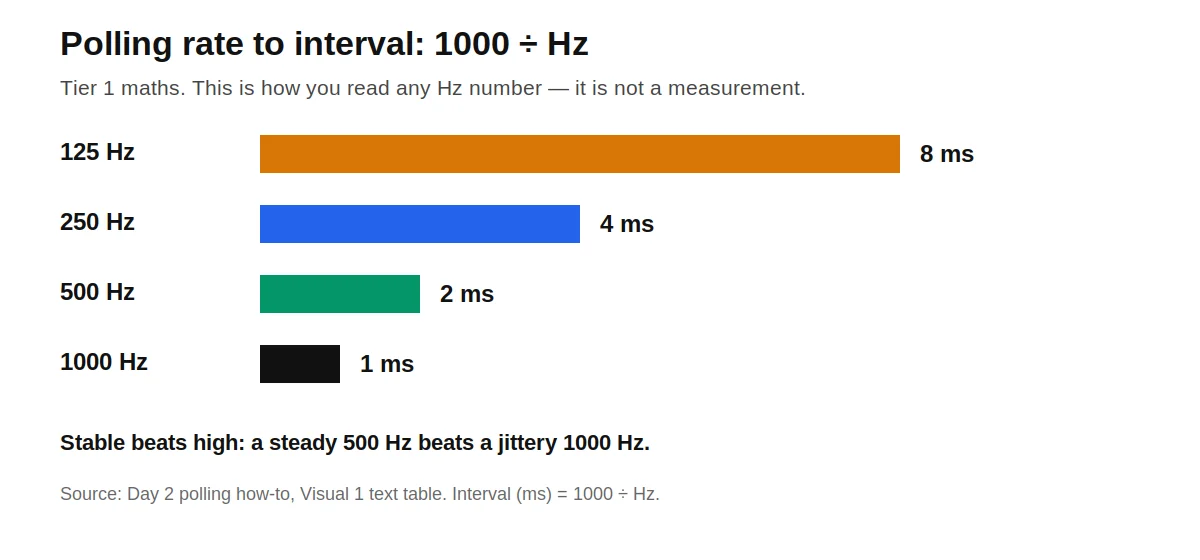
Polling rate is also called report rate. The time between reports is the polling interval, also called the report interval or update interval. Tier 1 maths: interval (ms) = 1000 ÷ Hz. So: 125 Hz = up to 8 ms. 250 Hz = up to 4 ms. 500 Hz = up to 2 ms. 1000 Hz = up to 1 ms. That maths is not a measurement. It is how you read any Hz number.
For the meaning of Hz, see what polling rate means in Hz. This post is the procedure, not a repeat of that definition.
Before you start: 5 setup rules that change the number
- Direct port, not a hub. A hub shares bandwidth and adds jitter, so a hub result is not a clean ceiling number.
- Data-capable cable, not charge-only. If the controller charges but does not appear, suspect the cable first.
- Use Chrome or Edge first for this guide, and use the same browser for both runs you compare. Firefox works for basic testing; Safari is limited.
- Close heavy apps and overlays. A busy system or a remapper grabbing the controller can make a steady controller look jittery.
- Charge the controller. Low battery and power-saving can throttle the rate, especially on Bluetooth.
How to check controller polling rate: the 60-second method
How to Check Controller Polling Rate Online (PS5, Xbox, PC): Free Hz Test
Total Time: 1 minute
Step 1: Connect wired first for the ceiling, or Bluetooth for the real wireless number.
Record which one. If the controller is not recognised after a button press, fix the port or cable first.
Step 2: Open the test and press any button to wake the Gamepad API.
A blank test before any press is normal. If nothing appears, refresh, try another port/cable, and close any remapper such as Steam Input or DS4Windows.
Step 3: Move one stick in slow, continuous circles for 20-30 seconds.
Do not leave it still, and do not flick and stop. If the stick is still, Bluetooth can throttle idle reports on some devices, firmware and browsers, and the number can fall: power-saving, not proof the controller is slow.
Step 4: Read average, peak and jitter together, not peak alone.
Average/median Hz is the number to compare. A high peak with wide jitter is not a good result.
Step 5: Repeat the same motion, same browser, same controller, then switch connection and repeat.
Change only the connection: wired to wireless, or Bluetooth to a 2.4GHz dongle.
Step 6: Record the pair: wired average + jitter, and wireless average + jitter.
A before number, recorded the same way, is what makes an after number meaningful.
Reader Record Table: your numbers only, blank on purpose
| Run | Connection | Average Hz | Peak Hz | Jitter | Browser |
|---|---|---|---|---|---|
| Wired | |||||
| Wireless / dongle |
No controller was run as a claimed site measurement for this guide.
What a normal result looks like: by connection, not by marketing
A normal result is a steady average inside the typical range for your controller and connection, judged by stability, not by one peak. Reading guide: the three most-searched controllers below. For the full house table, see what polling rate means in Hz. All ranges below are Tier 3, typical, browser-observed ranges, not manufacturer specifications.
| Controller | Typical wired (Tier 3) | Typical Bluetooth (Tier 3) | Note |
|---|---|---|---|
| PS5 DualSense / Edge | ~250 Hz native, up to 1000 Hz only with PC tools, wired only | ~125–250 Hz | 250 Hz wired is normal |
| Xbox Series X/S, One, Elite Series 2 | ~125 Hz | ~125 Hz, lower and more variable on Bluetooth | 125 Hz wired is normal; no reliable overclock |
| Nintendo Switch Pro | ~125 Hz | ~125 Hz | Stable, not high-Hz |
A fault is instability: wild jumps, long dropouts, or a number far below the range for your connection. Confirm it after changing one variable and retesting.
On Windows, most pads reach the browser through XInput (Xbox-style) or DirectInput (older/generic) over USB HID. The USB endpoint declares a polling interval (bInterval). The W3C Gamepad API specification is the authority reference for axes normalised to −1.0 to 1.0 and update timestamps. Microsoft Xbox Support and Sony PlayStation Support are the authority sources for firmware guidance. They are named here only. No deep URL was verified, so none is linked.
Why your browser number can look lower than the hardware rate
The browser does not read the USB bus directly. It reads Gamepad API timestamps, gated by the page’s frame loop (requestAnimationFrame). On a 60 Hz display, the browser-observed rate can sit near 60 Hz even if hardware is higher. The page only gets a new frame about every 16.7 ms. On a 144 Hz or higher display, the same controller can show a higher number.
So this guide never promises 1000 Hz in a browser on a 60 Hz display. A DualSense showing ~60 Hz in a browser may reflect the frame gate, not a 60 Hz hardware rate. The safe line is: browser-observed, compare like with like, do not certify hardware Hz.
Does higher polling increase CPU usage? At 1000 Hz that work is common on modern PCs; at 8000 Hz it rises sharply, so lower the rate and retest if you see stutter. No specific CPU measurement is claimed here.
Troubleshooting: what your result actually means
Never declare a controller “broken” from one run. Change one variable, retest, then decide.
| Problem | Likely cause | Do this, then retest |
|---|---|---|
| Xbox stuck at 125 Hz | Normal 125 Hz HID rate (Tier 3) | Normal. Use the Xbox Wireless Adapter for steadier wireless. |
| DualSense 250 Hz wired, box said 1000 Hz | Typical native Windows rate | 1000 Hz on PC usually needs DS4Windows/HIDUSBF, wired only. |
| Hz jumps wildly | Cable, port, hub, interference, low battery, background load | Change one variable at a time, retest after each. |
| Bluetooth much lower than wired | Expected; Bluetooth is lower and more variable | Judge the ceiling from wired; judge wireless from Bluetooth-versus-dongle. |
| Controller not detected | API dormant, wrong cable/port, remapper grabbing pad | Press a button, refresh, try another port/data cable, use Chrome/Edge, close Steam Input/DS4Windows. See the existing Xbox controller not detected page: Xbox Controller Not Detected. |
| Number drops when sticks are still | Bluetooth power-saving throttling | Move continuously. A still-stick drop is expected, not a fault on its own. |
Advanced, PC wired only, not for Xbox, does not change console behaviour: Overclocking gets only this paragraph; full steps belong to a future guide. DualSense/DualShock 4 can be pushed on PC, wired only, with DS4Windows/HIDUSBF. Xbox has no reliable overclock. Bluetooth cannot be reliably overclocked. HIDUSBF is low-level, unsigned-driver territory: back up first, PC wired only, not a reliable Xbox path.
Limitations Box: What this test cannot tell you
- A browser test measures Gamepad API timestamps, not lab end-to-end latency. It is for comparison, not for certifying hardware.
- A browser result is gated by display refresh and frame timing. It cannot prove a true USB hardware rate, or 1000 Hz on a 60 Hz display.
- A single peak is not a result. Judge by average/median Hz plus jitter, after a repeat run.
- If you need a certified hardware number, use the maker’s own software or a hardware tester.
- This guide diagnoses. It does not fix a worn sensor, faulty cable, or bad link by itself.
Visuals
| Polling rate | Interval |
|---|---|
| 125 Hz | 8 ms |
| 250 Hz | 4 ms |
| 500 Hz | 2 ms |
| 1000 Hz | 1 ms |
All four rows are Tier 1 maths: interval = 1000 ÷ Hz.
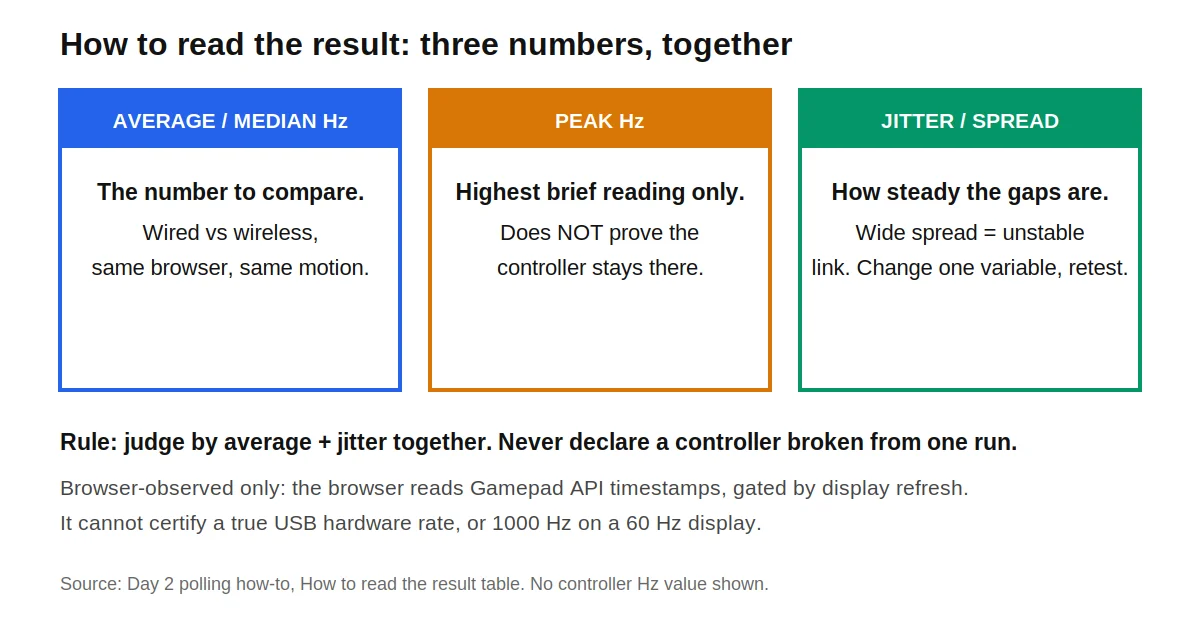
Text version: the “How to read the result” table above is the text version of this visual.
Related Tools
This post supports: Polling Rate Test
- Gamepad Health Check
- Button Test
- Input Lag Test
- Stick Drift Test
- Trigger Test
- Vibration Test
- Stick Deadzone Test
- Polling Rate Test
More in this category
- All Controller Testing Tools articles
- Pillar first: Use our free polling rate test
- Foundation, confirmed live: What polling rate means in Hz
- Related silo: Input Lag Test: if Hz is stable but the game still feels slow, check the full lag chain
- Troubleshooting related: Stick Deadzone Test: if sticks also drift, test drift and deadzone before blaming Hz
- Same category, confirmed live: What Is Controller Stick Drift? Causes, Symptoms, and How to Test It Properly
About the author
Marcus Sterling, Lead Engineer & Founder, MyGpadTester, Austin, Texas, USA
Marcus Sterling is a Certified Hardware Analyst with over 12 years of hands-on experience in gaming peripheral diagnostics. He is professionally certified by iFixit as a Master Tech, and has spent years analyzing Hall Effect sensors to solve the industry’s stick drift crisis. He built MyGpadTester to give every gamer the same pro-level diagnostic tools he uses on his own workbench.
Affiliations: Associate Member of IEEE (Consumer Electronics Society). Specialization: Advanced TMR Magnetic Sensor Calibration & Latency Testing. Former: Lead Tech at Performance Labs TX in Austin. Certifications: ESD Professional & Master Hardware Diagnostic Certified
Tests follow the MyGpadTester methodology: same browser, same connection, wired first, retest before deciding. Results are browser estimates via the W3C Gamepad API, not lab measurements.
- Marcus Sterling author profile
- Follow Marcus Sterling on X (Twitter): https://x.com/marcussterlin
- About MyGpadTester
- How We Test
- Contact
Last updated: 14 November 2026. Browser results are estimates. If you need a certified hardware number, use the maker’s own software or a hardware tester.
Frequently asked questions
How do I check my controller polling rate online? Connect, open the polling rate test, and press a button. Move a stick continuously for 20–30 seconds. Read average Hz and jitter together, not peak Hz alone.
Why does my polling rate change during a test? Bluetooth can throttle idle reports on some devices, firmware, and browsers, scheduling works in bursts, and hubs, interference and low battery add jitter. Move continuously and test wired.
Is my Xbox controller broken if it shows 125Hz? No. Xbox controllers are built around a 125Hz HID report. Judge stability, not the number alone.
Why does my DualSense show 250Hz, not 1000Hz? That is the typical native Windows wired rate, Tier 3, typical. 1000Hz on PC usually needs DS4Windows or HIDUSBF, wired only.
Does a browser test measure true hardware polling rate? No. It measures browser-observed Gamepad API updates, gated by frame rate. Use it to compare connections, not to certify hardware Hz.
What is more important, average Hz or peak Hz? Average or median Hz and jitter. A single peak does not prove the controller stays there; a stable average beats a jittery peak.
Can I overclock my controller polling rate? On PC, wired only, and only for some controllers: DualSense and DualShock 4 via DS4Windows or HIDUSBF. Xbox has no reliable overclock. Bluetooth cannot be reliably overclocked. Full steps belong to a future guide, not this post.
Why does the same controller show a higher number on a high-refresh display? Because the browser reads Gamepad API updates through the page frame loop, gated by frame rate. A 60Hz display gives a new frame about every 16.7 ms, and a 144Hz display about every 6.9 ms (Tier 1 maths: 1000 divided by Hz). The browser-observed rate can therefore sit higher on the faster display for the same controller. Compare wired and wireless on the same display, in the same browser, with the same motion.
Next steps
- If Hz is stable but the game still feels slow, run the Input Lag Test next: polling is only one slice of lag. For the full measurement procedure, see How to Measure Controller Input Lag Online.
- If sticks also drift, run the Stick Drift Test next.
- If Hz is unstable, change one variable and retest before buying anything.
- The stick-drift how-to is now live: How to Test Stick Drift Online
- No affiliate links are included in this post.
Last updated: 14 November 2026. Figures are typical, browser-observed ranges unless labelled as maths (1000 ÷ Hz). No hardware lab numbers are claimed for this guide.