Meta line: Last updated 14 November 2026 | Category: Controller Testing Tools | Reading time: about 12 minutes | Tested with Chrome/Edge, Gamepad API
Your controller does not vibrate, or one side is weaker than the other side. Test controller vibration online free, with no download, and learn whether the motor, the setting, the game or the browser is the cause.
Quick Answer
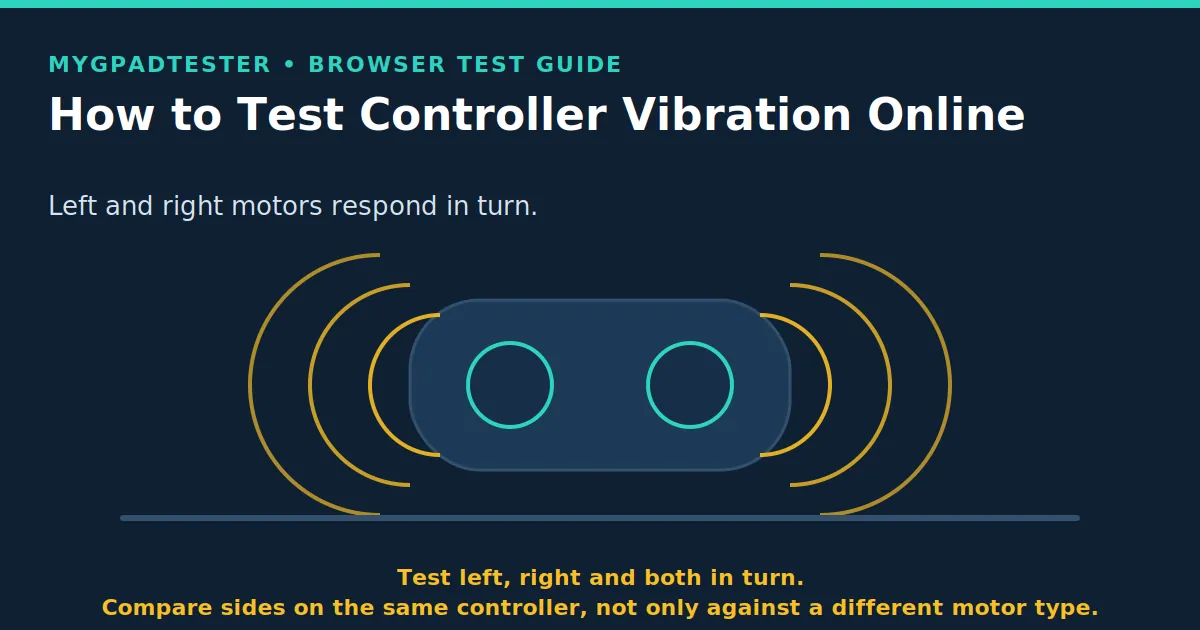
Open the vibration test, connect the controller, and trigger left, right and both motors in turn. If both sides respond evenly, the motors work. If one side is dead or much weaker than the other side, note it, check settings and game support, then retest. A browser test can confirm vibration, but it cannot certify motor strength.
Tool CTA
Test your controller vibration free
No download. No account. Data stays in your browser.
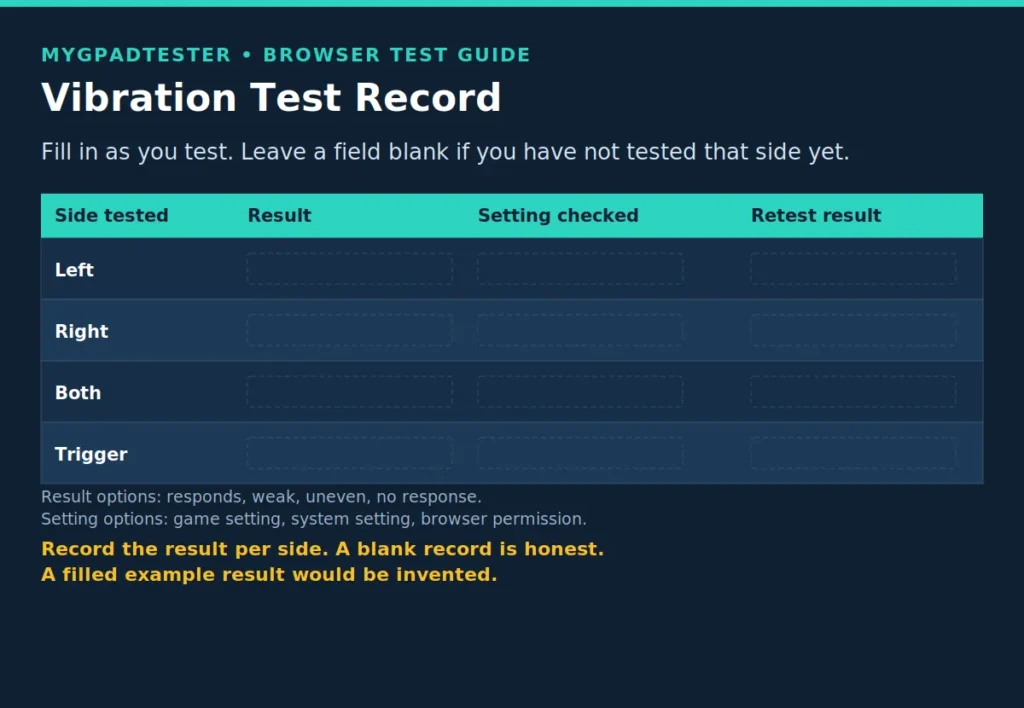
Data Table 1: Vibration test record
Fill this record in as you test. Leave a field blank if you have not tested that side yet. A blank field is honest. A guessed result is not a measurement.
| Side tested | Result | Setting checked | Retest result |
|---|---|---|---|
| Left | |||
| Right | |||
| Both | |||
| Trigger |
Result options for each row: responds, weak, uneven, no response. Setting checked options: game setting, system setting, browser permission. Copy this table into your notes, or use the blank record image below.
What vibration is, and what it is not
Vibration is output, not input. The controller receives a vibration command and its motors move. That is the whole distinction, and it shapes every result in this guide.
A trigger press is input. It sends an axis value when you press the trigger. A vibration command is output. It tells a motor to move. Do not mix the two, because a trigger can read correctly while its vibration fails, and the reverse can also be true.
Xbox impulse triggers are output inside the trigger. They feel like trigger vibration, but they are still output. The trigger area has its own small motors. They respond to a vibration command, not to your press alone.
DualSense adaptive triggers are input resistance, not vibration. The trigger pushes back as you press it. That pushback changes how the press feels. It is not a vibration motor moving, and it is not tested by a vibration test alone.
Most controllers use dual rumble motors. Each motor spins an off centre weight. That spin is what you feel as rumble. Switch HD Rumble uses linear actuators. They move in a straight line and give a finer feel. Xbox impulse triggers add small motors in the triggers. DualSense uses voice coil haptics. They give a finer and wider feel than a plain spinning weight.
Feel differs by motor type. A Switch controller will not feel like a DualSense controller. An Xbox controller will not feel like either of them. That difference alone is not a fault. “Weaker than my other controller” is not proof of a fault on its own.
Compare the same controller over time. Compare left and right on the same controller. Those two comparisons are fair, because the motor type stays the same. A comparison across different motor types is useful for feel only. It is not a fault test.
A browser test can only test what the browser and the device allow it to trigger. Some browsers and some mobile devices limit or block vibration output. iOS and Safari are limited in this area. If no vibration appears, check the browser and device settings before you call the motor dead.
Can a browser test vibration? Partly, not fully. A browser test can confirm that vibration triggers. It can confirm that both sides respond. It cannot certify motor strength against a lab standard. It cannot replace a console or game test where the browser cannot trigger the motor.
Use Chrome or Edge as the reference browsers for this test. Firefox gives basic support. Safari and mobile give limited support. If a result looks odd on Safari or on a phone, retest on desktop Chrome or Edge if you can. That retest tells you whether the limit was the platform or the controller.

| Motor type | Where it sits | What it feels like in plain words | Input or output |
|---|---|---|---|
| Dual rumble ERM motors | Left and right grips in most controllers | A spinning weight feel, broad rumble | Output |
| Switch HD Rumble linear actuators | Inside the Joy-Con and Pro Controller grips | A finer, more precise feel | Output |
| Xbox impulse triggers | Small motors in the triggers | Rumble felt in the trigger area | Output |
| DualSense voice coil haptics | Inside the DualSense grips | A finer and wider feel than a plain spinning weight | Output |
Before you test, the 5 checks that change the result
Five checks change the result, so do them before you judge a motor. A missed check can look like a dead motor. A clean check list gives you a result you can trust.
- Charge the controller, or fit fresh batteries. Low power can weaken vibration. A weak result on a low battery may clear up after a full charge. Test again after charging if the first result was weak on both sides.
- Turn game and system vibration settings on. Check that vibration is not muted in the game. Check the system setting too, because a system mute can override a game setting. A setting left off is the simplest cause of no vibration at all.
- Check browser permission and device support. Some browsers and mobile devices limit vibration output. Check the browser and device settings for vibration permission. If the browser cannot trigger vibration, the tester cannot show a result, and that limit is not a motor fault.
- Close any remapper for the clean test. That includes Steam Input, DS4Windows or similar tools. A remapper can change how inputs and outputs reach the game. Run the clean test first, then re-enable the remapper afterwards if you use one. If the result changes with the remapper on, the remapper is part of the picture.
- Test the same controller over time, and left versus right on the same controller. Do not judge by a different motor type alone. Note the controller, the connection and the browser with each result. That note makes a later comparison fair.
How to test controller vibration online, the test procedure
How to Test Controller Vibration Online
Total Time: 10 minutes
Step 1: Connect the controller and open the test.
Connect the controller, wired first if possible. Open the vibration test. If the controller does not appear, stop here and check the connection. A controller that is not detected has not failed a vibration test yet. It has failed a connection check, and that needs a different fix first.
Step 2: Trigger the left motor alone.
Trigger the left motor alone. Note whether it responds, feels weak, feels uneven or gives no response. Feel for a clear start and a clear stop. If the left motor gives no response, do not judge it yet. Move to the right motor, so you have a comparison on the same controller.
Step 3: Trigger the right motor alone, and compare.
Trigger the right motor alone. Compare it with the left side of the same controller. Note whether the feel is even, or whether one side is clearly weaker. A clear gap between sides on the same controller matters. A small difference in feel may just be how that controller is built, so retest before you call it a fault.
Step 4: Trigger both motors together.
Trigger both motors together. Note whether the feel is even across the controller. A both motors test can hide a weak side, because the strong side can mask it. That is why the single side tests come first. Use this step to confirm the pair works together, not to replace the single side tests.
Step 5: Trigger the trigger motors separately, if supported.
If the tool and the controller support it, trigger the trigger motors separately. Note that trigger input and trigger vibration are different things. A trigger can read its press correctly while its vibration motor fails. If trigger motors are not supported in the browser test, say so plainly in your record. Do not invent a result for a motor the browser test cannot trigger.
Step 6: Repeat after settings, restart or wired connection.
Repeat the test after checking game and system settings. Repeat it after a restart or a wired connection if the first result was borderline. A borderline result is a weak or uneven feel that you are not sure about. A second clean run often settles it. If the second run matches the first, trust the pattern, not a single run.
Step 7: Record controller, connection, browser, side, result, setting and retest.
Record the controller, the connection, the browser, the side, the result, the setting checked and the retest result. Use Data Table 1 above, or the blank record image. That record is the evidence for the next fix post. Without it, a fix post starts from guesswork. With it, the next step is clear.
Test left, right, both and triggers in turn, and record each result. Work in that order, because a side by side comparison is what separates a setting fault from a motor fault.
How to read the result, motor, setting, game or browser
The pattern across sides and games tells you more than one single result. Read the pattern first, then pick the next check. Do not replace or repair a motor on one unrecorded result.
| Result | Likely cause | Next check |
|---|---|---|
| No vibration anywhere | Setting off, game does not support vibration, browser cannot trigger it, dead motor, check in that order | Settings, then a second game, then desktop Chrome or Edge, then the fix post |
| One side only | Motor or wiring on that side | Retest that side wired, then the fix post for that controller |
| Weak on both sides | Low power, intensity setting, game setting, motor wear over time | Charge, settings, then compare with the same controller over time |
| Vibration in one game but not another | Game support and game setting | Check the silent game setting, then test a second game |
| Vibration in the tester but not in a game | Game setting or game support, not the motor | Game setting first, then game support, then a second game |
| No vibration only on mobile or Safari | Browser and platform limit | Retest on desktop Chrome or Edge if possible |
Troubleshooting
Work through this table before you call a motor dead. Fix one thing at a time, then retest. If you change three settings at once, you will not know which one fixed it.
| Problem | Likely cause | Fix, then retest |
|---|---|---|
| Controller does not appear in the test | Connection fault, browser permission, remapper in the way | Connect wired, check permission, close Steam Input, DS4Windows or similar for the clean test, then retest |
| No vibration anywhere | Vibration muted, game has no vibration support, browser cannot trigger it | Turn game and system vibration on, test a second game, retest on desktop Chrome or Edge |
| Left motor only, or right motor only | Motor or wiring fault on the silent side | Retest that side wired, record it, then follow the fix post for that controller |
| Weak on both sides | Low power, low intensity setting, game setting | Charge fully or fit fresh batteries, check intensity and game settings, then retest |
| Vibration in the tester but not in a game | Game setting off, or game does not support vibration | Check that game setting, test a second game, then retest in the tester |
| Vibration in one game but not another | That game setting or that game support | Check the silent game setting first, before you blame the motor |
| No vibration on mobile or Safari only | Browser and platform limit on vibration output | Check browser and device settings, then retest on desktop Chrome or Edge if possible |
| Triggers do not vibrate, but trigger presses read fine | Trigger input works, trigger vibration output does not | Test the trigger axis separately, because trigger input and trigger vibration are different things |
| Vibration feels uneven and changes between runs | Borderline result, low power, loose connection, remapper active | Charge, connect wired, close the remapper for the clean test, then retest and record both runs |
If the remapper changes the result, note that in your record. Re-enable the remapper afterwards if you use one, and test with it on as a second run. The clean run tells you about the controller. The remapper run tells you about your normal setup. Both runs are useful, but only the clean run should judge the motor.
If a result only fails on mobile or Safari, treat it as a platform limit first. A platform limit is not proof of a dead motor. Retest on desktop Chrome or Edge if you can, and compare the two runs side by side before you move to a fix post.
Limitations Box
A browser vibration test confirms that vibration triggers. It does not certify motor strength against a lab standard.
A browser test is partly testable, not fully testable. Some browsers and mobile devices limit or block vibration output, and iOS and Safari are limited in this area. In the browser, vibration runs through the Gamepad API vibration actuator interface, where the page calls playEffect on the controller GamepadHapticActuator and the browser decides what the motors do, which is why a browser test can only trigger standard rumble and cannot reach DualSense haptics or Xbox impulse triggers. Compare the same controller over time, and left versus right on the same controller. Do not judge a motor by a different motor type alone.
Related Tools
- Gamepad Health Checker
- Button Test
- Input Lag Test
- Stick Drift Test
- Trigger Test
- Vibration Test – current pillar, highlighted
- Stick Deadzone Test
- Polling Rate Test
Related Guides
- Vibration Test – pillar tool for this post
- How to Test for Stick Drift Online – a sibling browser test guide in the same silo, covering a different fault
- PS5 DualSense Vibration Not Working Fix, the fix post for PS5 vibration, after this test
- Trigger Test – if the trigger itself does not read correctly, test the trigger axis separately, because trigger input and trigger vibration are different things
Same-silo slots are filled only from confirmed live Controller Testing Tools posts: the pillar Vibration Test first, plus the live stick drift how-to.
About the Author
Marcus Sterling, Lead Engineer and Founder, Austin, Texas, USA
Certified Hardware Analyst with over 12 years hands-on experience in gaming peripheral diagnostics.
Associate Member of IEEE (Consumer Electronics Society); Specialization Advanced TMR Magnetic Sensor Calibration and Latency Testing; Former Lead Tech at Performance Labs TX in Austin; Certifications ESD Professional and Master Hardware Diagnostic Certified, plus iFixit Master Tech.
Testing method note: tests in this guide use the browser Gamepad API. A browser vibration test confirms that vibration triggers. It does not certify motor strength against a lab standard.
Links: Author Profile | About | Testing Methodology | Contact | X
Frequently Asked Questions
How do I test controller vibration online?
Connect the controller, open the vibration test, and trigger the left motor, the right motor and both motors in turn. Record each result, check game and system settings if a side gives no response, then retest. Compare sides on the same controller, not only against a different motor type.
Can a browser fully test vibration?
No. A browser test is partly testable, not fully testable. It can confirm that vibration triggers and that both sides respond. It cannot certify motor strength against a lab standard. It cannot replace a console or game test where the browser cannot trigger the motor.
Is vibration the same as haptics?
No, not in the strict sense used in this guide. Vibration is the broad output feel from a motor moving. Haptics is the wider term for touch feedback, and it includes finer effects such as DualSense voice coil haptics and Switch HD Rumble. All of the motor types in this guide are output. None of them is the same as a trigger press, which is input.
Why does my controller vibrate in one game but not another?
Because game support and game settings differ by game. Check the vibration setting in the silent game first. Test a second game before you blame the motor. If the tester shows both sides working and a second game vibrates, the first game setting or support is the likely cause.
Why is one side weaker than the other?
Because the motor or wiring on that side may be at fault, or because the first result was borderline. Retest that side wired, after a full charge and with settings checked. If the gap stays clear on repeat runs on the same controller, follow the fix post for that controller. Do not judge by a different motor type alone.
Why does my controller not vibrate on mobile?
Because some browsers and mobile devices limit or block vibration output, and iOS and Safari are limited in this area. Check the browser and device settings first. Retest on desktop Chrome or Edge if possible. A mobile only failure points at the platform limit first, not at a dead motor.
What should I do if only the triggers do not vibrate?
Test trigger input and trigger vibration separately, because they are different things. Trigger input is an axis value when you press the trigger. Trigger vibration is output from a small motor in the trigger area. If presses read fine but trigger vibration fails, record both results. If the trigger press itself does not read correctly, test the trigger axis separately.
Why is vibration weak on both sides?
Because low power, an intensity setting, or a game setting can weaken both sides, or the motors may have worn over time. Charge fully or fit fresh batteries, check intensity and game settings, then retest. Compare with the same controller over time before you call it a motor fault.
Next Steps
No affiliate links appear anywhere in this post.
- If vibration fails only on PS5, follow the PS5 vibration fix.
- If adaptive triggers fail on PC, follow the adaptive triggers fix on PC.
- If the trigger axis itself fails, use the Trigger Test.
- If other faults appear, run a full check with the Gamepad Health Checker.