PS4 / PS5 Controller Not Detected in Gamepad Tester? Fix Guide
Your DualSense pairs with the PS5 fine, but the PC tester shows nothing. Or the DualShock 4 blinks once and never appears in the Bluetooth list. The pad is not dead. Sony pairing has two traps that catch most people, and this guide walks past both.
Last updated: 13 November 2026 | Category: Controller Testing Tools | Reading time: about 8 minutes | Tested with Chrome/Edge, Gamepad API

Quick Answer
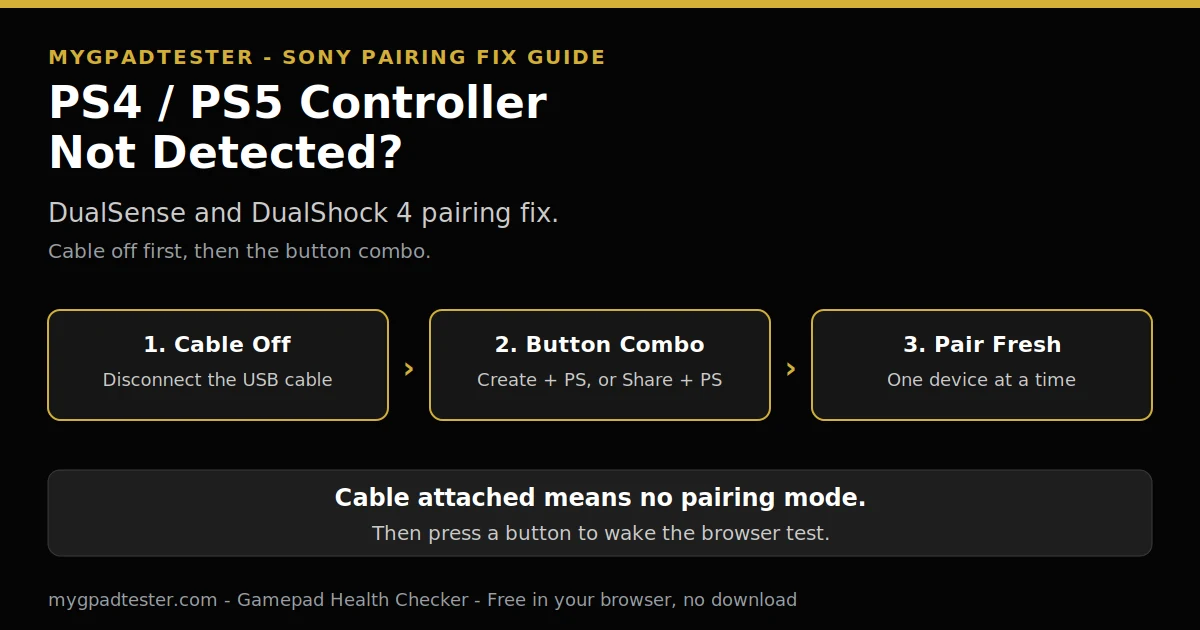
Disconnect the USB cable first, then hold Create plus PS on a DualSense, or Share plus PS on a DualShock 4, until the light bar blinks. Pair it fresh for the PC, because the pad pairs with one device at a time. Then press a button to wake the browser test.
Run the health check free
No download. No account. Data stays in your browser.
Two traps before you start
A DualSense or DualShock 4 pairs like any Bluetooth controller, but two Sony-specific traps catch most people. First, pairing mode will not start while a USB cable is attached. Second, the controller pairs with one device at a time, so a pad that works on the PS5 needs re-pairing for the PC.
The browser layer comes after the Sony steps, because the browser cannot test what the operating system does not see. Once the pad is paired, run the full health check once it is detected to confirm every button and stick answers. The generic browser steps live in the companion guide, linked once in the browser step below.
The Sony fix order
The Sony fix is six steps in order, and you retest after each one, because a fix you cannot measure is a guess.
1. Cable check first: rule out the wire. Plug in with the correct data cable for your pad, USB-C for a DualSense and micro-USB for a DualShock 4, straight into a direct port, no hub. If the pad fails wired too, the fault sits below the Bluetooth layer, so fix the cable before you touch pairing.
A charge-only cable looks identical to a data cable. Swap in one you know carries data. Retest.
2. DualSense pairing mode: cable off, then the combo. Disconnect the USB cable. Make sure the player indicator is off. If it is on, press and hold the PS button until it turns off. While pressing and holding the create button, press and hold the PS button until the light bar blinks. Then enable Bluetooth on the device and select the controller. When pairing is complete, the light bar blinks and then the player indicator lights up. (Tier 2, PlayStation Support.)
The order matters. Cable attached means no pairing mode, however long you hold the buttons. Retest.
3. DualShock 4 pairing mode: Share plus PS. Disconnect the USB cable. Make sure the light bar is off. If it is on, hold the PS button until it turns off. While holding the SHARE button, hold the PS button until the light bar flashes. Then enable Bluetooth and select the controller. It pairs with one device at a time. (Tier 2, PlayStation Support.) Retest.
4. Re-pair trap: one device at a time. If the pad worked on the PS5 or a phone before, pair it fresh for the PC. Up to four pairings can be registered to one DualSense, one slot each, and the controller pairs with only one PS5 console at a time. (Tier 2, PlayStation Support.) A pad that still points at the console will not answer the PC. Retest.
5. Firmware: update through Sony. Controller software updates come with PS5 console updates, or through the PlayStation Accessories app on a Windows PC. (Tier 2, PlayStation Support.) Update and reconnect. Retest.
6. Browser layer: wake the API. Now the browser layer. The browser-layer steps walk the five generic checks, and the first one is the wake. Press any button to wake the Gamepad API. A blank test before any press is normal. If the pad is paired and the tester is still blank, work those steps in order. Retest.
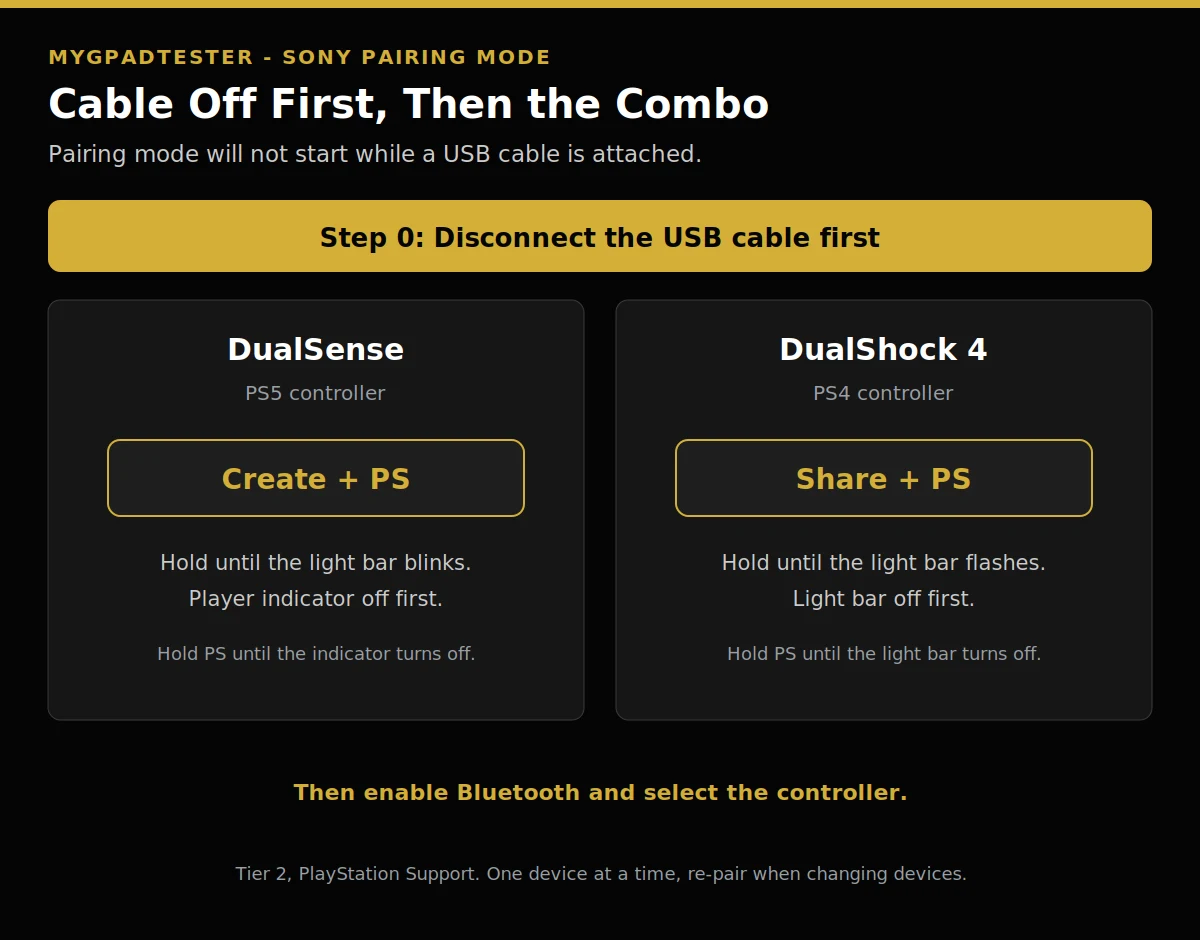
The two button combos, cable disconnected first: DualSense, hold Create plus PS until the light bar blinks. DualShock 4, hold Share plus PS until the light bar flashes.
Sony fork table
The symptom names the Sony step, and the table below gives the first check for each one. It points at the first check, not at a guaranteed fix.
| Symptom | First check | Sony-specific step |
|---|---|---|
| DualSense not in the Bluetooth list | Cable attached? | Disconnect USB, turn the indicator off, hold Create plus PS, retest |
| Light bar will not enter pairing mode | USB still attached | Disconnect the cable first, then start the button combo, retest |
| Paired before, not found now | Wrong device slot | Re-pair fresh for the PC, one device at a time, retest |
| Works on PS5 but not on PC | Console pairing | Re-pair for the PC, the pad points at one device at a time, retest |
| Tester blank after pairing | Browser layer | Press a button to wake the API, then work the generic browser steps, retest |
| Haptics missing on PC | Bluetooth link | Use USB, haptics on PC need a USB connection (Tier 2), retest |
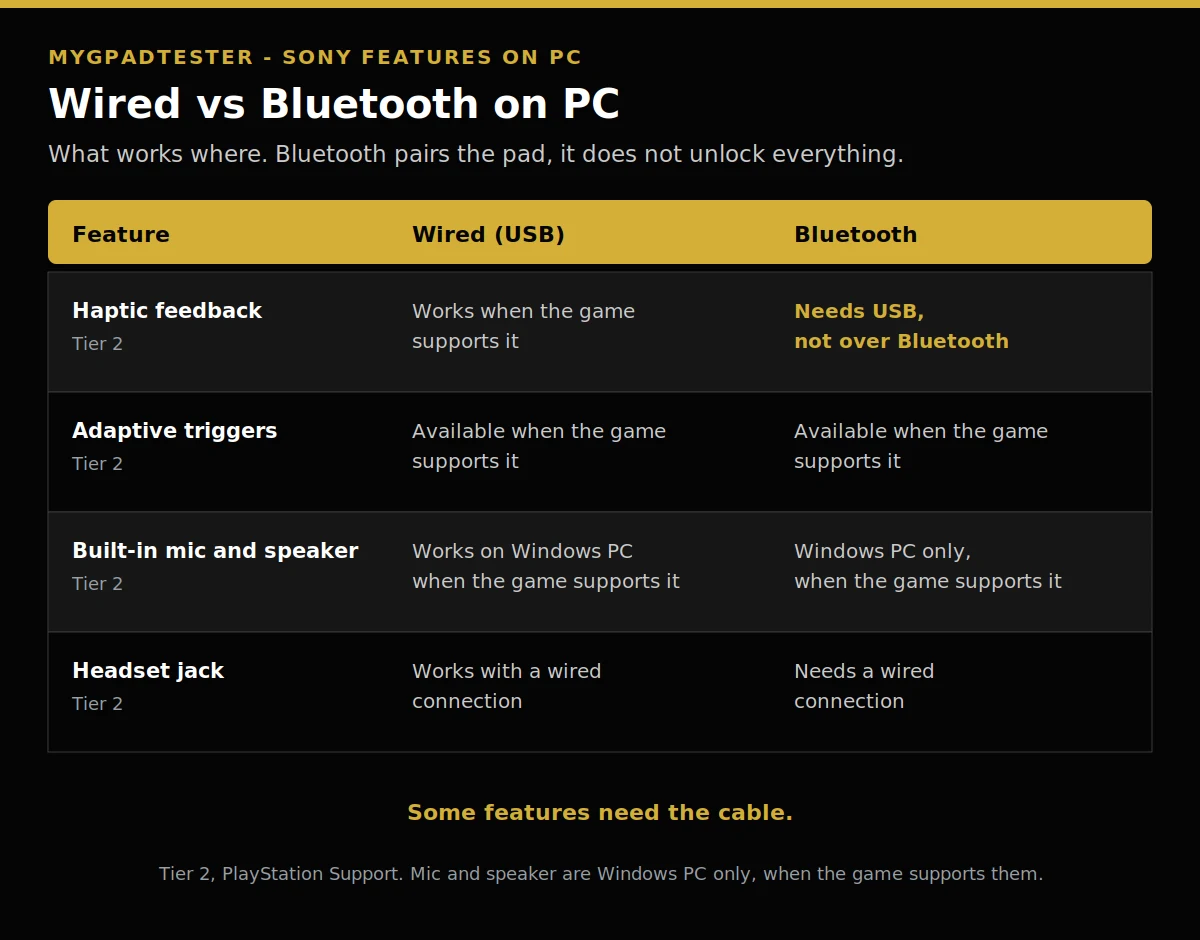
| Feature | Wired (USB) on PC | Bluetooth on PC |
|---|---|---|
| Haptic feedback | Works when the game supports it (Tier 2) | Needs USB, not available over Bluetooth (Tier 2) |
| Adaptive triggers | Available when the game supports it (Tier 2) | Available when the game supports it (Tier 2) |
| Built-in mic and speaker | Works on Windows PC when the game supports it (Tier 2) | Windows PC only, when the game supports it (Tier 2) |
| Headset jack | Works with a wired connection (Tier 2) | Needs a wired connection (Tier 2) |
Troubleshooting: match your symptom
Each symptom below has one first fix, and you change one variable and retest before you decide anything.
Windows shows “Wireless Controller” instead of DualSense. That is the Bluetooth name Sony uses for the pad. The name can vary by system, but a paired pad under that name is working. Press a button and retest in the browser.
The pad pairs, then drops. Re-pair it fresh, check the battery, and test wired as the control run. A wired run that stays steady proves the wireless link is the fault.
The pad works on the PS5 but not on the PC. That is the re-pair trap. The pad still points at the console, so pair it fresh for the PC and retest.
The tester is blank after pairing. The browser layer is the fault, not the pad. Press a button to wake the API, then work the generic browser steps linked in step 6 above.
Limits: what PC cannot do
Haptic feedback on PC requires a USB connection. (Tier 2, PlayStation Support.) The built-in microphone and speaker work on Windows PC only, when the game supports them. (Tier 2, PlayStation Support.) The headset jack needs a wired connection with PC and Mac. (Tier 2, PlayStation Support.) Sony’s own caveat is that there is no guarantee that all devices are compatible with the controller. (Tier 2, PlayStation Support.)
For PC and Mac, the supported systems for DualSense Bluetooth and USB are Windows 10 (64-bit), Windows 11, and macOS Big Sur 11.3 or later. (Tier 2, PlayStation Support.) If it pairs but the triggers feel wrong, the trigger fix guide covers the PC workaround. That post owns the workaround detail, so this guide stops here.
Related Tools
- Polling Rate Test
- Vibration Test
- Trigger Test
- Stick Drift Test
- Stick Deadzone Test
- Button Test
- Input Lag Test
- Gamepad Health Checker (pillar, highlighted)
Related Guides
- Gamepad Not Detected by Browser
- Xbox Controller Not Detected
- DualSense Adaptive Triggers Not Working on PC Fix
- How to Test Controller Vibration Online
About the Author
Marcus Sterling, Lead Engineer and Founder of MyGpadTester, Austin, Texas. Profile: https://mygpadtester.com/marcus-sterling/ X: https://x.com/marcussterlin
Pairing mode has one order: cable off, then the combo. Get that right and the rest is a retest.
Frequently Asked Questions
Why will my DualSense not enter pairing mode?
A USB cable is probably still attached. Disconnect it, turn the indicator off, then hold Create plus PS until the light bar blinks.
Why does Windows show “Wireless Controller” instead of DualSense?
That is the Bluetooth name Sony uses for the pad. The name can vary by system, but a paired pad under that name is working. Press a button and retest in the browser.
It paired but the tester is still blank, now what?
Work the browser layer. Press a button to wake the API, then follow the generic browser steps in the companion guide, linked in step 6 above.
It works on my PS5 but not on my PC, why?
One device at a time. The pad still points at the console, so pair it fresh for the PC.
Do I need DS4Windows to use a DualSense on PC?
No, not for basic input on supported systems. DS4Windows is a remapper, named here as a variable only. Test without it first, then add it only if you need what it offers.
Why is there no haptic feedback on PC over Bluetooth?
Sony’s position is that haptics on PC need a USB connection. (Tier 2, PlayStation Support.) Plug in with USB and retest.
Can I use the DualSense mic, speaker, or headset jack on PC?
The built-in microphone and speaker work on Windows PC only, when the game supports them. The headset jack needs a wired connection with PC and Mac. (Tier 2, PlayStation Support.)
Next Steps
If the pad is paired now, run the health check, linked above, to confirm every button and stick answers. If the tester is still blank after pairing, work the browser-layer steps in the companion guide, also linked above. If the triggers feel wrong once it pairs, the trigger fix guide covers the PC workaround, linked in the limits section.
How to fix a PS4 or PS5 controller not detected
Total Time: 15 minutes
Cable check first: rule out the wire.
Plug in with the correct data cable for your pad, USB-C for a DualSense and micro-USB for a DualShock 4, straight into a direct port, no hub. If the pad fails wired too, the fault sits below the Bluetooth layer, so fix the cable before you touch pairing. Swap in a cable you know carries data. Retest.
DualSense pairing mode: cable off, then the combo.
Disconnect the USB cable. Make sure the player indicator is off. If it is on, press and hold the PS button until it turns off. While pressing and holding the create button, press and hold the PS button until the light bar blinks. Then enable Bluetooth on the device and select the controller. When pairing is complete, the light bar blinks and then the player indicator lights up. Retest.
DualShock 4 pairing mode: Share plus PS.
Disconnect the USB cable. Make sure the light bar is off. If it is on, hold the PS button until it turns off. While holding the SHARE button, hold the PS button until the light bar flashes. Then enable Bluetooth and select the controller. It pairs with one device at a time. Retest.
Re-pair trap: one device at a time.
If the pad worked on the PS5 or a phone before, pair it fresh for the PC. Up to four pairings can be registered to one DualSense, one slot each, and the controller pairs with only one PS5 console at a time. A pad that still points at the console will not answer the PC. Retest.
Firmware: update through Sony.
Controller software updates come with PS5 console updates, or through the PlayStation Accessories app on a Windows PC. Update and reconnect. Retest.
Browser layer: wake the API.
Now the browser layer. The browser-layer steps walk the five generic checks, and the first one is the wake. Press any button to wake the Gamepad API. A blank test before any press is normal. If the pad is paired and the tester is still blank, work those steps in order. Retest.