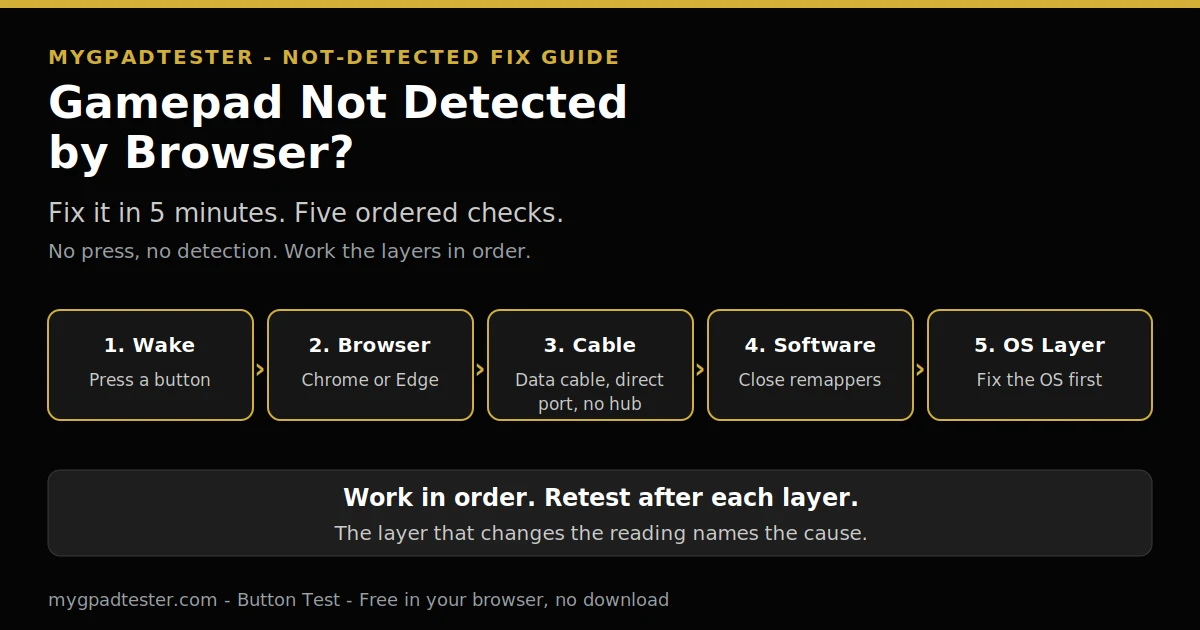
Gamepad Not Detected by Browser? Fix It in 5 Minutes
You plug in the controller, open the tester, and nothing happens. No buttons light up, no stick moves, and the page looks empty. The controller works fine in a game, so the pad itself is not dead. Something between the controller and the browser is in the way, and this guide finds it in five ordered checks.
Last updated: 13 November 2026 | Category: Controller Testing Tools | Reading time: about 8 minutes | Tested with Chrome/Edge, Gamepad API
Quick Answer
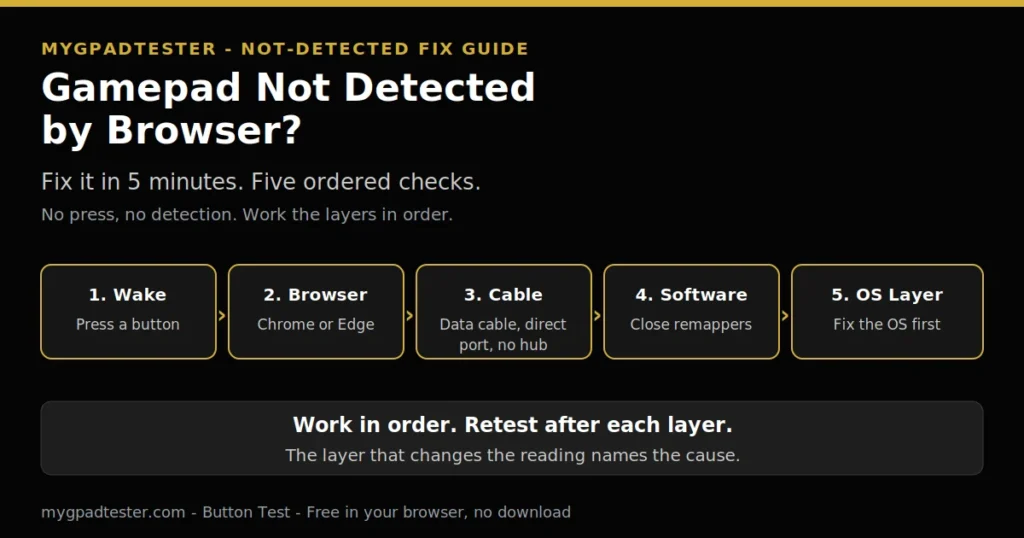
Wake the Gamepad API first by pressing any button on the controller. If the test is still blank, check the browser, then the cable and port, then close any remapper that can hold the pad, then fix the operating system connection. Retest after each layer. The browser cannot test what the operating system does not see.
Test your buttons free
No download. No account. Data stays in your browser.
Why the browser sees nothing
The browser sees controllers through the Gamepad API. The API stays quiet until you press a button, because it needs a user gesture before it exposes the pad. A blank test on page load is normal, not a fault.
The second rule matters more. The browser cannot test what the operating system does not see. Fix the OS connection first, then retest in the browser. If Windows or macOS shows no controller at all, no browser step will fix it. Work the five layers below in order, and retest after each one.
The fix order, layer by layer
The fix is five layers in order, and you retest after each one, because a fix you cannot measure is a guess.
1. Wake the API: press any button. Press any button to wake the Gamepad API. A blank test before any press is normal. Keep the test page focused, click it once if you clicked away, then press a button again. Refresh the page once if it is still blank, then press a button again.
This one step fixes most reports on its own. Press a button in the button test and watch the button light up. If it does, detection works and the rest of this guide is not needed. Retest.
2. Browser layer: use Chrome or Edge first. Chrome and Edge are the reference browsers for testing. Open the same tester in Chrome or Edge and press a button again. Firefox works for basic testing. Safari and mobile are limited, so do not judge a controller by a phone test.
Use the same browser for every retest you compare. A pad that appears in Edge and not in Safari is a browser limit, not a broken pad. Never rank browsers from one test. Retest.
3. Cable and port layer: the cable can lie. A charge-only cable looks identical to a data cable, and it charges the pad while passing no data. Swap in a cable you know carries data. Plug into a direct port on the PC, not a hub. Try another port, and check the connector seats fully.
If the pad works wired but not on Bluetooth, the wireless link is the fault, not the pad. Move to layer 5 and re-pair it. Retest.
4. Software grab layer: close what holds the pad. Steam Input, DS4Windows, and other remappers can hold the controller so the browser never sees it. Close them, close any game client that is running, then restart the browser and retest.
This layer explains the classic symptom: the controller works in a game but not in the browser. The game owns the pad through its own layer, while the browser waits for a free device. Close the grabber and the browser sees it. Retest.
5. OS layer fork: fix the operating system first. If the operating system itself shows no controller, stop browser steps. On Windows, check Bluetooth settings or Device Manager for the pad. On macOS, check Bluetooth settings. Menu names change between versions, so look for the pad by name, not by an exact click path.
Platform specifics live in their own guides. For Xbox-specific steps, the Xbox page covers the Pair button, the Xbox Accessories app, and the Wireless Adapter. For PS4 and PS5 pairing steps, the Sony guide covers DualSense and DualShock 4. The Switch Pro steps live in the Switch guide. Retest.
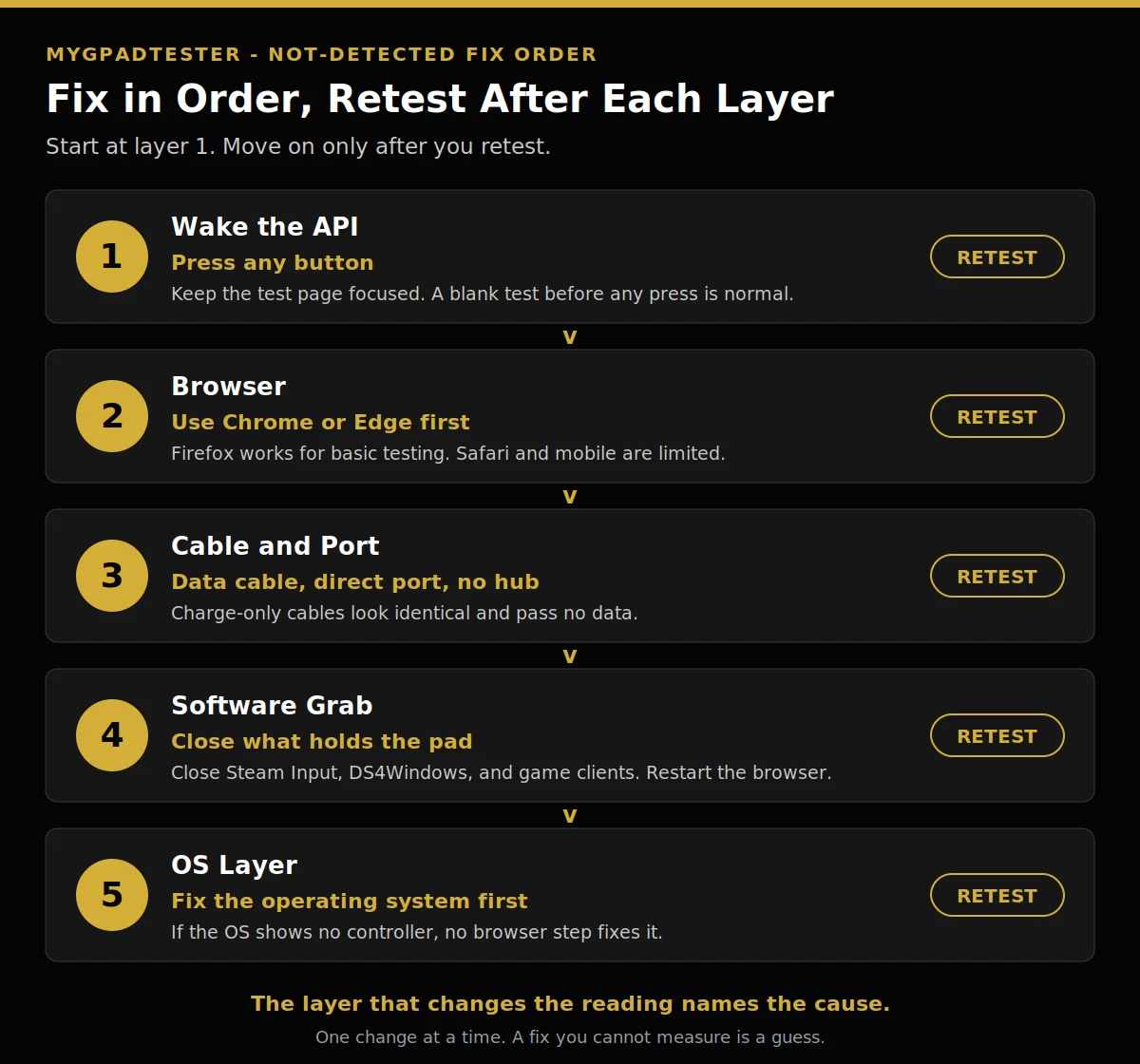
The five layers, in order: 1. Wake the API, press any button. 2. Browser, Chrome or Edge first. 3. Cable and port, data cable and direct port. 4. Software grab, close what holds the pad. 5. OS layer, fix the operating system first.
Symptom to first check
The symptom names the layer, and the table below gives the first check for each one. It points at the first check, not at a guaranteed fix.
| Symptom | Most likely layer | First check action |
|---|---|---|
| Blank test on page load | Wake layer | Press any button, keep the page focused, refresh once, retest |
| Controller visible in OS but not in browser | Software grab layer | Close Steam Input, DS4Windows, and game clients, restart the browser, retest |
| Worked before, stopped now | OS layer | Re-pair Bluetooth, check for OS updates, close newly installed software that grabs controllers, retest |
| Works wired but not on Bluetooth | Bluetooth layer | Re-pair the pad, move the wireless adapter or dongle to a front port, if you use one, retest |
| Works in a game but not in the browser | Software grab layer | Close the remapper or game client that holds the pad, retest |
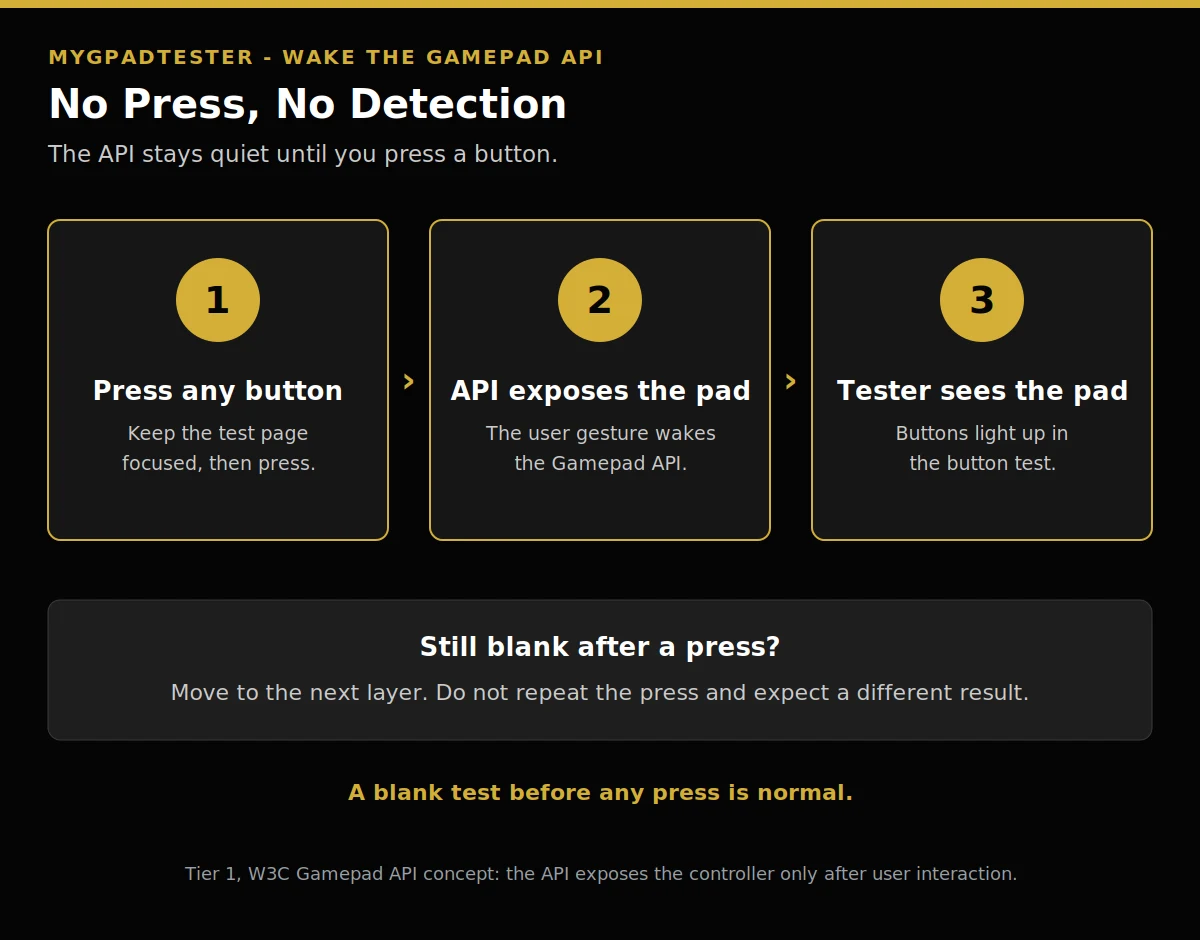
Press any button to wake the Gamepad API. The API exposes the controller only after a user gesture. The tester sees the pad only after the API exposes it. If the test is still blank after a button press, move to the next layer. Do not repeat the press and expect a different result.
Troubleshooting: match your symptom
Each symptom below has one first fix, and you change one variable and retest before you decide anything.
The tester stays blank after a button press. Close Steam Input and DS4Windows first, then try the same tester in Chrome or Edge. A remapper is a likely cause when the pad works in a game but not in the browser.
The pad appears, then vanishes mid-test. Bluetooth can drop the link on some devices, firmware, and browsers. Re-pair the pad, move the wireless adapter or dongle to a front port, if you use one, and test wired as the control run. A wired run that stays steady proves the wireless link is the fault.
The pad appears in Windows but the test shows no buttons. Check Device Manager for a driver warning, then test with Steam Input off and then on. One mode may show the pad consistently. Use the mode that works.
It worked yesterday and stopped today. Re-pair Bluetooth, check for operating system updates, and close any software you installed since it last worked. A new remapper or game client can grab the pad without asking.
Limits
This guide fixes detection, not performance. It does not fix lag, drift, or deadzone. Once the pad is detected, check the polling slice to see if the reading is steady. If other parts of the pad fail too, run the full health check.
Browser tests read through the Gamepad API, so every result here is browser observed. Test in Chrome or Edge, use the same browser for every retest you compare, and keep the pad awake during each run. No step in this guide promises a fix. A layer that changes nothing still rules one cause out.
Related Tools
- Polling Rate Test
- Vibration Test
- Trigger Test
- Stick Drift Test
- Stick Deadzone Test
- Button Test (pillar, highlighted)
- Input Lag Test
- Gamepad Health Checker
Related Guides
- How to Check Controller Polling Rate
- Xbox Controller Not Detected
- PS4 / PS5 Controller Not Detected
- How to Test Controller Vibration Online
- How to Measure Controller Input Lag Online
About the Author
Marcus Sterling, Lead Engineer and Founder of MyGpadTester, Austin, Texas. Profile: https://mygpadtester.com/marcus-sterling/ X: https://x.com/marcussterlin
A blank test is a clue, not a verdict. Work the layers in order, retest after each step, and let the reading name the cause.
Frequently Asked Questions
Why does the tester show nothing until I press a button?
The Gamepad API needs a user gesture before it exposes the controller. A blank test before any press is normal. Press any button, keep the page focused, and the pad appears.
My controller works in games but not in the browser, why?
A remapper or game client is likely holding it. Close Steam Input, DS4Windows, and any running game client, restart the browser, and retest.
Could my cable be the problem if it charges the controller?
Yes. Charge-only cables look identical to data cables. They charge the pad and pass no data. Swap in a cable you know carries data, plug into a direct port, and retest.
Does this work in Safari or on my phone?
Support is limited there. Use Chrome or Edge on a desktop for the real test. A pad that fails on a phone may pass on desktop, so do not judge it by a mobile test.
It worked yesterday and stopped today, what changed?
Re-pair Bluetooth, check for operating system updates, and close any software you installed since it last worked. A new remapper or game client can grab the pad without asking.
Should I reinstall drivers?
Only if the operating system itself does not see the controller. The browser needs the OS layer first, so fix that, then retest in the browser.
My controller shows in Windows but the test shows no buttons, why?
Check Device Manager for a driver warning, then test with Steam Input off and then on. One mode may show the pad consistently. Use the mode that works.
Next Steps
If the pad is detected now, test every button with the button test. If it is an Xbox pad, the Xbox guide covers the platform steps, also linked above. If the pad still does not appear, work the OS fork again and re-pair it before you spend money on a new cable or a new pad.
How to fix a gamepad not detected by browser
Total Time: 5 minutes
Wake the API: press any button.
Press any button to wake the Gamepad API. A blank test before any press is normal. Keep the test page focused, refresh once if it is still blank, then press a button again. Retest.
Browser layer: use Chrome or Edge first.
Open the same tester in Chrome or Edge and press a button again. Firefox works for basic testing. Safari and mobile are limited, so do not judge a controller by a phone test. Use the same browser for every retest you compare. Retest.
Cable and port layer: the cable can lie.
Swap in a cable you know carries data. Plug into a direct port on the PC, not a hub. Try another port, and check the connector seats fully. If the pad works wired but not on Bluetooth, the wireless link is the fault, not the pad. Retest.
Software grab layer: close what holds the pad.
Close Steam Input, DS4Windows, and any game client that is running, then restart the browser and retest. This layer explains the classic symptom: the controller works in a game but not in the browser. Retest.
OS layer fork: fix the operating system first.
If the operating system itself shows no controller, stop browser steps. On Windows, check Bluetooth settings or Device Manager for the pad. On macOS, check Bluetooth settings. Menu names change between versions, so look for the pad by name, not by an exact click path. Retest.