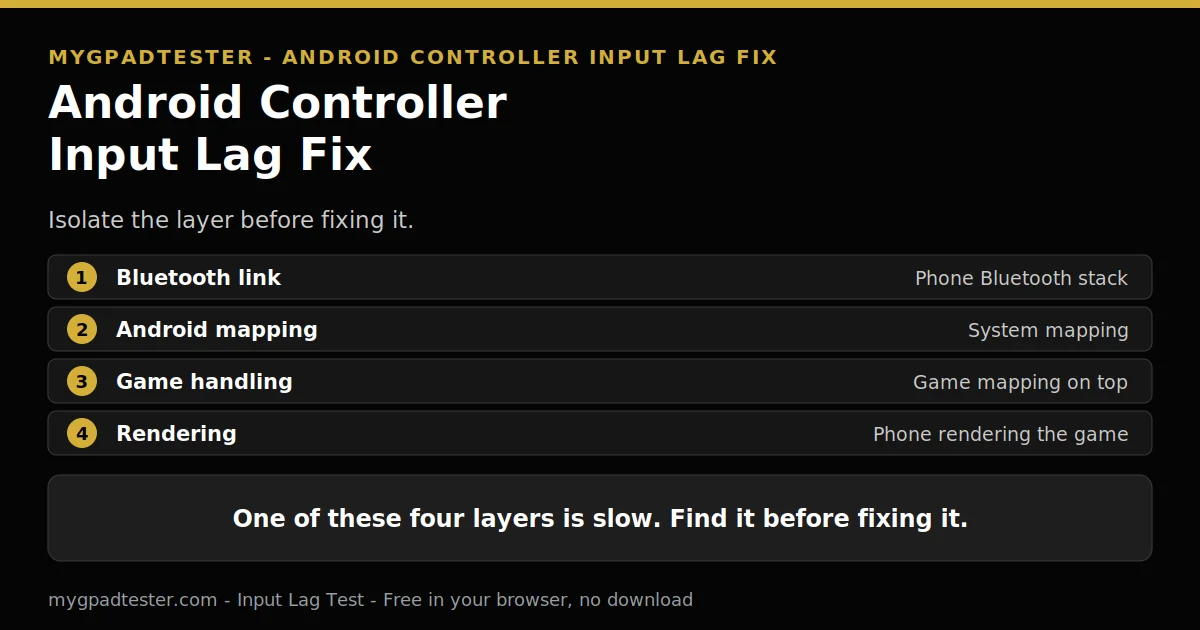
Your controller lags on your Android phone, but not on your PC. It keeps dropping inputs, and in some games the buttons feel wrong. Is the controller broken, or is it the phone? This post isolates the slow layer first, then fixes that layer only.
Last updated: 19 November 2026 | Category: Controller Issues & Fixes | Reading time: about 14 minutes | Mobile browser test: limited Gamepad API support, rough check only
Quick Answer
Android controller lag usually comes from one of four layers: the Bluetooth link, the Android mapping, the game, or the phone rendering the game. Isolate the layer before fixing it. Start with a Bluetooth toggle and a restart, then a wired comparison, and stop as soon as the delay is gone.
No download. No account. Data stays in your browser.
Test the controller first with the Input Lag Test. The browser test measures the controller-to-browser path, and on a phone the browser and the game are separate paths, so the test isolates the controller, not the game. Mobile browsers have limited Gamepad API support, so treat a phone browser test as a rough check, not the reference test.
Why does my controller lag on Android but not on PC?
Your controller lags on Android but not on PC because Android adds layers the PC path does not have: the phone Bluetooth stack, the Android mapping, the game’s own handling, and the phone rendering the game. The controller is usually fine, and one of those layers is slow.
Android reads controllers as HID devices over USB or Bluetooth. HID is the device class for input hardware. The phone reads the controller, Android applies its own mapping, the game applies its own handling on top, and the phone renders the game. A delay in any layer feels like controller lag.
The same pad works on PC, so the hardware is rarely the fault. Name the slow layer before changing settings. The lag chain behind these layers is explained in the lag foundation post, named here in plain text and linked in Related Guides below.
Is it Bluetooth, or is the game running slowly on my phone?
If the controller stays connected but the action arrives late, the Bluetooth link is only one suspect, and a game running slowly on the phone looks exactly the same. Split the two: try a less demanding game or scene, and compare the same controller in a second game before changing Bluetooth settings.
A slow game and a slow link look the same on screen. At 60 Hz a frame lasts 16.7 ms, and at 120 Hz it lasts 8.3 ms. A game that drops frames can feel late without any Bluetooth delay.
If only one game is slow, the game is the suspect. If every game is slow, the link or the phone setup is the suspect. The broken-or-game fork splits a faulty controller from a game problem in more detail.
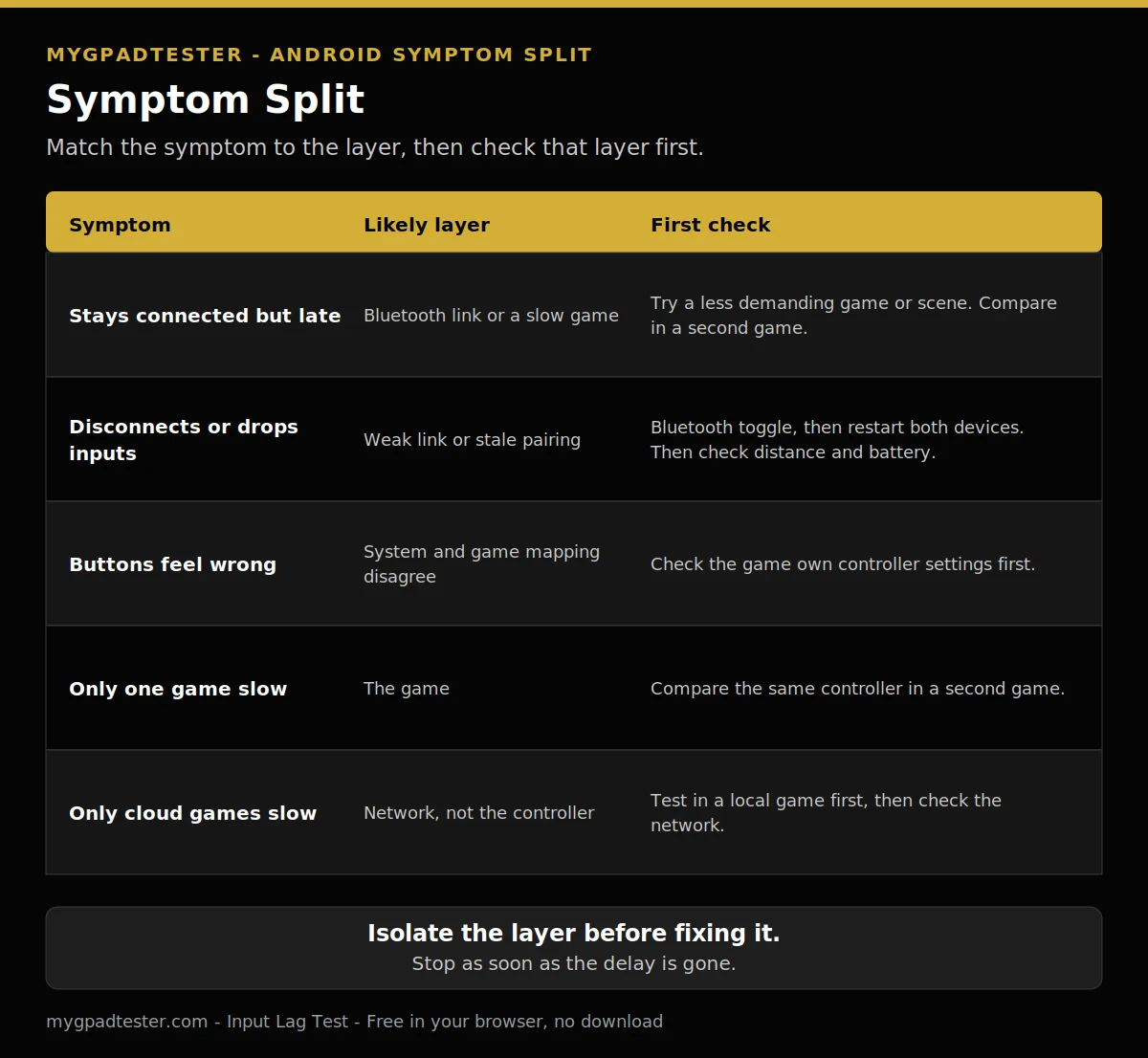
| Symptom | Likely layer | First check |
|---|---|---|
| Stays connected but late | Bluetooth link or a slow game | Try a less demanding game or scene. Compare in a second game. |
| Disconnects or drops inputs | Weak link or stale pairing | Bluetooth toggle, then restart both devices. Then check distance and battery. |
| Buttons feel wrong | System and game mapping disagree | Check the game own controller settings first. |
| Only one game slow | The game | Compare the same controller in a second game. |
| Only cloud games slow | Network, not the controller | Test in a local game first, then check the network. |
Should I use wired USB-C or Bluetooth on Android?
Use wired USB-C as a diagnostic comparison first, because a cable removes the Bluetooth link and tells you whether Bluetooth was the slow layer. For daily play, Bluetooth is more practical, and wired is worth keeping only if the comparison proves Bluetooth is the problem.
Compare wired against Bluetooth on the same phone, same game, and same scene. If wired feels fine and Bluetooth feels slow, Bluetooth is the slow layer. If both feel slow, the slow layer sits elsewhere.
Wired needs a phone that supports USB OTG host mode. Check the phone first; not every phone supports a wired controller. Wired is a test, not a daily setup for most players. Bluetooth stays the practical choice for daily play, once the test has ruled it in or out.
| Connection | What it tests | When to use it | Limit |
|---|---|---|---|
| Wired USB-C | Whether the Bluetooth link is the slow layer | As a diagnostic comparison, on the same phone, game, and scene | Needs USB OTG host mode, and a cable |
| Bluetooth | Daily play on the phone | For daily play, after the comparison | Shares the 2.4 GHz band with Wi-Fi and other devices |
How do I re-pair a controller on Android cleanly?
Re-pair cleanly by putting the controller in pairing mode first, then adding it from Settings, Connected devices, on the phone. Pair again only after a restart and a Bluetooth toggle, because re-pairing first wastes the fix when a restart alone would have cleared the fault.
Restart both devices first. Toggle Bluetooth off and on. Only then forget the controller and pair it again. Open Settings, then Connected devices, then pair a new device. Menu wording varies by phone maker, so look for Connected devices rather than an exact menu name.
The DualSense sequence is the worked example. Disconnect the USB cable first. Make sure the player indicator is off. While pressing and holding the create button, press and hold the PS button until the light bar blinks. Enable Bluetooth on the phone, and select the controller. When pairing is complete, the light bar blinks and then the player indicator lights up. For other pads, follow the maker steps for your pad.
Guides sometimes call an old pairing a stale pairing. That is shorthand for the old pairing itself, not an official term from Android or the maker. Forgetting the old pairing and pairing again clears it. The Bluetooth test procedure is in How to Test a Bluetooth Controller in Browser. First-time setup for a new controller belongs to a future Android setup post, named here in text only until it is published.
My controller disconnects or drops inputs on Android. What do I check first?
If your controller disconnects or drops inputs on Android, check the Bluetooth toggle, a restart of both devices, distance, interference, and battery, in that order, before touching firmware. A weak link or a stale pairing is the first suspect, not a broken controller.
Toggle Bluetooth off and on, then test. Restart both the phone and the controller, then test. Move closer to the phone, and move away from other 2.4 GHz traffic. Charge the controller, and test again. Each step rules out one cause before the next step starts.
Check the firmware last, not first. A firmware check cannot fix a weak link or a crowded band. Where a Bluetooth step overlaps the general fix, the full order is in the Bluetooth Controller Lag Fix post.
Do other Bluetooth devices, Wi-Fi, or headphones make Android lag worse?
Yes, other Bluetooth devices, 2.4 GHz Wi-Fi, and Bluetooth headphones can make Android controller lag worse, because they share the same 2.4 GHz band and the same host radio. Test with one change: disconnect the extra accessory, move Wi-Fi to 5 GHz where possible, and retest.
Bluetooth, 2.4 GHz Wi-Fi, and other 2.4 GHz traffic share the band. Extra Bluetooth accessories share the same host radio as the controller. Disconnecting an extra accessory can steady the link. Moving Wi-Fi to 5 GHz where possible can steady the link too, because 5 GHz sits outside the crowded band.
Test with one change at a time. Disconnect one extra accessory, and retest. Move Wi-Fi to 5 GHz, and retest. Try wired earphones or the phone speakers instead of Bluetooth headphones, and retest. If no change helps, the slow layer sits elsewhere, and the fix order in the last section covers the next steps.
Does Game Mode or Performance Mode reduce controller lag?
Game Mode can help, but it changes what the game does, not the Bluetooth link, so it cannot fix a slow radio connection. Performance mode asks the game for its lowest-latency frame rates at the cost of battery life, and it only works where the device and the game both support it.
The Android Game Mode API lets a game optimise for best performance or longest battery life when the user selects the mode. Performance mode asks for the lowest-latency frame rates in exchange for reduced battery life and fidelity. That cost is real: the game trades battery life and fidelity for lower-latency frame rates. No frame rate gain and no millisecond gain is promised here, because none is verified.
Availability varies. Game Mode is available on select Android 12 devices and Android 13 or higher. Each game may implement the behaviour, propose intervention settings to OEMs, or opt out. Game Dashboard is available on Pixel devices, and other makers provide similar apps.
Battery saver works against Game Mode. Battery saver modes trade frame rate and fidelity for battery life. Turn battery saver off during play as a test step. Then test Game Mode on its own, with one change at a time.
Why do the buttons feel wrong, or why does one game ignore the controller?
Buttons feel wrong on Android when the system mapping and the game mapping disagree, because the game applies its own mapping on top of what Android reports. Check the game’s own controller settings first, and check whether the game supports controllers at all, before remapping anything.
The game then applies its own mapping on top of what Android reports. A controller can work at system level while a game ignores it or maps buttons wrongly. That disagreement is a mapping problem, not a lag problem, and no Bluetooth fix will cure it.
Check the game own controller settings first. Check whether the game supports controllers at all. Some games have no controller support, and no setting will add it. Only then consider remapping, and prefer the game own mapping where the game offers it.
Mapper apps are a caution, not a fix. A mapper app sits between the controller and the game and adds processing, so it can make lag worse rather than better. Prefer native support and the game own mapping where available. No mapper app is recommended in this post.
How do I fix Android controller lag step by step?
Fix Android controller lag in this order: Bluetooth toggle, restart both devices, re-pair, wired comparison, close background apps, Game Mode on, battery saver off, then check for phone and game updates. Check the firmware last, and stop as soon as the delay is gone.
About 20 minutes for the full check sequence. If a phone or game update needs installing, allow extra time. Work in order, one change at a time. Record the result after each step, and stop as soon as the delay is gone.
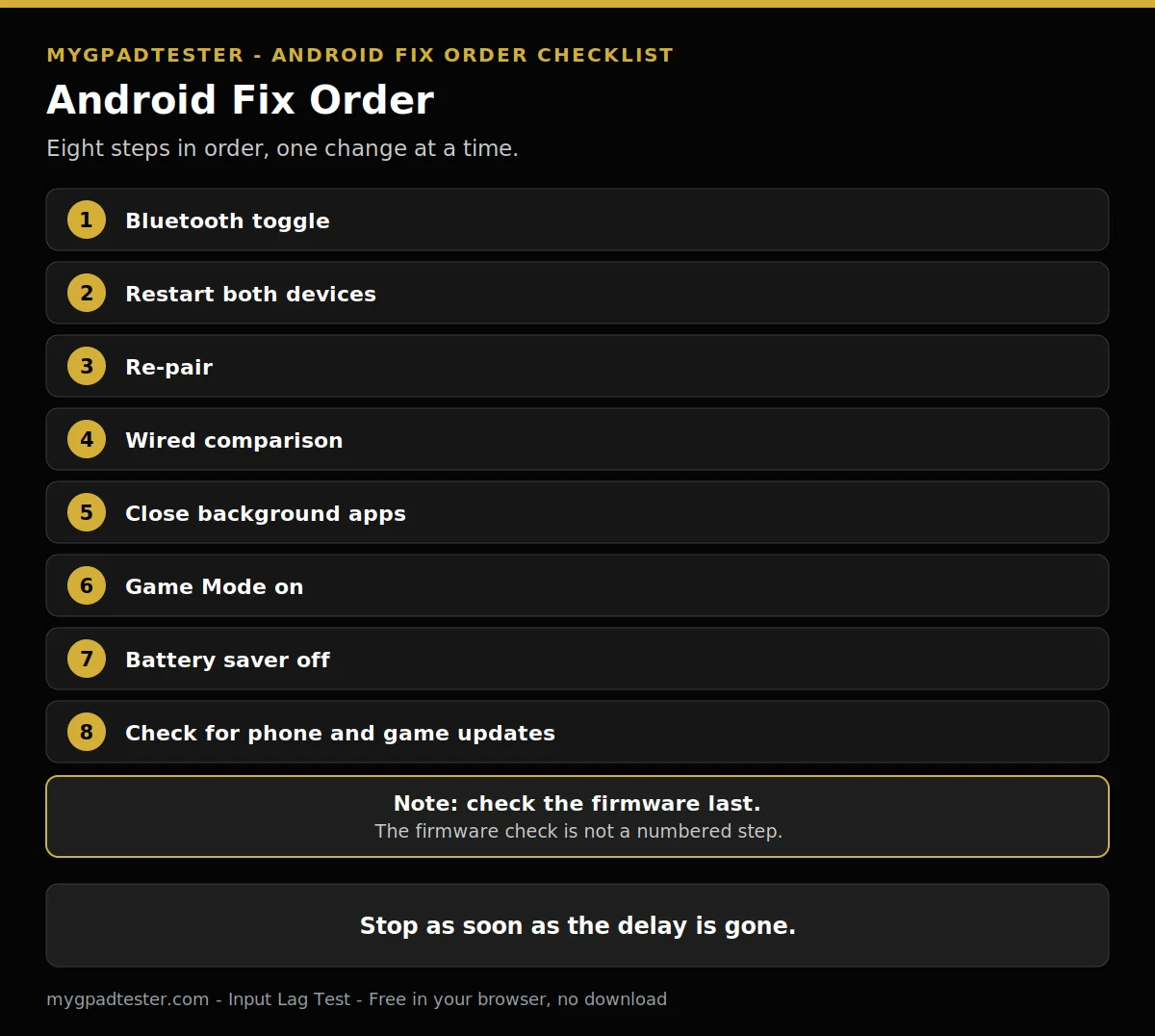
- Bluetooth toggle
- Restart both devices
- Re-pair
- Wired comparison
- Close background apps
- Game Mode on
- Battery saver off
- Check for phone and game updates
How do I fix Android controller lag step by step?
Total Time: 20 minutes
Bluetooth toggle
Restart both devices
Re-pair
Wired comparison
Close background apps
Game Mode on
Battery saver off
Check for phone and game updates
Note: check the firmware last. The firmware check is not a numbered step.
If a second round is needed, the time and the wording change together. Do not skip the toggle and restart steps, because they clear the simplest faults first.
Related Tools
- Input Lag Test (pillar, highlighted)
- Polling Rate Test
- Button Test
- Trigger Test
- Vibration Test
- Stick Drift Test
- Stick Deadzone Test
- Gamepad Health Checker
Related Guides
About the Author
Marcus Sterling, Lead Engineer and Founder of MyGpadTester, Austin, Texas. Profile: https://mygpadtester.com/marcus-sterling/ X: https://x.com/marcussterlin
One slow layer causes most Android lag. Isolate the layer first, then work the fix order one change at a time.
Frequently Asked Questions
Can I test my controller in my phone browser?
As a rough check only. Mobile browsers have limited Gamepad API support, so the browser test on a phone is not the reference test. Chrome on Android is the practical choice where a browser check is used. The browser test isolates the controller, not the game.
My controller lags only in cloud games. Is the controller slow?
No. In cloud games the game runs on a remote server, so the delay is network lag, not controller lag. The controller can be perfect and the game still feel slow. Test the controller in a local game first, then check the network.
Why does my controller work on PC but not on my phone at all?
Re-pair when changing devices. Put the controller in pairing mode, forget it on the phone, and pair it again from Settings, Connected devices, after a restart and a Bluetooth toggle.
Does low phone battery make controller lag worse?
It can, through battery saver. Battery saver trades frame rates, fidelity, and latency for battery life, so the game runs slower and controls feel late. Charge the phone or turn battery saver off, then retest.
Can I use a 2.4 GHz dongle with my Android phone?
Sometimes, where the phone supports USB OTG and the maker supports Android for that receiver. Check the maker notes for your exact controller before buying an adapter.
Which Android version do I need for a DualSense controller?
DualSense supported systems include Android 12. Pairing mode differs by maker, so follow the maker steps for your pad.
Android lag usually comes from one slow layer, not a broken controller. Isolate the layer with the symptom split, then work the fix order one change at a time. Cloud games are the exception: their delay is network lag, not controller lag. Run the browser check again any time on MyGpadTester.
Next Steps
Test the controller with the Input Lag Test, then work the fix order again if the delay returns. Read How to Reduce Controller Input Lag on PC for the PC fix order.