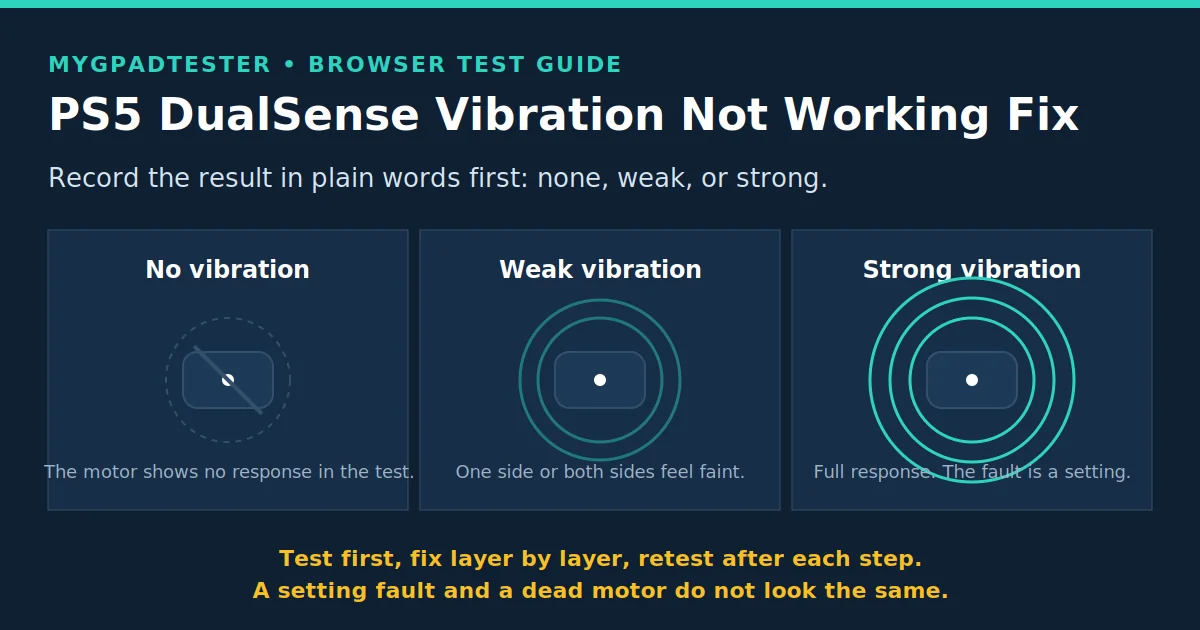
PS5 DualSense Vibration Not Working Fix
Meta line: Last updated 13 November 2026 | Category: Controller Testing Tools | Reading time: about 6 minutes | Tested with Chrome/Edge, Gamepad API
Your PS5 controller vibration stopped working, or your DualSense haptics do not work in game? Test it first, then fix it layer by layer. Fix it in order: test it, check PS5 settings, check the game, check PC and Steam, retest, then decide setting or hardware.
Quick Answer
Test vibration first with the vibration test, then check PS5 settings, then the game setting, then PC and Steam settings in that order. Vibration that works in one game but not another is usually a setting, not a dead motor. Check warranty before you open anything.
Test your DualSense vibration free
No download. No account. Data stays in your browser.
Test first: is vibration really broken?
Do not fix what you have not measured. Run the vibration test before you touch any setting.
Note the result in plain words: strong, weak, or none. Then write down four things with it: the platform (PS5 or PC), the connection (wired or Bluetooth), the game, and the setting state. That record is your before result, and every fix step below is compared against it.
One limit belongs here, not later. A browser vibration test is partly testable by design: it can show a vibration response, but it cannot prove a motor is dead. So a browser result alone never proves a hardware fault. It tells you whether the fault shows up in the browser, and where it does not.
Vibration is output: motors the game drives. A trigger press is input: the axis value your finger creates. They are different systems, so a vibration fault is not a trigger fault. DualSense haptics are voice coil haptics (Tier 2, motor type name only, facts register section 6, no strength number claimed). This post stays on vibration output only.
Fix DualSense vibration in order
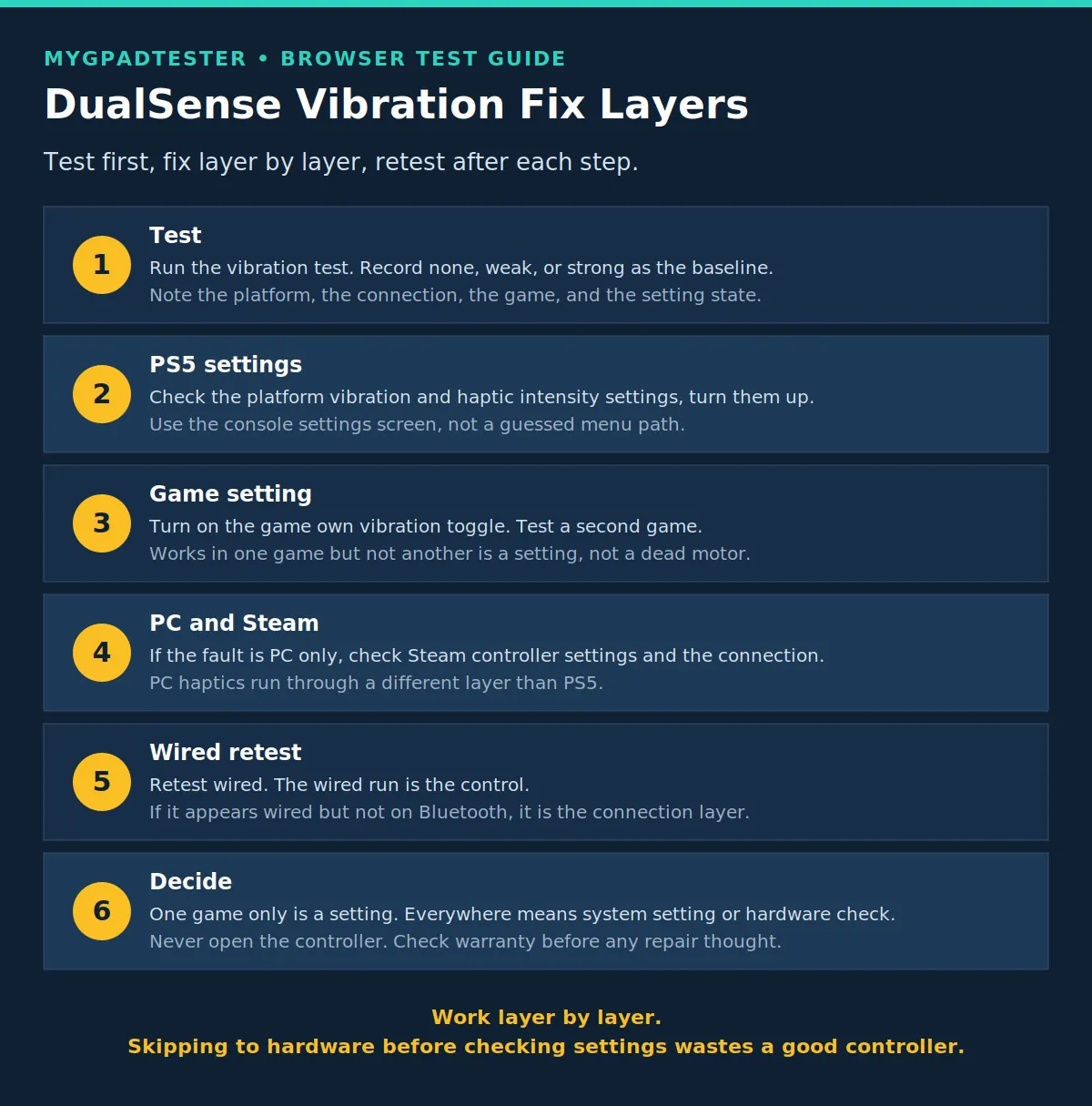
Work from the controller outward: test, PS5, game, PC, retest, then decide. Check the warranty before any repair thought, and never open the controller.
- Test and record the before result. Run the vibration test in Chrome or Edge and note strong, weak, or none. Record the platform, the connection, the game, and the setting state. This is the baseline every later step is compared to.
- Check the PS5 controller settings. Look for the vibration and haptic intensity settings on the console and turn them up. The exact menu path is not verified against Sony PlayStation Support at writing time, so check the platform’s controller settings screen rather than following a guessed path.
- Check the in-game setting and test a second game. Open the game’s own vibration or haptics toggle and turn it on. Then test a second game that is known to use vibration. Vibration that works in one game but not another is a game setting, not a dead motor.
- If the fault is PC only, check Steam and the connection. Check Steam’s controller settings for the DualSense, and check that Windows is not treating the controller as an audio device in a way that breaks haptics. The exact audio path is not verified at writing time, so this is a check, not a confirmed fix path.
- Retest wired. Wireless jitter and connection mode can change a borderline result, so the wired run is the control. If vibration appears wired but not on Bluetooth, the fault is the connection layer.
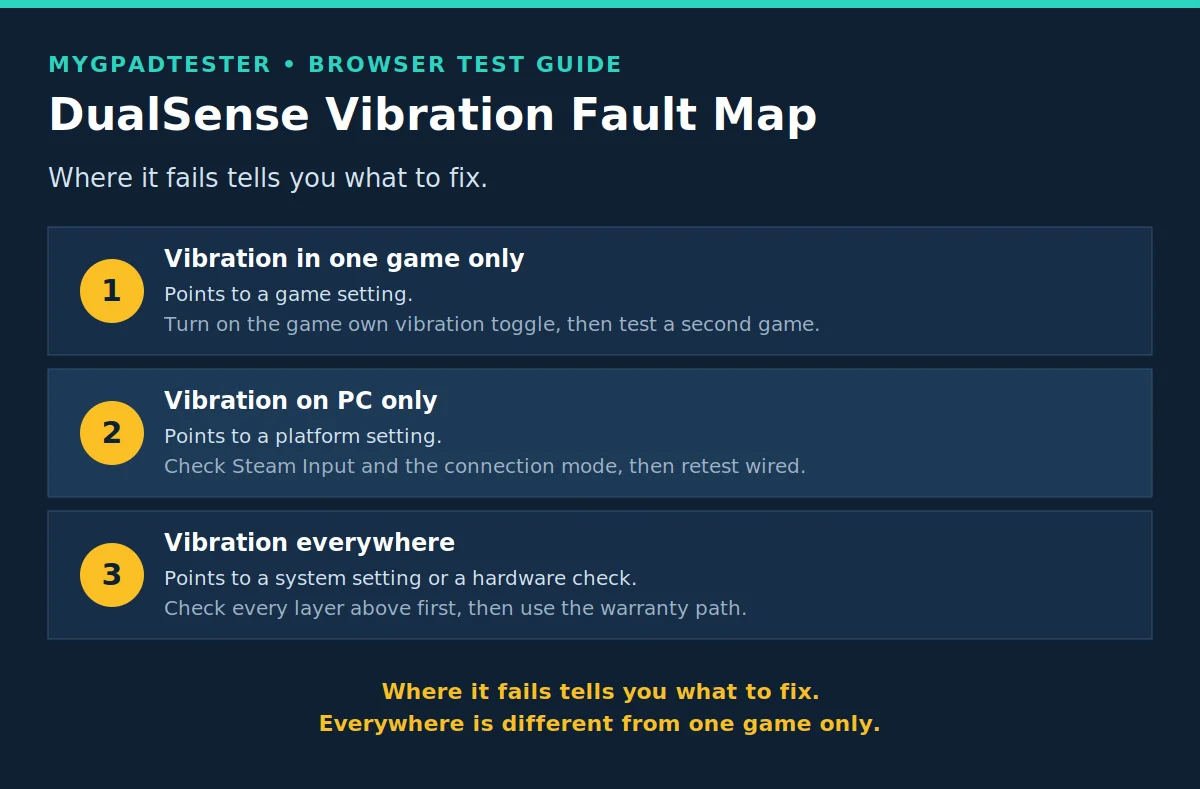
- Decide: setting, game, platform, or hardware. If vibration fails in one game only, it is the game setting. If it fails on PC only, it is the PC layer. If it fails everywhere after every layer above is checked, use the warranty and the maker’s repair path. Do not open the controller.
Browser and platform limits
A browser cannot change PS5 system settings, and it cannot prove a motor is dead. Those two limits shape everything in this post.
Browser vibration testing is partly testable, as the Gamepad API specification shows: a page can request vibration, but what the browser can verify about it is limited. Game settings differ by game, so one game’s toggle proves nothing about another game. PC haptics depend on Steam Input and the connection mode, so a PC result is a PC result, not a PS5 result. One failed browser run never proves a dead motor.
Test in Chrome or Edge, and use the same browser for both runs you compare. Firefox works for basic testing. Safari and mobile are limited for this kind of test.
Troubleshooting: DualSense vibration fault patterns
Where the fault appears tells you which layer to fix. Match your pattern to the row, then retest with one change before you decide.
| Problem | Likely cause | Fix | Retest |
|---|---|---|---|
| Vibration in one game only | Game setting | Turn on the game’s own vibration or haptics toggle, then test a second game that uses vibration | If it works in the second game, it was the game setting |
| Vibration on PS5 but not on PC | PC layer: Steam Input or connection | Check Steam’s controller settings for the DualSense, retest wired | If it appears wired, it is the connection layer |
| Vibration on PC but not on PS5 | PS5 system setting | Check the platform controller settings for vibration and haptic intensity | If it appears after the setting change, it was the system setting |
| Weak vibration everywhere | Intensity turned down | Check intensity on the console and in the game, turn both up | If it is strong after, it was a setting |
| Vibration stops after an update | Setting reset or changed by the update | Re-check PS5 settings, game setting, and Steam settings in order | If it returns, the update reset a toggle |
| Controller not detected for the test | Detection fault, not a vibration fault | Wake the controller, press every button once, retest wired | If it is detected wired, fix the wireless detection separately |
Frequently Asked Questions
Why is my DualSense vibration not working?
Most of the time it is a setting, not a dead motor. Test first, then check PS5 settings, then the game setting, then PC and Steam settings in that order. Vibration that works in one game but not another is a setting.
How do I turn on DualSense vibration on PS5?
Check the platform’s controller settings for the vibration and haptic intensity options, and turn them up. The exact menu path is not verified here, so use the console’s own controller settings screen, then check the game’s own toggle.
Why does my DualSense vibrate on PS5 but not on PC?
Because PC haptics run through a different layer: Steam Input and the connection mode. If it works on PS5, the motor is fine. Check Steam’s controller settings for the DualSense and retest wired. Haptic feedback on PC requires a USB connection (Tier 2, PlayStation Support, facts register section 13).
Why is my DualSense vibration weak?
Weak everywhere usually means an intensity setting is turned down, either on the console or in the game. Check both and turn them up, then retest. Weak on Bluetooth only points to the connection layer, so retest wired.
Can a browser test prove my vibration motor is broken?
No. Browser vibration testing is partly testable by design: it can show a vibration response, but it cannot prove a motor is dead. A failed browser run is a reason to keep testing, not a hardware verdict.
Should I open my DualSense to fix vibration?
No. This post never recommends opening the controller. Settings and testing only. Opening it risks the warranty and the hardware, and a setting fault never needed opening in the first place.
When should I repair or replace my DualSense?
Only after every layer is checked: test, PS5 settings, game setting, PC and Steam, wired retest. If vibration fails everywhere after all of that, use the warranty and the maker’s repair path. If it fails in one place only, it is a setting, not a replacement.
Related Tools
- Polling Rate Test
- Vibration Test (pillar, highlighted)
- Trigger Test
- Stick Drift Test
- Stick Deadzone Test
- Button Test
- Input Lag Test
- Gamepad Health Checker
Related Guides
- How to Check Controller Polling Rate
- What Is Controller Stick Drift?
- How to Test Stick Drift Online
- How to Test Controller Vibration Online
About the Author
Marcus Sterling, Lead Engineer and Founder of MyGpadTester, Austin, Texas.
- Author Profile: Marcus Sterling
- X: X
A tester number is evidence, not a repair certificate. Repeat it, confirm it a second way, and check warranty before opening the controller.
Next Steps
If your DualSense adaptive triggers fail on PC, that problem gets its own PC fix post. If the trigger axis itself fails, the general trigger test post covers it. If other parts fail too, run the full check with the Gamepad Health Checker. If the trigger press itself also fails, test it separately with the Trigger Test, because vibration and trigger input are different systems.