
Bluetooth Controller Lag Fix, Complete Guide
Press a button on Bluetooth and the game answers late? Or the game stutters, then catches up all at once? That is the classic Bluetooth lag pattern, and it is fixable more often than people think. This guide walks the Bluetooth link layer by layer, cheapest check first, with a retest after every step so you know which fix actually helped.
Last updated: 13 November 2026 | Category: Controller Testing Tools | Reading time: about 11 minutes | Tested with Chrome/Edge, Gamepad API
Quick Answer
Fix Bluetooth controller lag by isolating the link first: test the same controller wired. If wired is clean, work through this order: distance, interference, adapter placement, fewer Bluetooth devices, re-pair, power settings, firmware, then a different wireless link. Retest after each step. No fix promises a set millisecond saving.
Test your input lag free
No download. No account. Data stays in your browser.
How Bluetooth lag actually looks
Bluetooth lag rarely shows as a clean, constant delay. It shows as stutter or variable delay: fine for a minute, then a burst of late inputs, then fine again. The Bluetooth link can delay, bunch, or drop reports, which reads as jitter and dropouts on a tester. Bluetooth can also throttle idle reports on some devices, firmware, and browsers (Tier 3, typical, not universal). That is a “can”, never a universal rule. Compare active-play readings only, and keep the pad awake during each run.
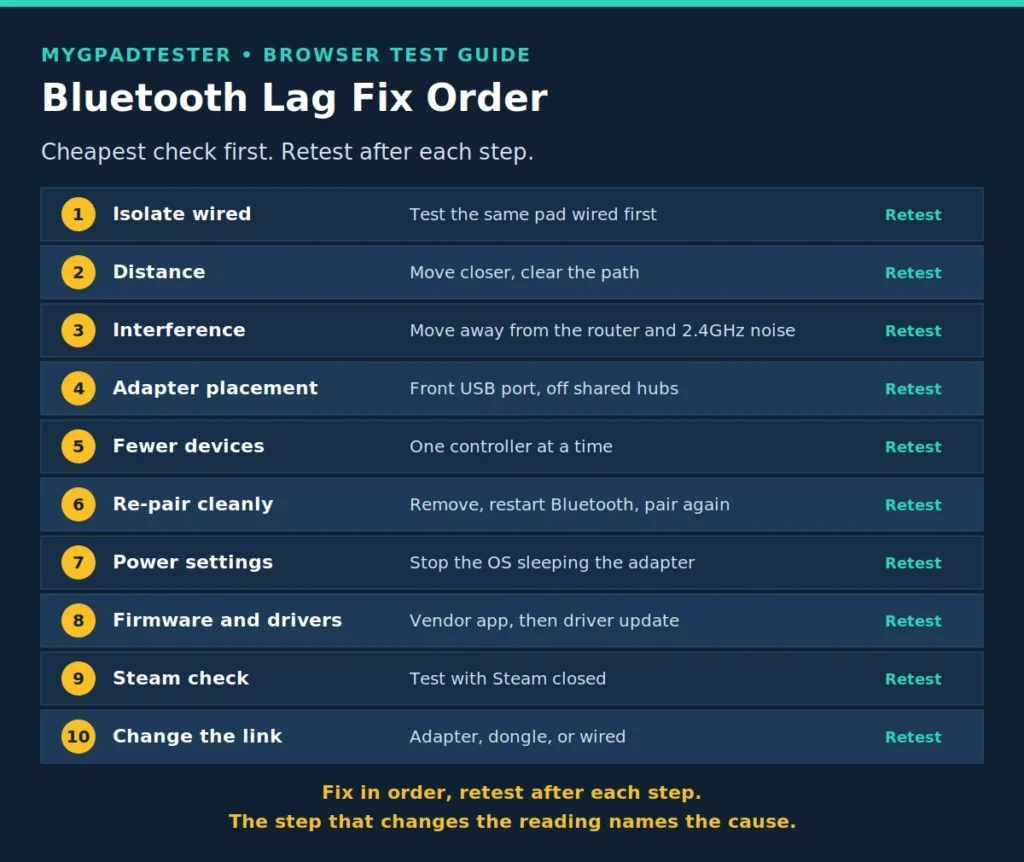
The fix order below goes from the cheapest check, distance and line of sight, to the last resort, a different wireless link. You retest after each step so you know which fix actually helped. The honesty rule for this whole guide: fixes improve stability; no fix promises a guaranteed millisecond saving; describe results qualitatively, steadier, fewer dropouts, cleaner holds.
A rock-steady 500Hz beats a jittery 1000Hz that spikes and drops. A fault is instability (wild jumps, long dropouts, a number far below what your connection type should read), not a normal native rate.
Bluetooth is one link of the 6-link lag chain. This guide fixes only that link. For the rest of the PC chain, connection, polling, OS and software, game and display, use How to Reduce Controller Input Lag on PC, as the next step after this guide.
The fix order, step by step
Work the steps in order. Each one ends with a retest, because a fix you cannot measure is a guess.
1. Isolate first: test the same controller wired. If wired is clean, the Bluetooth link is the slow one, and the steps below are worth your time. If wired lags too, stop here: the fault is not Bluetooth. Use the pair method from retest after each fix, and read your retest numbers with the browser-estimate bands from How to Measure Controller Input Lag Online. Retest.
2. Distance and line of sight. Move closer to the PC and clear the path between the controller and the adapter. Do not play with the controller in your lap under a metal desk. A body and a desk are real obstacles at 2.4GHz. Retest.
3. Interference. Move away from the router, or move the router’s antennas away from the PC. Keep the Bluetooth adapter away from USB 3.0 ports and metal, and unplug nearby 2.4GHz noise sources while testing. Change one source at a time so you learn which one mattered. Retest.
4. Adapter placement. Plug the adapter into a front USB port, not behind the PC case. Do not hang it on a hub shared with busy devices. A short USB extension cable that brings the adapter onto the desk is a cheap, honest upgrade. Retest.
5. Too many Bluetooth devices. Disconnect or switch off what is not in use: headphones, speakers, a second controller. Test with one controller at a time. A crowded Bluetooth neighborhood drops more reports. Retest.
6. Re-pair cleanly. Remove the controller from the PC’s Bluetooth device list, restart Bluetooth, and pair again from scratch. A stale pairing can hold onto bad link settings long after the cause is gone. Retest.
7. Power management. On Windows, check that the Bluetooth adapter is not allowed to be turned off to save power. Find the adapter in Device Manager, open its power management tab, and clear the “allow the computer to turn off this device” option. A sleeping adapter stutters exactly like a bad link. Retest.
8. Firmware and drivers. Update the controller firmware from the vendor’s app, then update the Bluetooth driver, then retest. This is one paragraph, not a driver tutorial: vendor app, driver update, retest. If a firmware update changes nothing, you have ruled firmware out, which is also a result. Retest.
9. Steam Input check. If Steam is running, it can grab the pad as a remapper layer and reshape what the browser and the game see. Test with Steam closed, or check its controller settings. The full Steam layer fix belongs to the Steam lag post, named in text only until live. Retest.
10. Last resort: change the link. If every step above leaves the stutter in place, the Bluetooth link itself is the ceiling. The Xbox Wireless Adapter gives steadier wireless with the same 125Hz HID rate (Tier 3, typical, browser observed), not a Hz upgrade. A 2.4GHz dongle is the other named alternative where the controller supports it, with the full comparison in the dongle post, named in text only until live. Or go wired for competitive play. Retest.
Fix checklist
Use this checklist to track each fix and what a better reading looks like after it. The verify column never promises a number, only a retest and a comparison.
| Fix | What it changes | How to verify |
|---|---|---|
| 1. Wired isolation test | Proves whether Bluetooth is the slow link | Retest wired and compare: clean wired means the link is the fault |
| 2. Distance and line of sight | Removes physical obstacles in the 2.4GHz path | Retest closer with a clear path; a steadier reading confirms it |
| 3. Interference | Removes competing 2.4GHz noise | Retest with one noise source removed at a time |
| 4. Adapter placement | Gets the adapter out from behind metal and off shared hubs | Retest from a front port or desk extension; fewer dropouts confirms it |
| 5. Fewer Bluetooth devices | Frees the Bluetooth neighborhood | Retest with one controller only; a cleaner reading confirms it |
| 6. Clean re-pair | Clears stale pairing and bad link settings | Retest after fresh pairing; compare against the pre-pair reading |
| 7. Power management | Stops the OS sleeping the adapter | Retest after the setting change; stutter that only happened at idle should be gone |
| 8. Firmware and drivers | Rules the software layer in or out | Retest after updates; no change is also a result |
| 9. Steam Input check | Removes the remapper layer from the path | Retest with Steam closed; a different reading names the layer |
| 10. Change the link | Replaces Bluetooth with a steadier wireless or wired link | Retest on the new link; this is the ceiling check |
Reading your retest numbers
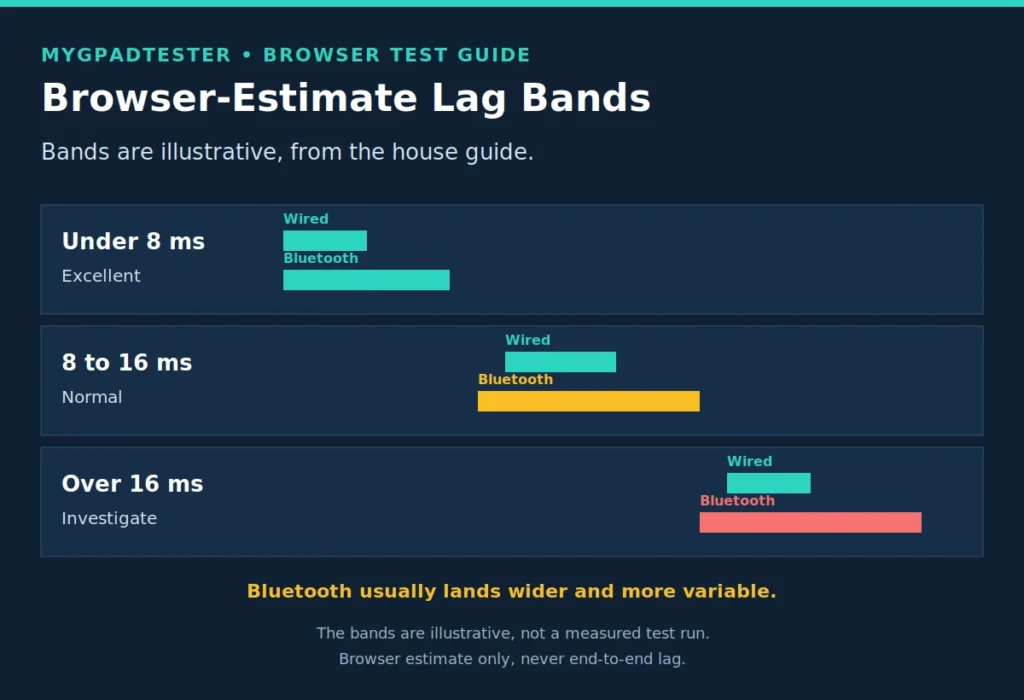
Use the house browser-estimate bands to read each retest. They are a browser estimate guide, never end-to-end lag: under 8 ms is excellent, 8 to 16 ms is normal, over 16 ms means investigate. Compare the band before and after each fix, and watch the spread, not just the average. A fix that moves you from “over 16 and jumpy” to “8 to 16 and steady” worked, even though no step promised you a number.
| Band (browser estimate only) | Meaning | Typical wired reading | Typical Bluetooth reading |
|---|---|---|---|
| Under 8 ms | Excellent | Often lands here, steady | Lands here when the link is clean |
| 8 to 16 ms | Normal | Normal range | Normal range, wider spread |
| Over 16 ms | Investigate | Investigate the chain | Investigate the link first, then the chain |
If the reading jumps while you hold still, check for jitter and dropouts on the polling test before blaming the game.
Troubleshooting: match your symptom
Match your symptom to the fix that fits it. The checklist above is the reference; this section maps symptoms to steps.
Stutter that changes with distance or with devices nearby is interference until proven otherwise. Work steps 2 through 5 and watch the reading settle. Stutter that ignores distance, placement, and re-pairing is either the adapter, the firmware, or the link ceiling: steps 7, 8, then 10.
Disconnects are a different symptom from lag. A controller that fully drops and reconnects points at pairing, power management, or a dying battery before it points at interference. Work steps 6 and 7 first for drops.
Lag that appears only in cloud games is not the controller. The slow link is the network, and the cloud lag post covers that separately, named in text only until live. Lag on Android goes to the Android lag post, also text only. Do not chase Bluetooth fixes for a network problem.
Limits
This guide fixes the Bluetooth link only. It does not fix game-side frame pacing, display lag, or network lag, and it never promises a millisecond saving. Every result is qualitative: steadier, fewer dropouts, cleaner holds. If a step changes nothing, that is information, not failure: it rules one layer out.
Browser tests read through the Gamepad API, so every number here is browser observed. Test in Chrome or Edge, use the same browser for every retest you compare, and keep the pad awake during each run.
Related Tools
- Polling Rate Test
- Vibration Test
- Trigger Test
- Stick Drift Test
- Stick Deadzone Test
- Button Test
- Input Lag Test (pillar, highlighted)
- Gamepad Health Checker
Related Guides
- What Is Controller Input Lag?
- How to Check Controller Polling Rate
- How to Measure Controller Input Lag Online
About the Author
Marcus Sterling, Lead Engineer and Founder of MyGpadTester, Austin, Texas. Profile: https://mygpadtester.com/marcus-sterling/ X: https://x.com/marcussterlin
A tester number is evidence, not a verdict. Fix in order, retest after each step, and let the reading name the cause.
Frequently Asked Questions
Why does my controller lag only on Bluetooth?
Because the wireless link adds variable delay. It bunches and drops reports, which reads as stutter, while wired reports arrive on a fixed schedule. The wired isolation test in step 1 proves whether the link is the cause.
Why does my Bluetooth controller lag only when the pad sits still?
It can be idle throttling. Bluetooth can throttle idle reports on some devices, firmware, and browsers (Tier 3, typical, not universal). Keep the pad awake during each test run and compare active-play readings only. If active-play readings still stutter, work the fix order in this guide.
How do I know if it is interference?
Interference stutter changes with distance and with nearby devices. Move closer, move away from the router, and clear 2.4GHz noise one source at a time. If the reading steadies after one change, that source was the interferer.
Will a Bluetooth 5.x adapter fix it?
It can steady the link, but it does not change the controller’s native HID rate, and no Bluetooth version number promises a fixed millisecond saving. Treat an adapter as a stability upgrade, then retest and judge the reading.
Should I just use wired for competitive games?
Yes. That is the honest answer for competitive play: wired is the steadiest link and the control run for every comparison. Bluetooth is fine for casual play when stable.
Does the Xbox Wireless Adapter remove lag?
It gives steadier wireless, not faster wireless. The 125Hz HID rate stays the same (Tier 3, typical, browser observed). It is worth it if your Bluetooth link is the unstable part, not if you expect a Hz increase.
Why does it lag only in cloud games?
Then the slow link is the network, not the controller. Bluetooth fixes will not touch it. The cloud lag separation post covers that case, named here in text only until live.
I tried everything and it still stutters, what now?
Change the link: a 2.4GHz dongle where the controller supports it, the Xbox Wireless Adapter, or wired. If the lag sits in the whole PC chain and not only the Bluetooth link, How to Reduce Controller Input Lag on PC, takes it from here. The dongle comparison post is still named in text only until live. If other parts of the pad fail too, run Gamepad Health Checker before you spend money.
Next Steps
If you have not read the USB vs Bluetooth comparison, it explains what the wireless link changes. If the lag is in your whole PC chain rather than the Bluetooth link, How to Reduce Controller Input Lag on PC, is the next step. If the pad fails other tests too: if other parts also fail.
Fix Bluetooth controller lag step by step: isolate the link wired first, then work through distance, interference, adapter placement, fewer devices, re-pair, power settings, firmware, and a different wireless link, retesting after each step.
Total Time: 15 minutes
Isolate first: test the same controller wired
If wired is clean, the Bluetooth link is the slow one, and the steps below are worth your time. If wired lags too, stop here: the fault is not Bluetooth. Use the pair method from the how-to guide, and read your retest numbers with the browser-estimate bands from How to Measure Controller Input Lag Online. Retest.
Distance and line of sight
Move closer to the PC and clear the path between the controller and the adapter. Do not play with the controller in your lap under a metal desk. A body and a desk are real obstacles at 2.4GHz. Retest.
Interference
Move away from the router, or move the router’s antennas away from the PC. Keep the Bluetooth adapter away from USB 3.0 ports and metal, and unplug nearby 2.4GHz noise sources while testing. Change one source at a time so you learn which one mattered. Retest.
Adapter placement
Plug the adapter into a front USB port, not behind the PC case. Do not hang it on a hub shared with busy devices. A short USB extension cable that brings the adapter onto the desk is a cheap, honest upgrade. Retest.
Too many Bluetooth devices
Disconnect or switch off what is not in use: headphones, speakers, a second controller. Test with one controller at a time. A crowded Bluetooth neighborhood drops more reports. Retest.
Re-pair cleanly
Remove the controller from the PC’s Bluetooth device list, restart Bluetooth, and pair again from scratch. A stale pairing can hold onto bad link settings long after the cause is gone. Retest.
Power management
On Windows, check that the Bluetooth adapter is not allowed to be turned off to save power. Find the adapter in Device Manager, open its power management tab, and clear the “allow the computer to turn off this device” option. A sleeping adapter stutters exactly like a bad link. Retest.
Firmware and drivers
Update the controller firmware from the vendor’s app, then update the Bluetooth driver, then retest. This is one paragraph, not a driver tutorial: vendor app, driver update, retest. If a firmware update changes nothing, you have ruled firmware out, which is also a result. Retest.
Steam Input check
If Steam is running, it can grab the pad as a remapper layer and reshape what the browser and the game see. Test with Steam closed, or check its controller settings. The full Steam layer fix belongs to the Steam lag post, named in text only until live. Retest.
Last resort: change the link
If every step above leaves the stutter in place, the Bluetooth link itself is the ceiling. The Xbox Wireless Adapter gives steadier wireless with the same 125Hz HID rate (Tier 3, typical, browser observed), not a Hz upgrade. A 2.4GHz dongle is the other named alternative where the controller supports it, with the full comparison in the dongle post, named in text only until live. Or go wired for competitive play. Retest.