Switch Pro Controller Not Detected? Fix Guide
Your Pro Controller pairs with the Switch fine, but the PC tester shows nothing? Or it worked yesterday and today the tester stays blank? The pad is probably fine. Nintendo pairs its controllers its own way, and one missed step leaves the tester with nothing to read.
Last updated: 13 November 2026 | Category: Controller Testing Tools | Reading time: about 8 minutes | Tested with Chrome/Edge, Gamepad API

Quick Answer
Fix a Switch Pro Controller that is not detected by resetting it first, then re-pairing it on the device you actually want to use. Press the SYNC Button once, then press any other button to power it on again. Re-pair on Switch or PC, test wired as a baseline, then check Steam Input. Retest after each step.
Press a button in the button test
No download. No account. Data stays in your browser.
The Nintendo difference: one controller, one device
A Switch Pro Controller pairs like any Bluetooth controller, but Nintendo has its own first step and its own traps. Nintendo’s own first step is the SYNC reset. The controller pairs with one device at a time, so a pad that works on the Switch needs re-pairing for the PC. It does not switch devices on its own.
Press any button to wake the Gamepad API. A blank test before any press is normal. The browser cannot test what the operating system does not see. Fix the OS connection first, then retest in the browser.
The browser layer that follows this post is covered in the browser-layer steps, the generic not-detected guide. This post does not repeat those five browser layers. It covers the Nintendo steps only.
Fix it the Nintendo way: five steps in order
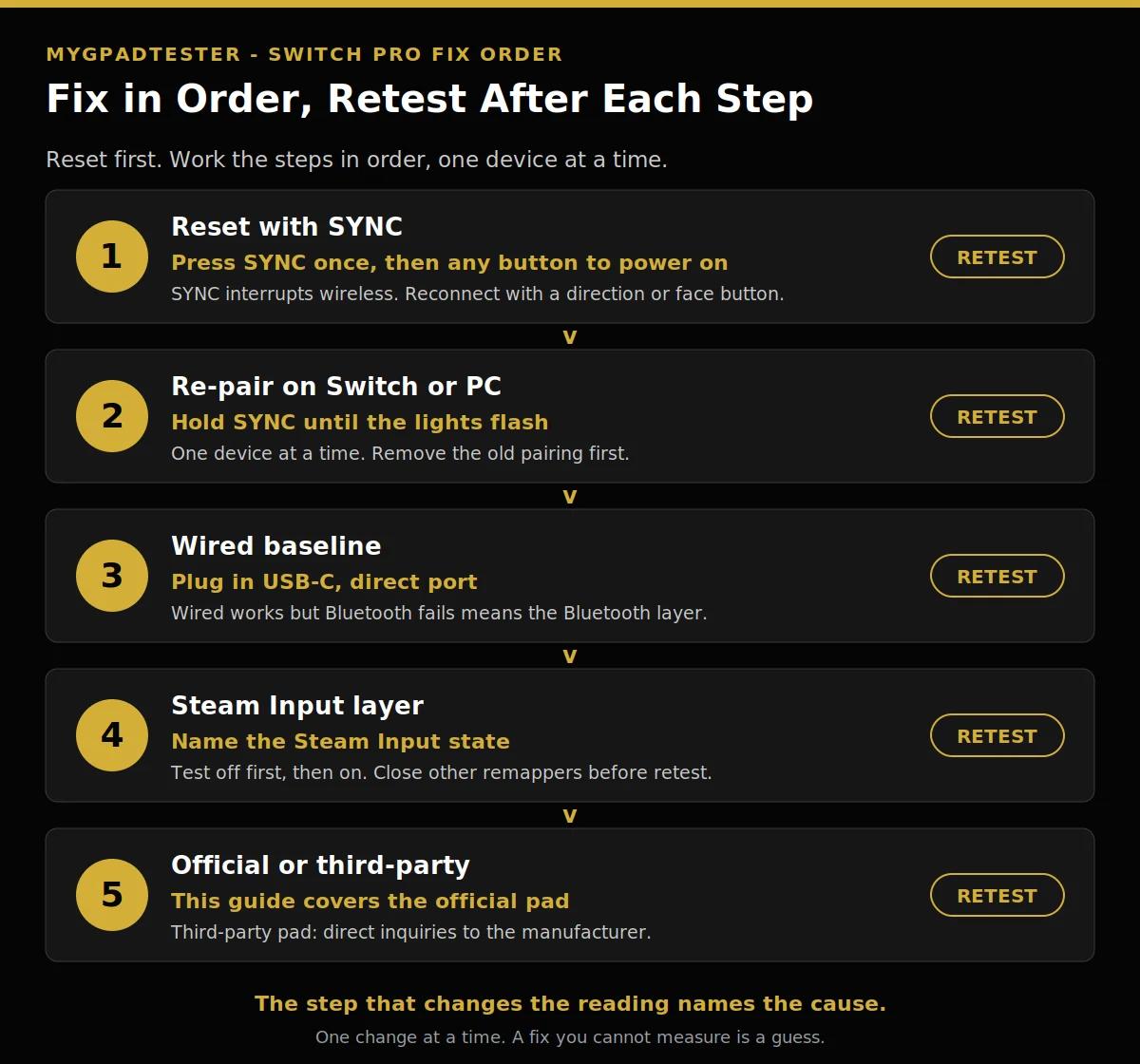
Five Nintendo steps fix most detection failures, in this order. Work the steps in order. Each one ends with a retest, because a fix you cannot measure is a guess.
1. Reset first with SYNC. Press the SYNC Button once, then press any other button on the controller to power it on again. This is Nintendo’s own first step (Tier 2, Nintendo Support). Then press a button in the button test and check whether the pad appears.
One warning from Nintendo Support itself: pressing the SYNC Button interrupts the controller’s wireless communication with the console; reconnect by pressing one of the directional or A/B/X/Y Buttons (Tier 2, Nintendo Support). So if you press SYNC and the pad drops, that is expected. Press a direction or a face button to reconnect, then retest. Retest.
2. Re-pair on the target device. On Switch, go to Controllers then Change Grip/Order, hold SYNC until the lights flash, and let the console find the pad. On PC, hold the small SYNC button next to the USB-C port until the lights flash, then add the device from the PC Bluetooth settings (Tier 3 typical).
Windows lists it as “Pro Controller”, sometimes as a generic Input device, so do not panic at the name. If two entries appear, match by pairing time and pick the one that appeared when you pressed SYNC (Tier 3 typical). If the pad is still paired to the Switch, remove that pairing first, because one device at a time means the old pairing wins. Retest.
3. Wired baseline: plug it in. Plug a USB-C cable into a direct port and try another port if nothing appears. The PC installs it in the background as Pro Controller or generic HID (Tier 3 typical). Wired working but Bluetooth failing means the Bluetooth layer, not the controller. Wired failing too means the problem sits lower, cable, port, or driver, and the wireless steps will not help until that is fixed. Retest.
4. PC software layer: name the Steam Input state. Steam offers Switch Pro Configuration Support in its controller settings, giving native mapping, rumble, and motion in Steam games. Without Steam, Windows sees the pad as a DirectInput controller, so games expecting XInput may not pick it up unless Steam Input is running (Tier 2 vendor concept, Valve).
Test in two states, in order. First with Steam Input off, then with it on, and note which state the tester sees. Close DS4Windows and other clients before retesting, because a second remapper in the path can grab the pad and hide it from the browser. Retest.
5. Honesty fork: official pad or third-party pad. This post covers the official Pro Controller. When using a third-party controller, rather than one made by Nintendo, direct inquiries to the manufacturer (Tier 2, Nintendo Support). Third-party Switch controllers vary, and their pairing steps are the manufacturer’s, not Nintendo’s.
Joy-Con is a separate entity with its own sync button location. This post does not teach Joy-Con pairing. If your Joy-Con will not pair, see the Joy-Con row in the table below, then check Nintendo’s own Joy-Con steps. Retest.
Which symptom points where
Each symptom points at one layer to check first. Use this table when you know the symptom but not the layer. It points at the first check, not at a guaranteed fix. For the Xbox version of this problem, see Xbox detection fixes.
| Symptom | Most likely layer | First check action |
|---|---|---|
| Not in the PC Bluetooth list | Re-pair layer | Hold SYNC until the lights flash, add from PC Bluetooth settings, retest |
| Paired before, not found now | Reset layer | Press SYNC once, then press any other button to power it on, retest |
| Works on Switch but not on PC | One device layer | Remove the Switch pairing, re-pair for the PC, retest |
| Works wired but not Bluetooth | Bluetooth layer | Re-pair over Bluetooth, check the wireless environment, retest |
| Pairs but buttons do nothing in game | Steam Input layer | Enable Switch Pro Configuration Support in Steam, or test with Steam Input off, retest |
| Prompts do not match buttons | Layout layer | Check the layout note below, this is a layout difference, not a fault, retest |
| Official pad vs third-party pad | Honesty layer | For a third-party pad, direct inquiries to the manufacturer, retest with the official steps only if it is an official pad |
| Joy-Con will not pair | Separate entity | Joy-Con has its own sync button location, check Nintendo’s Joy-Con steps, retest |
Troubleshooting: the Nintendo wireless sequence
If the five steps did not fix it, work Nintendo’s own wireless sequence in order (Tier 2, Nintendo Support): check pairing first, then press the SYNC Button several times, then restart the console, then change the wireless environment, then remove unofficial covers. Change one thing, then retest.
The wireless environment matters more than it sounds. Microwaves, cordless phones, and metal shelving can crowd the signal between the console and the controller. Move the console away from metal, turn off a nearby appliance for a test, and take off any cover that is not officially licensed by Nintendo.
Then check the remap layer. Check if any buttons have been remapped; a wrench icon beside the controller on the console screen marks remapped buttons (Tier 2, Nintendo Support). A remap does not stop detection, but it changes what a press does, so a pad that pairs yet behaves oddly may be remapped, not broken. On PC this forks to the remap layer in the button fix guide.
One layout note, never a fault: Nintendo’s A/B and X/Y positions are swapped relative to the Xbox layout, so on-screen prompts may not match the physical buttons (Tier 3 typical). If the pad is detected and the buttons work but the prompts look wrong, that is the layout difference, not a detection failure.
If the pad pairs on Switch but never on PC, go back to step 4 and check the Steam Input state again, then step 3 and test wired. If it never pairs anywhere, not on Switch, not on PC, not wired, that points at the pad itself or its battery, and the next step is Nintendo support, not another settings change.
If detection works now, run the full health check before you spend money on a replacement. Run the full health check to see every component in one place.
Limits: what this guide does not cover
This guide covers the official Nintendo Switch Pro Controller only. It does not cover Joy-Con pairing in depth, third-party Switch controllers, or Switch 2 Bluetooth support on PC beyond what Nintendo states. The Switch 2 Pro Controller article is used here only for the reset wording Nintendo itself publishes.
No step promises a fix. A pad that never appears anywhere, wired or wireless, after the full sequence may need repair or replacement, and this guide cannot tell you which. Browser tests read through the Gamepad API, so every result here is browser observed. Test in Chrome or Edge, use the same browser for every retest you compare, and keep the pad awake during each run.
| Connection or layer | What the pad can do | What to watch |
|---|---|---|
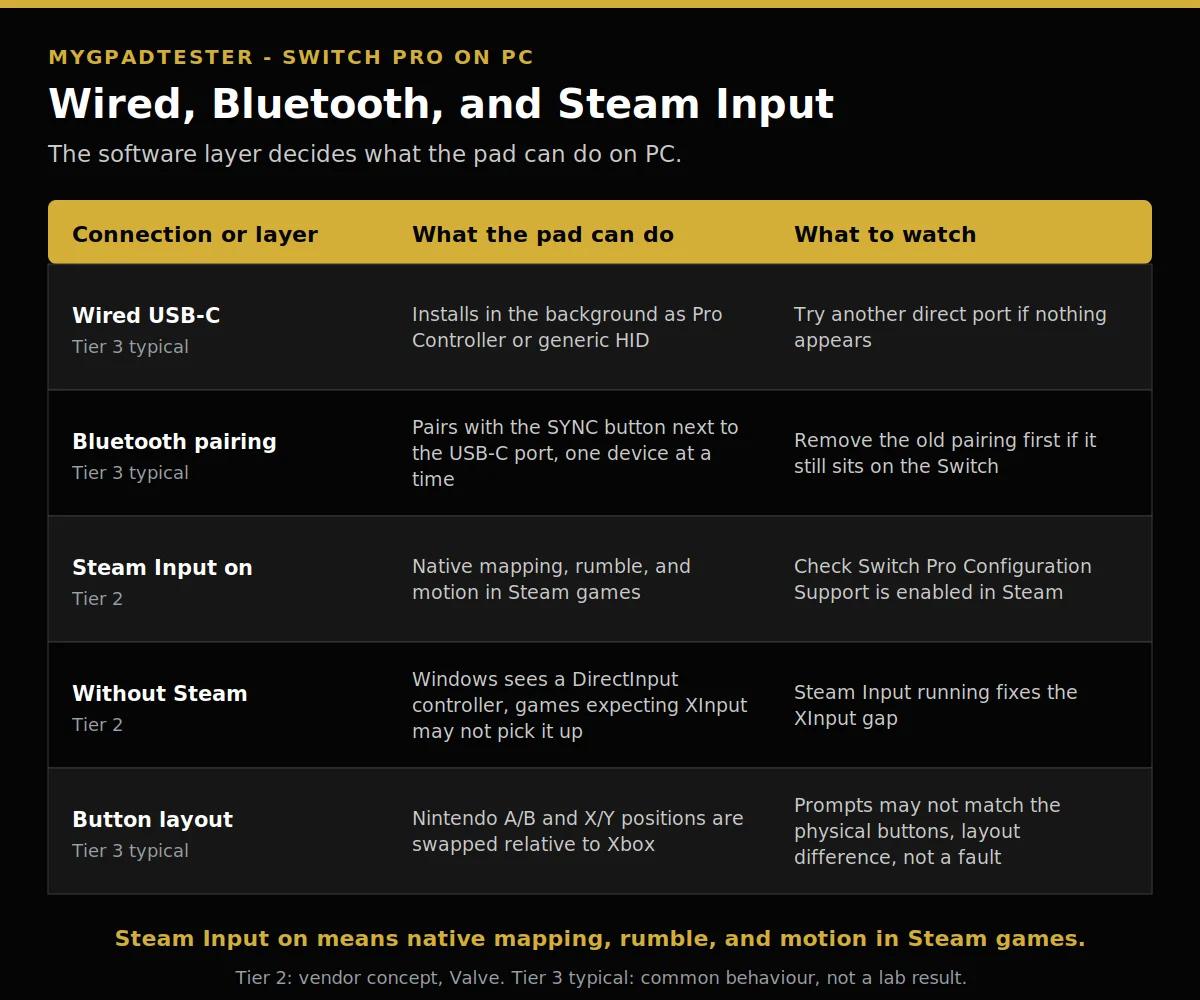
| Wired USB-C | Installs in the background as Pro Controller or generic HID (Tier 3 typical) | Try another direct port if nothing appears |
| Bluetooth pairing | Pairs with the SYNC button next to the USB-C port, one device at a time (Tier 3 typical) | Remove the old pairing first if it still sits on the Switch |
| Steam Input on | Native mapping, rumble, and motion in Steam games (Tier 2 vendor concept) | Check Switch Pro Configuration Support is enabled in Steam |
| Without Steam | Windows sees a DirectInput controller, games expecting XInput may not pick it up (Tier 2 vendor concept) | Steam Input running fixes the XInput gap |
| Button layout | Nintendo A/B and X/Y positions are swapped relative to Xbox (Tier 3 typical) | Prompts may not match the physical buttons, layout difference, not a fault |
Related Tools
- Polling Rate Test
- Vibration Test
- Trigger Test
- Stick Drift Test
- Stick Deadzone Test
- Button Test (pillar, highlighted)
- Input Lag Test
- Gamepad Health Checker
Related Guides
- Xbox Controller Not Detected? Fix for PC, Steam and Browser
- Gamepad Not Detected by Browser, the generic browser-layer guide.
- PS4 and PS5 controller not detected, the Sony platform guide.
About the Author
Marcus Sterling, Lead Engineer and Founder of MyGpadTester, Austin, Texas. Profile: https://mygpadtester.com/marcus-sterling/ X: https://x.com/marcussterlin
A tester number is evidence, not a verdict. Fix in order, retest after each step, and let the reading name the cause.
Frequently Asked Questions
Why will my Switch Pro Controller not enter pairing mode?
Hold the small SYNC button next to the USB-C port until the lights flash. If it is paired to the Switch, reset or remove the old pairing first, because the pad pairs with one device at a time.
Why did pressing SYNC drop my controller?
Pressing the SYNC Button interrupts the controller’s wireless communication with the console. Reconnect by pressing one of the directional or A/B/X/Y Buttons. (Tier 2, Nintendo Support.)
Why does Windows show a generic Input device instead of Pro Controller?
Windows sometimes lists it as a generic Input device instead of Pro Controller (Tier 3 typical). Match by pairing time if two entries appear, and pick the one that appeared when you pressed SYNC.
It pairs but the buttons do nothing in my game, why?
That is the Steam Input layer. Enable Switch Pro Configuration Support in Steam, or the game may expect XInput while Windows sees the pad as DirectInput without Steam running (Tier 2 vendor concept).
It works on my Switch but not on my PC, why?
One device at a time. A pad that works on the Switch needs re-pairing for the PC. Remove the Switch pairing, hold SYNC until the lights flash, and add it from the PC Bluetooth settings.
Why do the on-screen prompts not match my buttons?
That is a layout difference, not a fault. Nintendo’s A/B and X/Y positions are swapped relative to the Xbox layout, so on-screen prompts may not match the physical buttons (Tier 3 typical).
Should I buy a third-party Switch controller instead?
Third-party pads vary, and Nintendo directs third-party inquiries to the manufacturer (Tier 2, Nintendo Support). This guide covers the official Pro Controller only.
Next Steps
If the pad is detected now, press a button in the button test and check every button once. If the whole controller is still blank in the browser, the browser-layer steps in the generic not-detected guide are the next stop, linked above. If other parts of the pad fail too: if other parts also fail.
How to fix a Switch Pro Controller not detected
Total Time: 15 minutes
Reset first with SYNC.
Press the SYNC Button once, then press any other button on the controller to power it on again. Retest.
Re-pair on the target device.
On Switch, go to Controllers then Change Grip/Order and hold SYNC until the lights flash. On PC, hold the small SYNC button next to the USB-C port until the lights flash, then add the device from the PC Bluetooth settings. Retest.
Wired baseline: plug it in.
Plug a USB-C cable into a direct port and try another port if nothing appears. Retest.
PC software layer: name the Steam Input state.
Test with Steam Input off, then with it on, and note which state the tester sees. Close DS4Windows and other clients before retesting. Retest.
Honesty fork: official pad or third-party pad.
This post covers the official Pro Controller. When using a third-party controller, direct inquiries to the manufacturer. Retest.