How to Test All Controller Buttons Online
One button feels dead and you cannot tell which one it is? Or a button works in one game and not in another, and you need proof before you blame the hardware? Test every button once, in order, and let the readings name the fault.
Last updated: 14 November 2026 | Category: Controller Testing Tools | Reading time: about 9 minutes | Tested with Chrome/Edge, Gamepad API

Quick Answer
Test all controller buttons online by opening the button test, pressing any button to wake the test, then pressing each button once slowly in order: face buttons, bumpers and stick clicks, D-pad, then menu buttons. Record what each press reports. A button that never flips, stays stuck, or registers twice names its own fault category.
No download. No account. Data stays in your browser.
A button is a testable entity
A button is a testable entity. The Gamepad API reports gamepad.buttons as an array; each button reports pressed (true or false) and value (0.0 to 1.0). A standard layout maps face buttons, bumpers, triggers, select/start, stick clicks, and the D-pad to fixed indexes; controller layouts vary, so the tester shows which index lights up for each physical press (Tier 1, W3C Gamepad API concept). Press and note which index lights up. Do not guess the index from memory.
A blank test before any press is normal, because pressing a button is the Gamepad API wake interaction (Tier 1). Press any button to wake the Gamepad API. A blank test before any press is normal.
The limits matter before you start. The browser sees what the operating system sees, and some menu buttons are swallowed by the platform before the page sees them. A button the browser never sees is not automatically a dead button. It may be a platform capture, and this post teaches you how to tell the difference.
The W3C Gamepad API is the authority for how the browser reads buttons. Everything below follows what the API reports, not what a game shows.
Six steps, every button once
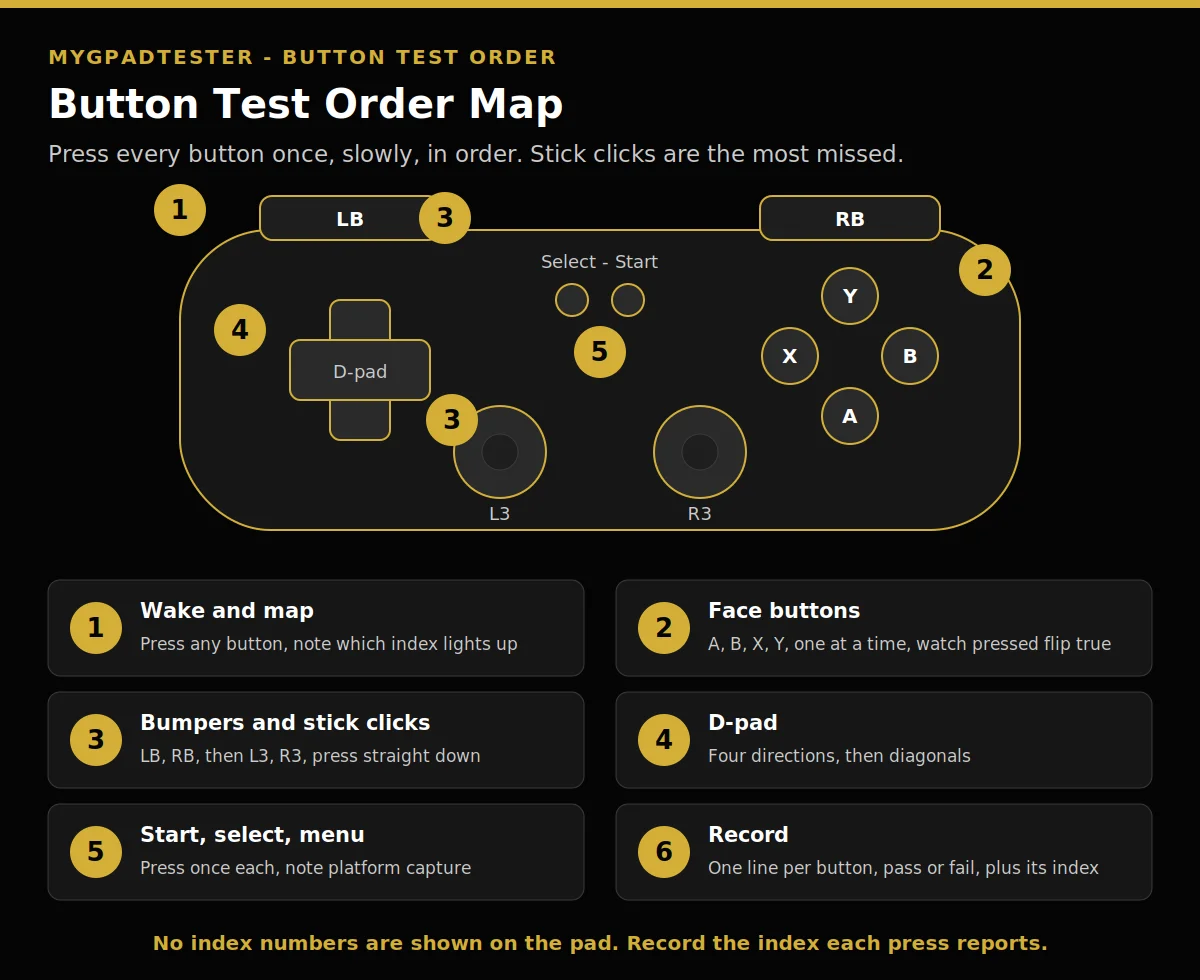
Six slow passes, one button at a time, cover every button on the pad. Work the steps in order. Press slowly, one button at a time, and record as you go.
1. Wake and map. Open the Button Test tool, press any button to wake the API, then press each button once slowly and note which index lights up. The standard layout is the reference; a swapped or missing index is a mapping surprise worth recording. Do not skip the mapping pass. A button that lights up the wrong index is not dead, it is mapped differently, and that changes the fix.
2. Face buttons. Press A/B/X/Y, or Cross/Circle/Square/Triangle, one at a time, watch pressed flip true, release, watch it return false. Record any that stay true (stuck) or never flip (dead). Press each one a few times. A button that fails even once in a few presses is not a pass, it is intermittent, and intermittent is a fault category of its own.
3. Bumpers and stick clicks. LB/RB, then L3/R3. Stick clicks are the most missed in casual testing, so this post calls them out by name. L3 and R3 are buttons, reported in the button array, and a failed click is a button fault, not drift. Press each stick straight down until you feel the click, then release. If the click never registers, record it as a button fault and test the stick movement separately.
4. D-pad. Four directions, then diagonals. The D-pad reports four directions and their diagonals. Test each direction separately, then the diagonals, and record any direction that never registers. A D-pad that registers up and down but never left points to a D-pad fault, and that fault gets its own guide later, named in text only until live.
5. Start, select, and menu buttons. Press once each; note any that the browser or OS swallows. Platform capture is a browser limit, not a controller fault. Some buttons are captured by the browser or the OS before the page sees them, and no retest in the browser will make them appear. Record them as “platform capture, not a fault” and move on.
6. Record. One line per button, pass or fail, plus the index it reported. Retest after any fix from the button fix guide and compare the two runs. If a button never registers, see the button fix guide. Without a before number you cannot tell later whether a fix helped.
Press every button once and listen for the click. Note any button that feels stiffer or softer than its twin on the other side. Stiffness asymmetry is a wear signal, not a calibration item. The membrane and microswitch test notes are in the next section.
What a button is made of, and why it matters
Most face buttons are membrane, a rubber dome over a contact. Some pro controllers use microswitches, a click you can feel. The test note is simple. Mushy feel with missed inputs points at membrane wear. A dead click or double fire points at a microswitch fault. Qualitative only, no strength numbers.
One physical press can register twice. That is contact bounce. A double registration on a single clean press is a bounce fault, not user error. The double-input fix detail belongs to its own post later, and this post names it as a category only.
The input versus output boundary matters too. LB and RB are buttons, digital input. LT and RT are analog axes, trigger input, 0.00 to 1.00 (Tier 3 house convention). Xbox impulse triggers are output inside the trigger. DualSense adaptive triggers are input resistance, not vibration, and neither counts as button input. This post tests the input side. The trigger post owns the analog side in depth, and this post does not teach trigger testing.
Read the result: what each reading means
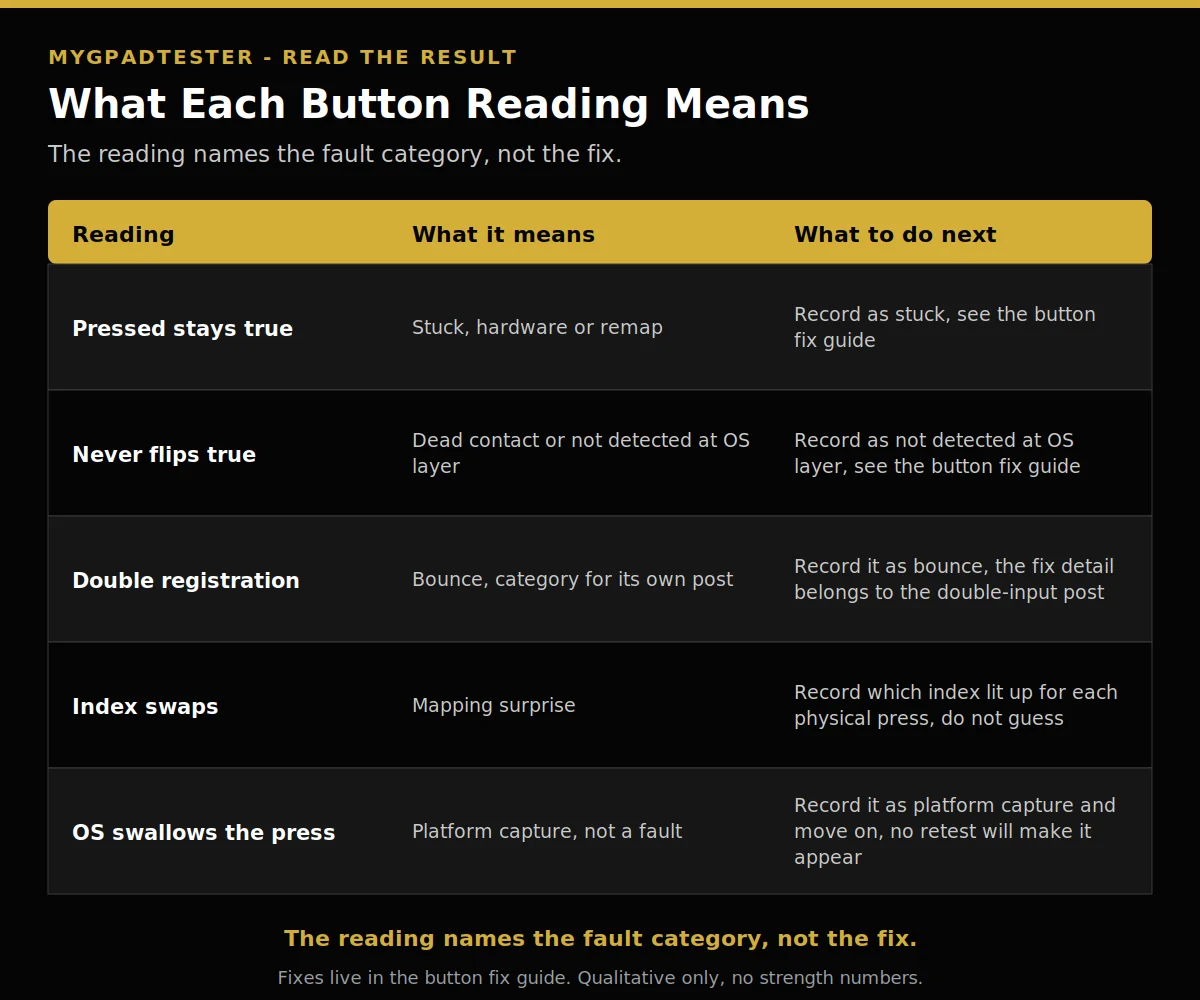
The reading names the fault category, not the fix. Use this table after your six-step pass.
| Reading | What it means | What to do next |
|---|---|---|
| Pressed stays true | Stuck, hardware or remap | Record as stuck, see the button fix guide |
| Never flips true | Dead contact or not detected at OS layer | Record as not detected at OS layer, see the button fix guide |
| Double registration | Bounce, category for its own post | Record it as bounce, the fix detail belongs to the double-input post |
| Index swaps | Mapping surprise | Record which index lit up for each physical press, do not guess |
| OS swallows the press | Platform capture, not a fault | Record it as platform capture and move on, no retest will make it appear |
No fix steps live in this table. Fixes belong to the button fix guide.
| Reading | What it means | What to do next |
|---|---|---|
| Pressed stays true | Stuck, hardware or remap | Record as stuck, see the button fix guide |
| Never flips true | Dead contact or not detected at OS layer | Record as not detected at OS layer, see the button fix guide |
| Double registration | Bounce, category for its own post | Record it as bounce, the fix detail belongs to the double-input post |
| Index swaps | Mapping surprise | Record which index lit up for each physical press, do not guess |
| OS swallows the press | Platform capture, not a fault | Record it as platform capture and move on, no retest will make it appear |
Troubleshooting: when the reading surprises you
If the stick itself moves on its own while you test buttons, stop and test drift separately. If the stick itself moves on its own is the drift test, and a moving stick is a drift fault, not a button fault. Do not mix the two verdicts in one run.
If every button fails at once, the fault is above the buttons. Detection first, then the remap layer, then the contact. A whole pad that reads blank is a detection problem until proven otherwise, and the button fix guide starts there.
If a button works in the tester but not in one game, that game has its own binding or profile. Prove it in a second game before blaming the hardware. A button that passes here but fails in one game points to that game’s binding, not to the contact.
If a button fails only sometimes, test it several times in a row and count the misses. A single pass does not guarantee reliability, and a single miss does not prove a dead button. Several presses, counted, is evidence. One press is not.
If other parts of the pad fail too, feed the result into the health check. Feed the result into the health check to see every component in one place before you spend money.
If several signs appear at once, check the nine failing signs to see the whole pattern before you decide what to fix.
Limits: what the browser cannot see
This test reads Gamepad API button states in your browser. It is not a lab measurement of switch force, travel, or lifespan. A button that passes here but fails in one game points to that game’s binding or profile, and this post cannot settle that.
Some menu buttons are swallowed by the platform before the page sees them. That is a browser limit, not a controller fault, and no retest in the browser will change it. Chrome and Edge are the reference browsers for this test method, never a stability ranking. Firefox has basic support. Safari and mobile have limited support.
Controller health is a composite, per component pass or fail, no invented 0 to 100 score. One dead button does not make the whole controller a failure, and one passing button does not make it healthy.
Related Tools
- Polling Rate Test
- Vibration Test
- Trigger Test
- Stick Drift Test
- Stick Deadzone Test
- Button Test (pillar, highlighted)
- Input Lag Test
- Gamepad Health Checker
Related Guides
- How to Test Stick Drift Online
- How to Test Controller Triggers Online
- Controller buttons not registering
About the Author
Marcus Sterling, Lead Engineer and Founder of MyGpadTester, Austin, Texas. Profile: https://mygpadtester.com/marcus-sterling/ X: https://x.com/marcussterlin
A tester number is evidence, not a verdict. Test in order, record every button, and let the reading name the cause.
Frequently Asked Questions
Why is the test blank until I press a button?
The API needs a user gesture. Press any button to wake the Gamepad API. A blank test before any press is normal.
What does the index number next to a button mean?
It is the position in the Gamepad API buttons array. Layouts vary, so record which index lights up for each physical press instead of guessing the index from memory.
My button shows pressed but I am not touching it, what is that?
Stuck, hardware or remap. Test after closing remappers, then see the button fix guide.
One press shows two registrations, is that my fault?
No, that is contact bounce, a fault category. The fix detail belongs to the double-input post, named in text only until live.
Why does the Start button never register in the test?
Platform capture. Some buttons are swallowed by the browser or OS before the page sees them, and that is a browser limit, not a controller fault.
Do stick clicks count as buttons?
Yes, L3 and R3 are buttons in the array. Test them separately from stick movement, because a failed click is a button fault, not drift.
Why does my button work in the tester but not in one game?
That game has its own binding or profile. Prove it in a second game before blaming the hardware.
Next Steps
If a button never registers, the button fix guide walks the fix chain, linked above. If the stick itself moves on its own, the drift test is the next stop. If other parts of the pad fail too: if other parts also fail.
If the stick itself moves on its own with hands off, the diagnosis post names the cause from the pattern.
How to test all controller buttons online
Total Time: 10 minutes
Wake and map.
Open the Button Test tool, press any button to wake the API, then press each button once slowly and note which index lights up.
Face buttons.
Press A/B/X/Y, or Cross/Circle/Square/Triangle, one at a time, watch pressed flip true, release, watch it return false. Record any that stay true or never flip.
Bumpers and stick clicks.
LB/RB, then L3/R3. Press each stick straight down until you feel the click, then release. If the click never registers, record it as a button fault and test the stick movement separately.
D-pad.
Four directions, then diagonals. Test each direction separately, then the diagonals, and record any direction that never registers.
Start, select, and menu buttons.
Press once each; note any that the browser or OS swallows. Record them as platform capture, not a fault, and move on.
Record.
One line per button, pass or fail, plus the index it reported. Without a before number you cannot tell later whether a fix helped.