Controller Buttons Not Registering? Fix Guide
You press the button and nothing happens, no sound, no action? The button feels fine under your finger, but the game and the tester both act as if you never pressed it. That press went somewhere, and this guide finds where it stopped.
Last updated: 13 November 2026 | Category: Controller Issues & Fixes | Reading time: about 8 minutes | Tested with Chrome/Edge, Gamepad API
Quick Answer
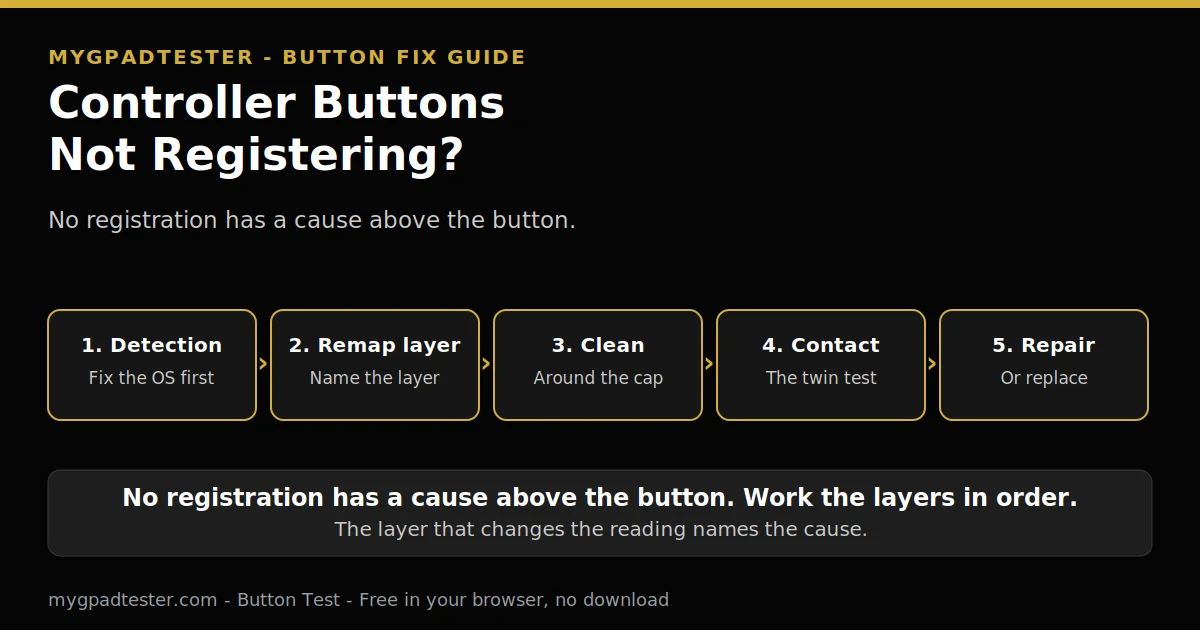
Fix a button that does not register by working the layers in order. Check detection first, then name the remap layer (Steam Input, DS4Windows, Xbox Accessories, or console remap) and undo its last change, then clean around the button, then check the contact. Retest after each layer, so the layer that changes the reading names the cause.
No download. No account. Data stays in your browser.
No registration has a cause above the button
“No registration” means the press never reaches the game or the test: nothing happens, no sound, no action, no pressed=true on the tester (Tier 1, Gamepad API). Causes in order of likelihood: the controller is not detected at the OS or browser layer, or a remap layer (Steam Input, DS4Windows, Xbox Accessories, or console remap) swallows or reassigns the input. The contact may also be worn or dirty (membrane wear, debris), or the button may be electrically dead.
This is different from sticky (registers but stays on), double input (registers twice, bounce), and phantom presses (registers without a press). This post fixes no registration only. The other three get their own guides, named in text only later in this post.
The rule that decides the fix order is simple. If no button registers, the fault is above the button (detection or remap). If one button is dead and its twin works, the fault is in that button (contact or debris). Test first, then fix the layer the test points at. The six-step test method is in the button test guide.
The fix chain: five layers in order
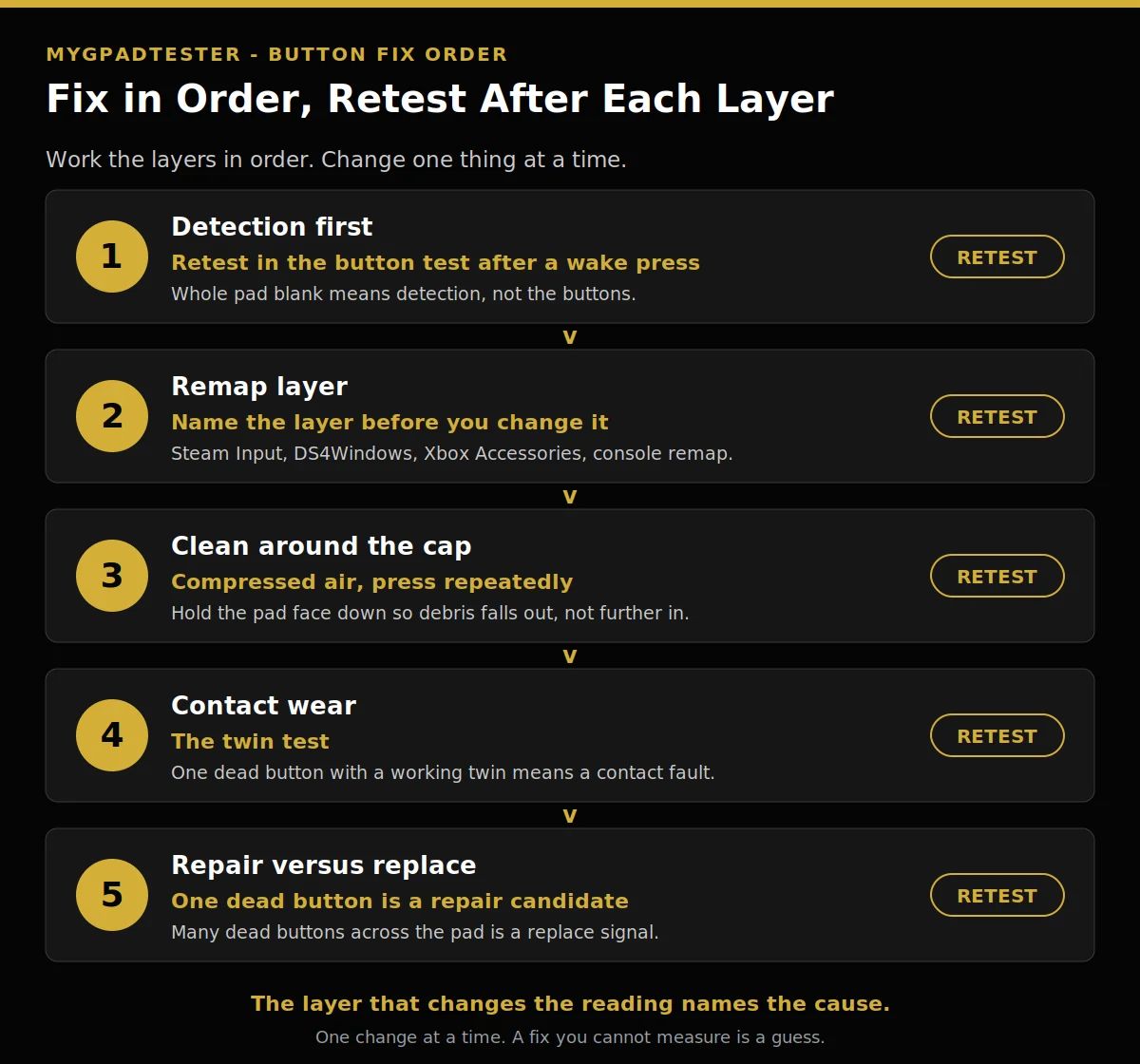
Five layers, in this order, find where the press stops. Work the layers in order. Change one thing, then retest, then record.
1. Detection first. Retest in the button test after a wake press. Press any button to wake the Gamepad API. A blank test before any press is normal. If the whole controller is blank, follow the not-detected post, not this post. Fix detection first, the generic not-detected guide.
The browser cannot test what the operating system does not see. Fix the OS connection first, then retest in the browser. If the pad appears in Windows but not in the browser, the fault is the browser layer or a remapper grabbing the pad, and the next layer is the one to check. Retest.
2. Remap layer: name the layer before you change it. A reader who remaps in one layer and tests in another reports a false fault, so each fix step names the layer it acts in. This guide always names the layer it acts in, so change one layer, retest, and record.
Steam Input layer: open Steam, check whether Steam Input is on or off, and which profile is active. Test with Steam Input off first, then on, and note which state the button registers in. If the button registers with Steam Input off but not on, the Steam Input profile is the cause. Undo the last change in the Steam Input layer first.
DS4Windows layer: close DS4Windows completely and retest. If the button registers with DS4Windows closed, DS4Windows was grabbing or reassigning the input. Reopen it only after the clean test, and check its profile before you blame the hardware.
Xbox Accessories layer: open Xbox Accessories and check which profile is active. If the button is remapped in an Xbox Accessories profile, the tester sees the remapped input, not the physical press. Switch to the default profile and retest.
Console remap layer: on a Nintendo console, check if any buttons have been remapped; a wrench icon beside the controller on the console screen marks remapped buttons (Tier 2, Nintendo Support). If the wrench icon is there, the console remap layer is the cause, not the button. Clear the console remap and retest.
If the button registers after any one of these layer changes, stop. That layer was the fault. Do not keep changing layers. Retest.
3. Clean: debris under the button cap. Compressed air around the cap, press the button repeatedly to work debris out. Hold the controller face down so debris falls out, not further in. Press the button several times, slowly, and retest.
Never instruct the reader to open the controller here. The no-opening sticky fix owns the deeper clean, named in text only until live. If cleaning around the cap changes nothing, the fault is not loose debris, and the next layer is the contact. Retest.
4. Contact wear: the twin test. Membrane wear signals are a mushy feel, missed inputs on that button only, and a twin button on the other side that works. If one button is dead and its twin works, that isolates the fault to the button, not the controller. Qualitative only, no strength numbers.
Press the dead button and its twin several times each and count the misses. A twin that passes every time while the dead button misses most of its presses is a contact fault, not a settings fault. A button that needs extra force to register is wearing thin, and cleaning will not bring a worn contact back. Stick clicks L3 and R3 are buttons too (Tier 1, Gamepad API), so test each click on its own, apart from stick movement. Retest.
5. Repair versus replace decision. One dead button with a working twin is a repair candidate. Many dead buttons across the pad is a replace signal. Run the full health check to see every component, per component pass or fail, no invented score, before you decide.
A repair candidate is worth a repair quote. A replace signal means the pad has more than one failing part, and fixing one button leaves the rest. Do not replace a controller over one dead button, and do not repair a pad with many dead buttons. Retest.
Symptom to first fix
Each symptom points at one layer to fix first. Use this table when you know the symptom but not the layer. It points at the first fix, not at a guaranteed fix.
| Symptom | Most likely cause | First fix action |
|---|---|---|
| Nothing registers on any button | Detection layer | Fix detection first, then retest in the button test |
| One button dead, twin works | Contact layer | Test the twin several times each, then check contact wear, retest |
| Button dead only in one game | Remap layer differs between games | Check which remap layer differs, Steam Input profile, DS4Windows, Xbox Accessories profile, or console remap, then retest |
| Button dead only in browser but works in game | Platform capture layer | Record it as platform capture, not a fault, retest in the game |
| Intermittent, works sometimes | Debris layer | Compressed air around the cap, press several times, retest |
| Worked before a remap change | Remap layer, last change | Undo the last change in that same remap layer (Steam Input, DS4Windows, Xbox Accessories, or console remap), retest |
What this post does not fix
This post fixes no registration only. Six symptom guides own the rest, each named once here in text only, no links, no sections. Sticky buttons get their own guide (18 Nov, debris and wear). Ghost and phantom presses get their own guide (18 Nov, electrical fault). PS5 button sticking gets its own guide (18 Nov). Xbox button not responding gets its own guide (19 Nov). Button double-input gets its own guide (20 Nov, bounce). D-pad not working gets its own guide (20 Nov, pivot). If your symptom is one of those, wait for its guide, and do not force this post’s fix chain onto it.
Troubleshooting: when the fix does not stick
If the button registers in the tester but not in the game, the game has its own binding or profile. Prove it in a second game before blaming the hardware. A button that passes here but fails in one game points to that game’s binding, and the remap layer to check is the one that game runs under: Steam Input profile, Xbox Accessories profile, or console remap, named by the game, not guessed.
If the button worked yesterday and stopped today, check the last thing that changed, then retest. A remap change in the Steam Input layer, a DS4Windows profile change, an Xbox Accessories profile switch, or a console remap is the most likely cause. Undo the last change in that same layer first, then look at debris and contact.
If cleaning helped for a day and the button died again, the contact is worn, not dirty. Debris gives a temporary fix. Wear gives a temporary fix that fades. The twin test in layer 4 tells you which one it is.
If the whole pad went blank after a remap change, that is the remap layer, not the buttons. Undo the last change in the Steam Input layer, the DS4Windows layer, the Xbox Accessories layer, or the console remap layer, whichever you changed last, and retest in the button test.
Limits: what this fix cannot do
This guide fixes no registration only. It does not fix sticky buttons, double input, ghost presses, or D-pad pivot faults, and it does not teach opening the controller. Do not open the controller on the strength of this post. The no-opening sticky fix owns the deeper clean.
No step promises a fix. A button that never registers after the full chain, detection, remap layer, clean, and contact check, may be electrically dead, and this guide cannot tell you whether repair or replacement is cheaper for your pad. Browser tests read through the Gamepad API, so every result here is browser observed. Test in Chrome or Edge, use the same browser for every retest you compare, and keep the pad awake during each run.
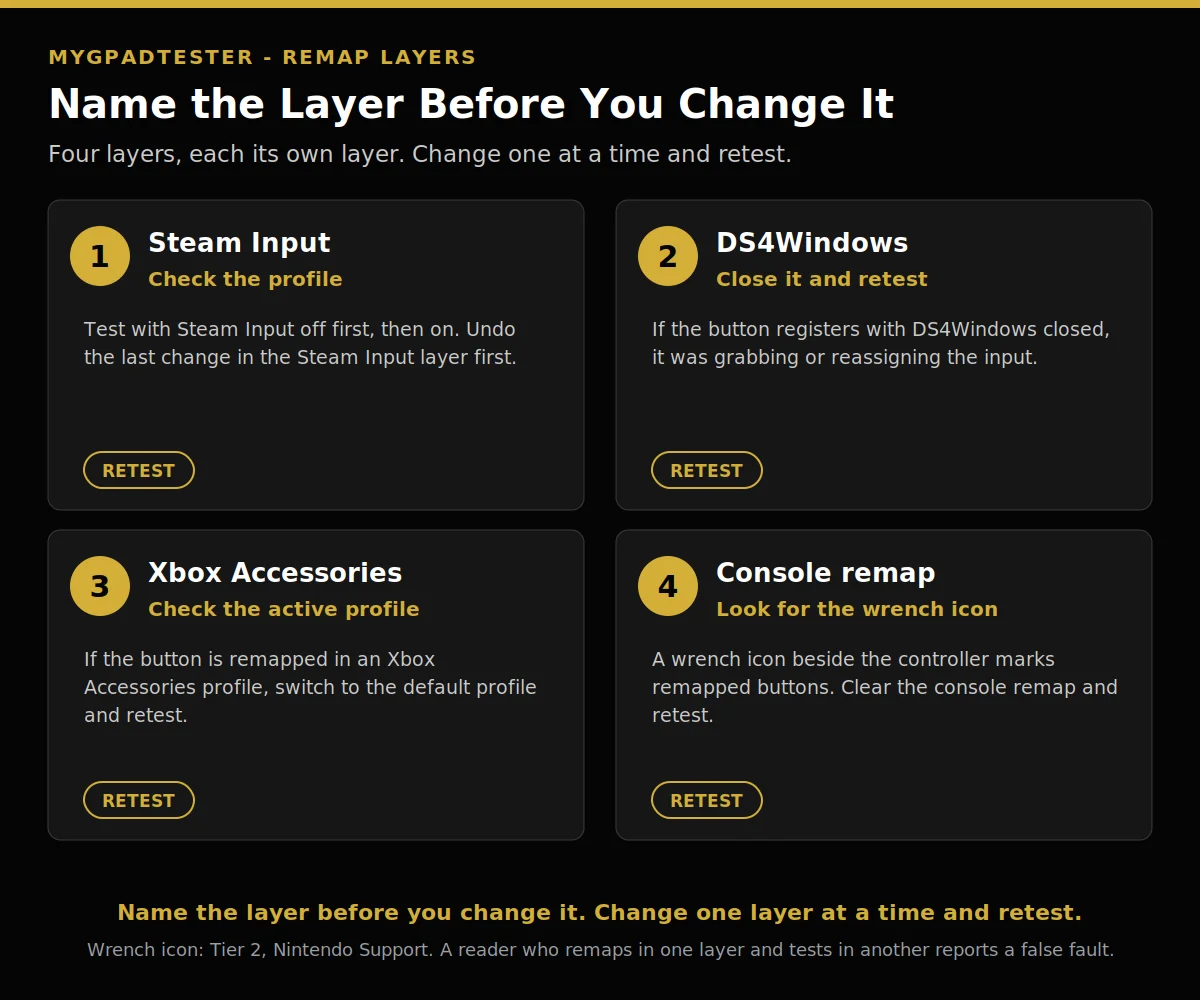
Steam Input layer, check the profile and test off then on. DS4Windows layer, close it and retest. Xbox Accessories layer, check the active profile and switch to default. Console remap layer, on a Nintendo console look for the wrench icon and clear the remap.
Related Tools
- Polling Rate Test
- Vibration Test
- Trigger Test
- Stick Drift Test
- Stick Deadzone Test
- Button Test (pillar, highlighted)
- Input Lag Test
- Gamepad Health Checker
Related Guides
- How to test all controller buttons online
- Gamepad Not Detected by Browser, the generic detection guide.
About the Author
Marcus Sterling, Lead Engineer and Founder of MyGpadTester, Austin, Texas. Profile: https://mygpadtester.com/marcus-sterling/ X: https://x.com/marcussterlin
A tester number is evidence, not a verdict. Fix in order, retest after each step, and let the reading name the cause.
Frequently Asked Questions
Why does my button work in one game but not another?
That is the remap layer. The two games run under different layers: one may run under a Steam Input profile while the other runs under an Xbox Accessories profile or a console remap. Check which layer differs between the two games, then retest.
I changed a remap setting and now a button is dead, what happened?
Undo the last change in that same layer, Steam Input, DS4Windows, Xbox Accessories, or console remap, whichever you changed last, then retest. Change one layer, retest, record.
One button is dead but the others work, is the controller broken?
No. One dead button with a working twin isolates the fault to that button, not the controller. That is a contact fault, and one dead button is a repair candidate.
My button only registers when I press it hard, what does that mean?
A button that needs extra force to register is wearing thin. Cleaning will not bring a worn contact back. Test the button and its twin several times each and count the misses, then retest.
Can I open the controller to clean the button?
No, not in this post. The no-opening sticky fix on 18 Nov owns the deeper clean. This post cleans around the cap only.
It worked yesterday and stopped today, what changed?
Debris or a remap change. Check the last thing that changed first: a Steam Input profile change, a DS4Windows change, an Xbox Accessories profile switch, or a console remap, then retest.
When should I repair and when should I replace?
One dead button with a working twin is a repair candidate. Many dead buttons across the pad is a replace signal. Run the full health check for the per-component picture before you decide.
Next Steps
If a button still never registers after the full chain, run the full health check before you spend money. If the button registers now, test every button once with the six-step test method, linked above once live. If the whole controller is blank, the detection guide is the next stop, linked above. If other parts also fail: if other parts also fail.
How to fix controller buttons not registering
Total Time: 15 minutes
Detection first.
Retest in the button test after a wake press. If the whole controller is blank, follow the not-detected post. Retest.
Remap layer: name the layer before you change it.
Name the layer, Steam Input, DS4Windows, Xbox Accessories, or console remap, and undo its last change. Change one layer at a time. Retest.
Clean: debris under the button cap.
Compressed air around the cap, press the button repeatedly to work debris out. Hold the controller face down so debris falls out. Retest.
Contact wear: the twin test.
Press the dead button and its twin several times each and count the misses. A twin that passes every time while the dead button misses most of its presses is a contact fault. Retest.
Repair versus replace decision.
One dead button with a working twin is a repair candidate. Many dead buttons across the pad is a replace signal. Run the full health check before you decide, and retest once more. A button that still never registers after the full chain may be electrically dead.