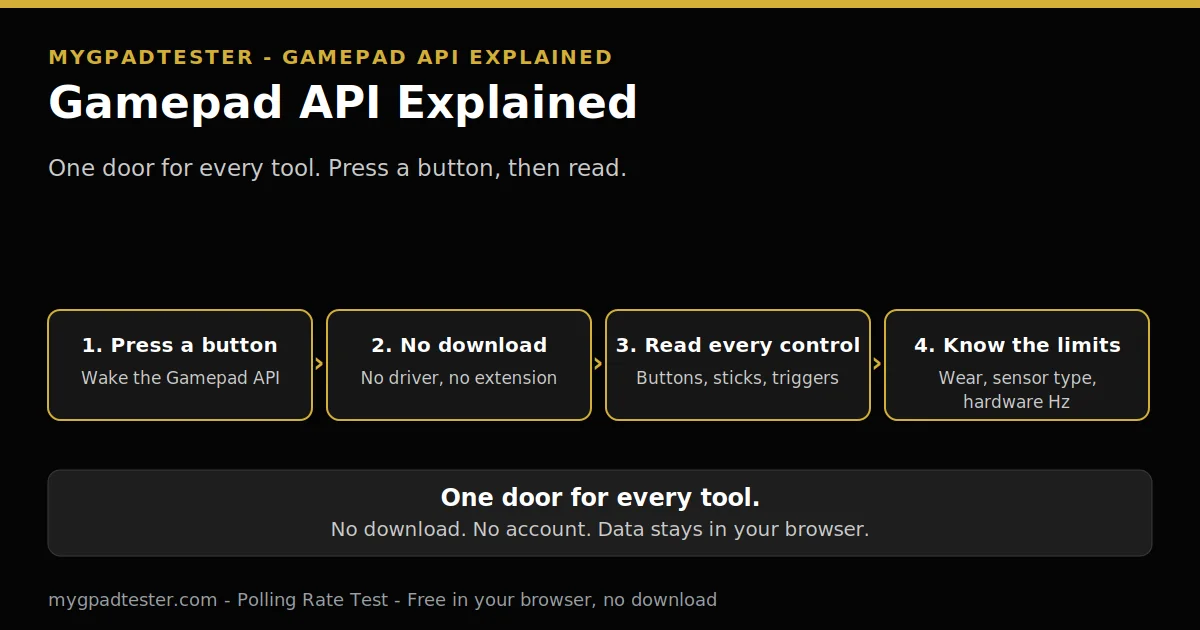
You open the tester, and it shows nothing. You did not press anything yet. Do you need a driver? Do you need an app? Is the controller broken? The short answer is no. The browser already has what it needs. It just waits for one press first.
Last updated: 16 November 2026 | Category: Controller Testing Tools | Reading time: about 18 minutes | Tested with Chrome/Edge, Gamepad API
Quick Answer
The Gamepad API is the browser feature that lets a web page read your controller. You need no download, no driver, and no extension. Press a button to wake it, then test every control in Chrome or Edge. The browser shows buttons, sticks, triggers, and polling. It cannot tell you wear, sensor type, or hardware Hz.
No download. No account. Data stays in your browser.
Every tool on this site reads the controller through the same door, the Gamepad API. If you understand this one post, every other post makes sense. The two tools above are the places you use next.
What the Gamepad API is, in plain words
The Gamepad API is the browser interface that lets a web page read a connected controller. It is a standard door, not an app. Every tool on this site uses the same door. It gives each tool buttons, axes, and a timestamp. You open a page, press a button, and the browser reads the pad.
Think of it as a door between the browser and the controller. The operating system sees the controller first. The browser then reads it through that door. The page asks the browser, and the browser hands back the reading.
The API is a W3C standard. W3C is the web standards body. A standard means browsers agree on the shape of the reading. The shape is the same in Chrome, Edge, and Firefox.
One plain mention is enough for the mechanism. The page calls navigator.getGamepads() to get the list of connected pads. That call returns the list only after the wake press. Before that press, the list is empty. That empty list is normal, not a fault.
Why the browser sees nothing until you press a button
The pad stays unexposed until a gamepad user gesture is detected, then it is exposed to the page. A button press is that gesture. Before the press, the browser keeps the pad hidden from the page. After the press, the page can read it. A blank test before any press is normal, and it proves nothing about the controller.
Press any button to wake the Gamepad API. A blank test before any press is normal.
That rule is a privacy guard against fingerprinting, not a bug. A web page should not learn about your controller before you show that you want to use it. The press is your signal. The W3C Gamepad API spec describes this as a user gesture check.
The wake step is simple. Plug in or pair the controller first. Open the tester. Press any button once. The tester should then show the controller. If it still shows nothing, the fault sits earlier, in the operating system layer. That fix belongs to the detection post, linked in H2 5.
Keep the page in view when you press. In Firefox, gamepads are only exposed to a page when the user interacts with one with the page visible, Tier 2, MDN. Once one gamepad has been interacted with, other connected gamepads become visible automatically.
How the browser reads input: it asks, again and again
The browser does not get told when a stick moves. It asks, again and again, in a poll loop, usually once per animation frame. Only connect and disconnect are events. Each ask returns a fresh sample. A stick value is one sample in time, not a live wire from the stick to the page.
An animation frame is one picture the browser draws. On a 60 Hz display, the browser draws about 60 frames each second. The tester asks for a new reading on each frame. That ask is the poll loop. It keeps asking while the page is open.
That is why a reading can look jumpy. Each sample catches the stick at one moment. Hold the stick still, and the samples should sit close together. A wide spread means an unstable reading, not a broken stick by itself.
The timestamp on each reading matters here. It marks when the sample was taken. That is how the tester can count how often new readings arrive. That count is the polling reading, covered in H2 8.
Buttons and axes, in plain words
Buttons are objects with pressed and value. Axes run from minus 1 to 1, X and Y per stick, with a timestamp on each reading. A button tells you pressed or not, plus how far it is pressed. An axis tells you where a stick sits, left or right, up or down. Together, they describe every control on the pad.
A button has two parts. Pressed is yes or no. Value runs from 0 to 1. A trigger is an axis, not a button. It moves from 0.00 to 1.00 as you pull it. Rest above 0.02 needs a check, and full pull below 0.98 needs a check, Tier 3 tester convention, never a vendor specification.
An axis runs from minus 1 to 1. Minus 1 is full left or full up. Plus 1 is full right or full down. Zero is centre. Each stick has two axes, X and Y. When the browser recognises the controller layout, mapping is standard, Tier 2. Standard mapping means 17 buttons and 4 axes in fixed positions.
A stick is never exactly 0 at rest in every reading. Small resting flicker is normal noise. House drift scale, tester convention every time, never a vendor specification. Flickers within 0.02 to 0.03 is normal noise, no fix needed. A steady offset of 0.05 to 0.10, in the same direction, is measurable mild drift. A steady offset above 0.10, or creeping in one direction, is clear drift. The full drift procedure is in Related Guides.
Deadzone is the setting that hides small movement near centre. It hides drift, it does not repair drift. Deadzone guides are tester guides, never vendor specifications. Resting plus 0.01 is a starting guide for a deadzone setting. Outer 0.95 to 0.98 is a starting guide. Stop rule 0.20 is a tester guide for when to stop raising deadzone and move to repair versus replace. Deadzone must be set per stick separately.
USB versus Bluetooth: same API, different path
The API is the same over USB and over Bluetooth, but the path changes, so the reading changes. The browser reads through the same door either way. USB gives a direct wired path. Bluetooth adds pairing, the adapter, and interference to that path. The same controller can read differently on each path, and that names the path.
The operating system must see and pair the controller first. Only then can the browser read it through the Gamepad API. That order holds for both paths. Over USB, the system sees the pad when you plug it in. Over Bluetooth, the system sees it when you pair it. No pairing, no reading.
The browser cannot test what the operating system does not see. Fix the OS connection first, then retest in the browser.
If the tester shows nothing, check the OS layer first. Use the OS detection fixes for that layer. Polling is where the path shows most. Bluetooth polling, browser observed, is typically lower and more variable than wired, Tier 3, typical.
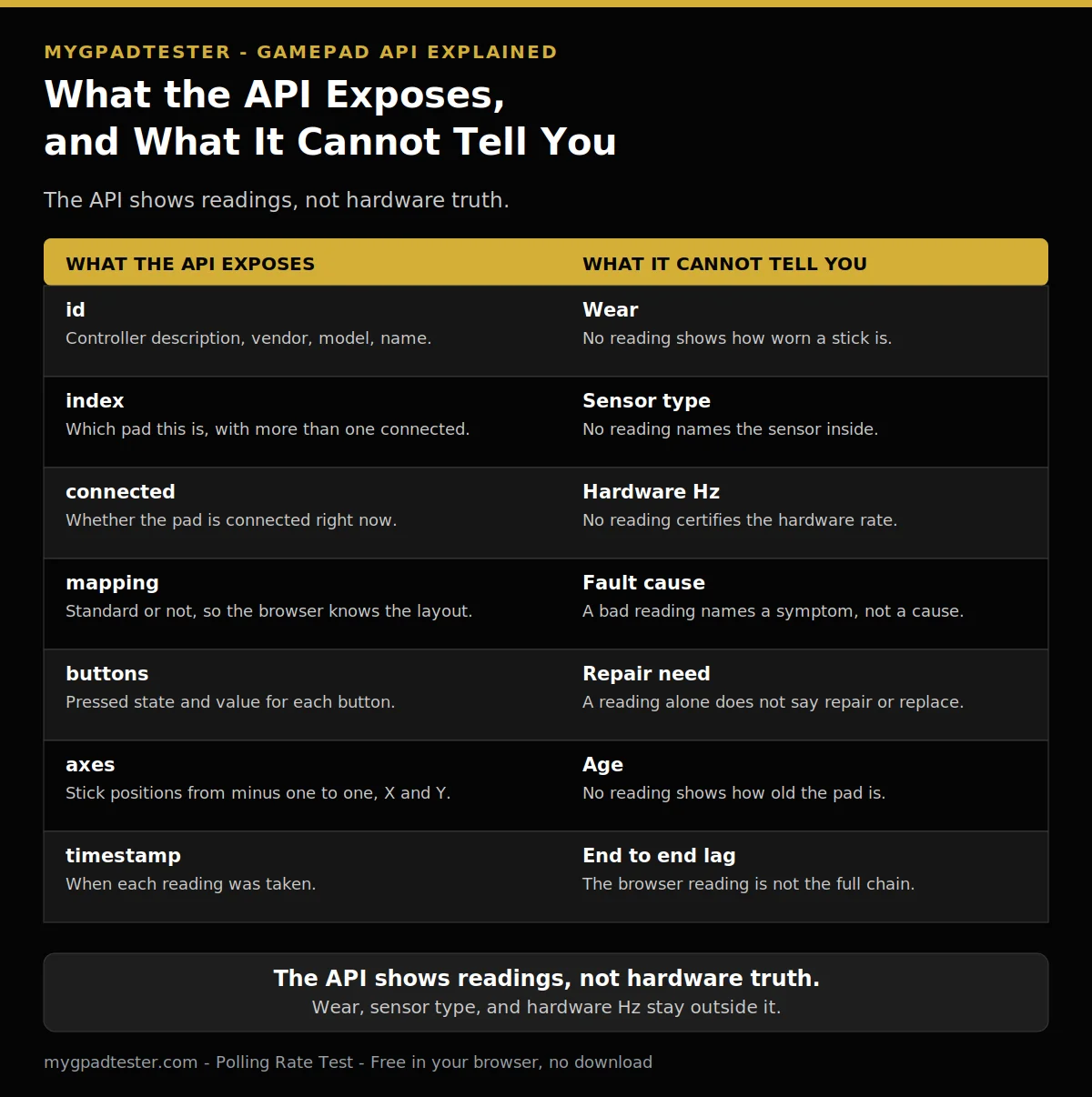
| What the API exposes | What it means | What the API cannot tell you |
|---|---|---|
| id | Controller description, vendor, model, name. | Wear. No reading shows how worn a stick is. |
| index | Which pad this is, with more than one connected. | Sensor type. No reading names the sensor inside. |
| connected | Whether the pad is connected right now. | Hardware Hz. No reading certifies the hardware rate. |
| mapping | Standard or not, so the browser knows the layout. | Fault cause. A bad reading names a symptom, not a cause. |
| buttons | Pressed state and value for each button. | Repair need. A reading alone does not say repair or replace. |
| axes | Stick positions from minus 1 to 1, X and Y. | Age. No reading shows how old the pad is. |
| timestamp | When each reading was taken. | End to end lag. The browser reading is not the full chain. |
Which browsers and phones work
Chrome and Edge are reference browsers for testing. Firefox has basic support. Safari and mobile have limited support. Use Chrome or Edge on desktop for the fullest test. A missing reading on Safari or on a phone names a support limit first, not a broken controller. Check your version, then test on desktop first.
Chrome and Edge are the reference browsers because they give the fullest readings on desktop. Firefox has basic support, so most readings work, but some limits apply. Safari and mobile have limited support, so some readings may stay missing. A phone test follows the same layers: pair, wake, test, read. Limited support means some readings may stay missing on a phone. Use the phone as a second check, never as the only check when the desktop test matters. Keep the same browser for before and after readings, and change one variable at a time.
Vibration, and what the API cannot tell you
The API can ask for rumble, but the browser and the controller decide, and it cannot tell you wear, sensor type, or hardware Hz. A silent motor does not prove the input side is broken. Test buttons, sticks, and triggers first. Judge vibration on its own, as output.
Vibration is output, from motors. Trigger press is input, from an axis. Xbox impulse triggers are output inside the trigger. DualSense adaptive triggers are input resistance, not vibration. A silent motor says nothing about whether a button press reads.
Vibration support depends on the browser and the controller, so no rumble in a browser test is not proof of a fault, Tier 3. That is the only vibration support sentence this post uses. No blanket claim about one browser is made here. If the motor stays silent, change one variable and retest. Do not call the pad faulty from one silent run.
What the API cannot tell you is as important as what it can. It cannot tell you wear, sensor type, or hardware Hz. A reading proves a value at one time. It does not prove why that value appeared. Controller health is a composite, not a single score: per-component pass or fail, for sticks, buttons, triggers, vibration and connection. No invented 0 to 100 health score is used.
Why your polling number differs from the claimed Hz
The browser shows what it observes, gated by frame rate, not the hardware rate. The claimed Hz is the hardware rate. The browser number is a browser observed reading. Frame rate gates what the browser can observe. A lower browser number is often normal, and it does not by itself prove the controller is slow or broken.
Polling interval maths is Tier 1: 1000 divided by Hz. 125 Hz is 8 ms, 250 Hz is 4 ms, 500 Hz is 2 ms, and 1000 Hz is 1 ms. Say report interval, not wait, for these maths-only numbers. Each interval is a nominal report interval, never a guaranteed end to end latency.
It is for comparison and stability, not for certifying hardware Hz. Never promise 1000 Hz in a browser on a 60 Hz display. Polling rate and refresh rate are independent variables, with no rule that one should be higher.
Jitter is described in words only: wide, unstable, spikes and drops. No percent threshold for jitter is used in this post. If the number jumps around, change one variable and retest.
Read the polling ladder for the general numbers, and the USB versus Bluetooth polling comparison for why the same pad reads differently on each path.
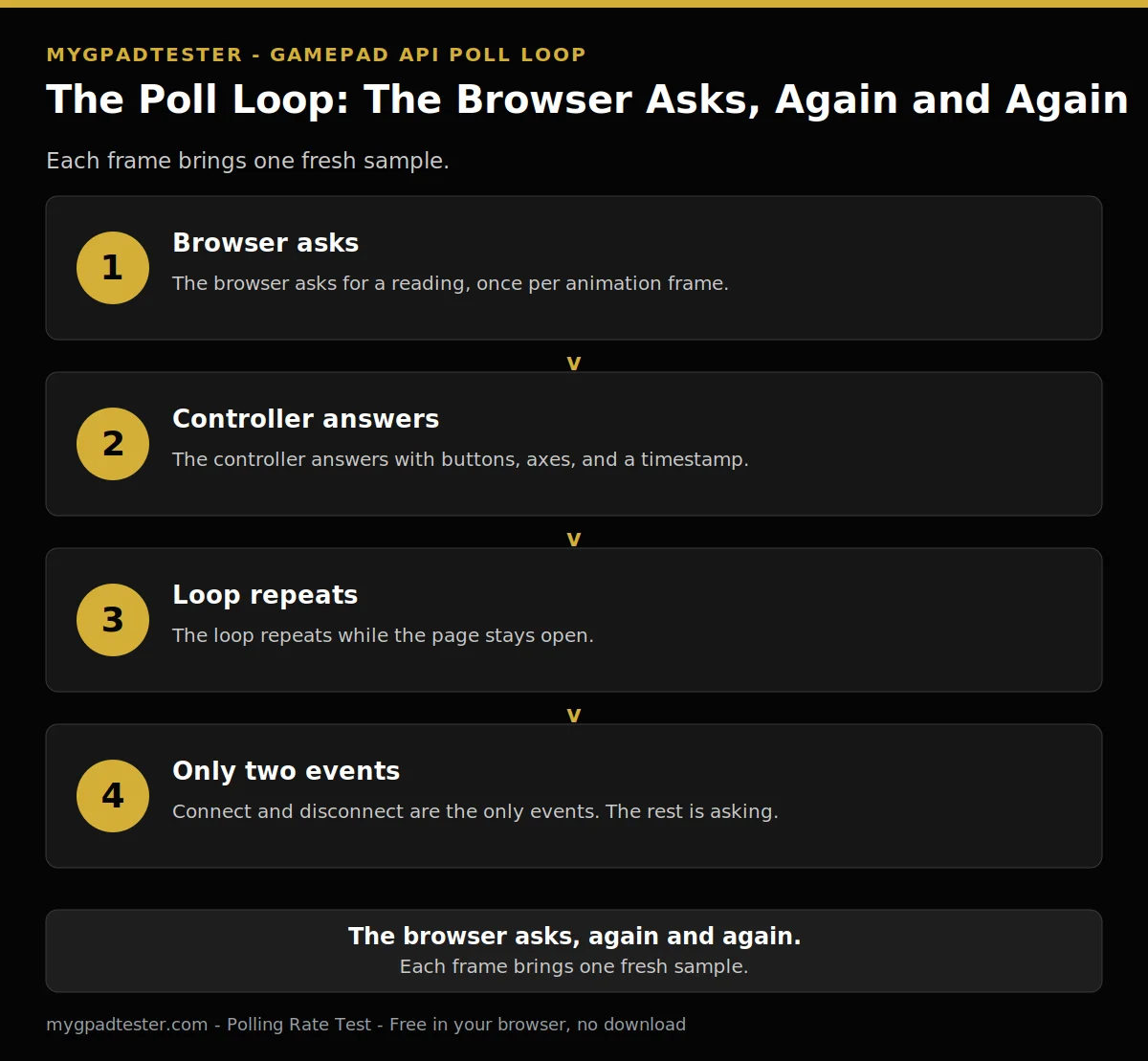
- The browser asks for a reading, once per animation frame.
- The controller answers with buttons, axes, and a timestamp.
- The loop repeats while the page stays open.
- Connect and disconnect are the only events. The rest is asking.
Is it safe, and can a site fingerprint your controller?
The API exposes only the controller description, vendor, model, buttons, and axes, not your name, account, or browsing. The gesture gate limits when that description is exposed. The id holds vendor and product ids plus the controller name, which is a fingerprinting signal, and that is why the gesture gate exists. No absolute safety promise is made here.
The gesture gate is the first protection. A page sees nothing until you press a button on the controller. That press is your signal. Before it, the pad stays hidden. The gate limits when the description is exposed.
A second protection applies in the reference browsers Chrome, Edge, and Firefox. The Gamepad API needs a secure context in those browsers. A secure context means the page runs over HTTPS, not plain HTTP. That rule is not a blanket claim for every browser. Keep the claim to the reference browsers named here.
The id is the part to understand plainly. It holds vendor and product ids plus the controller name, as given by the driver. That is a fingerprinting signal. That is why the gesture gate exists. The gate does not erase the signal. It limits when a page can see it.
In Firefox, gamepads are only exposed to a page when the user interacts with one with the page visible, Tier 2, MDN. The note states this helps prevent gamepads from being used for fingerprinting. Use the test in Chrome or Edge, on a page you trust, and close the page when you finish.
USB versus Bluetooth, by layer
| Layer | USB path | Bluetooth path |
|---|---|---|
| Operating system | Plug in the pad. The system sees it at once. | Pair the pad first. The system sees it after pairing. |
| Browser wake | Press a button to wake the reading. | Press a button to wake the reading. Same wake step. |
| Reading | The browser asks each frame and reads the answer. | The browser asks each frame and reads the answer. Same loop. |
| Polling | Typically steadier, for comparison on the same path. | Typically lower and more variable, Tier 3, typical. |
| What a fail names | The controller, the cable, or the browser layer. | The Bluetooth path first, then the controller. |
The numbers belong to the USB versus Bluetooth polling post, linked in H2 8.
Quick checklist: read the API once, in order
Work the list in order. Tick each step as you go.
- Connect the controller. Plug it in, or pair it in the operating system first.
- Open the tester in Chrome or Edge.
- Press a button to wake the Gamepad API. A blank test before any press is normal.
- Read buttons and axes once each. Press each button once. Move each stick once each way.
- Check the timestamp behaviour. Each reading should carry a fresh time.
- Run the named tool. Use the Polling Rate Test for the rate, and the Button Test for the buttons.
If a step fails, stop there. Fix that layer first, then move on. Do not jump ahead to the tool and guess at the reading.
Related Tools
- Polling Rate Test (pillar, highlighted)
- Button Test
- Vibration Test
- Trigger Test
- Stick Drift Test
- Stick Deadzone Test
- Input Lag Test
- Gamepad Health Checker
Related Guides
- What Is Controller Stick Drift?
- How to Test for Stick Drift Online
- What Is Controller Deadzone?
- Gamepad Not Detected by Browser? Fix It in 5 Minutes
- How to Test a USB Gamepad Online.
- How to Test a Bluetooth Controller in Browser.
- Best Browser for Gamepad Testing.
About the Author
Marcus Sterling, Lead Engineer and Founder of MyGpadTester, Austin, Texas. Profile: https://mygpadtester.com/marcus-sterling/ X: https://x.com/marcussterlin
The Gamepad API is one door for every tool on this site. Learn the door once, and every reading makes sense.
Frequently Asked Questions
Do I need to install a driver or an extension?
No. The Gamepad API is built into the browser. You need no download, no driver, and no extension. Press a button to wake it.
Can a website fingerprint me from my controller?
The API exposes only the controller description, vendor, model, buttons, and axes, not your name, account, or browsing. The gesture gate limits when that description is exposed. The id contains vendor and product ids plus the controller name, which is a fingerprinting signal, and that is why the gesture gate exists. No absolute safety promise is made here.
Why is my stick never exactly 0 at rest?
Small resting flicker is normal noise. House drift scale, tester convention every time, never a vendor specification. Flickers within 0.02 to 0.03 is normal noise, no fix needed. A steady offset of 0.05 to 0.10, in the same direction, is measurable mild drift. A steady offset above 0.10, or creeping in one direction, is clear drift.
Does the Gamepad API work on phones?
Support is limited. Use Chrome or Edge on desktop for the fullest test, then use the phone as a second check. Test on desktop first.
Why does my browser polling number differ from the claimed Hz?
The browser shows what it observes, gated by frame rate, not the hardware rate. A browser result is browser observed, via Gamepad API, gated by frame rate. It is for comparison and stability, not for certifying hardware Hz.
Can the browser test vibration?
It can ask, but the browser and the controller decide. Vibration support depends on the browser and the controller, so no rumble in a browser test is not proof of a fault, Tier 3. Vibration is output, so a silent motor does not prove the input side is broken.
Every tool on this site uses the same door. Press a button to wake it. Read buttons and axes as samples, one frame at a time. Know what the API cannot tell you, and do not ask a reading to prove more than it can. That is the whole foundation, in one post.
Next Steps
Open the Polling Rate Test and the Button Test, and read each control once. If a reading looks wrong, use the layer order in this post to name the next check. For the OS layer, use the not-detected post. For drift, use the drift test post. For the browser choice, use Best Browser for Gamepad Testing.