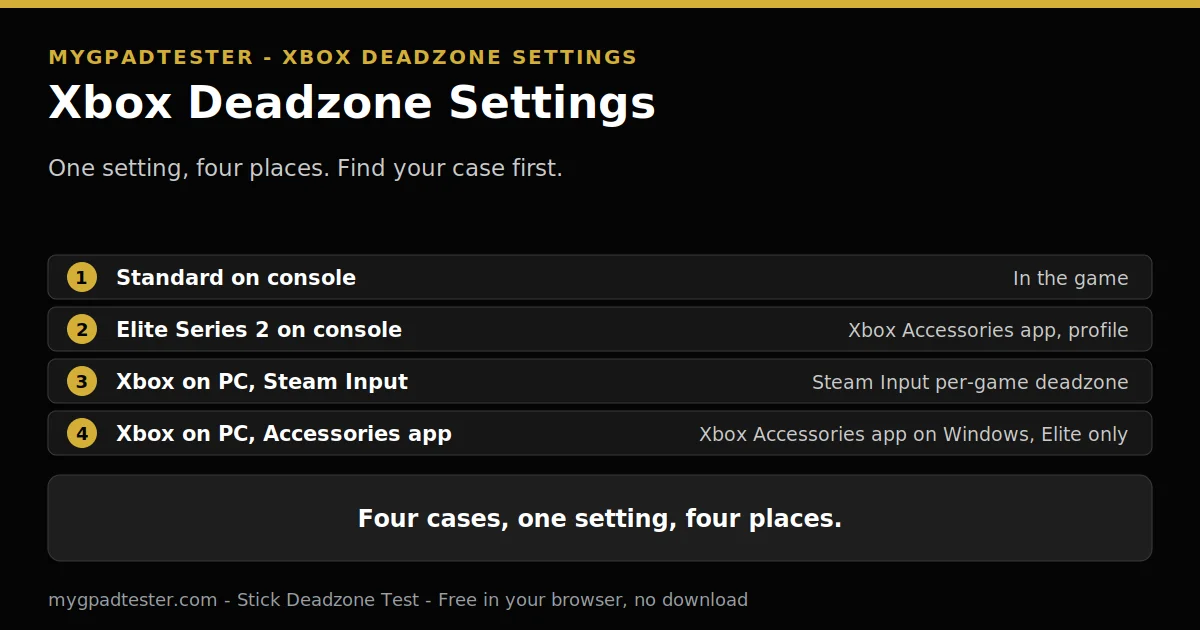
Where is the deadzone setting on Xbox? I cannot find a slider anywhere, and my aim drifts in Warzone. Is it in the game, in the app, or on PC only? This post answers that question first, then sets the deadzone once, from a measured resting reading, on the layer that fits your controller.
Last updated: 20 November 2026 | Category: Performance Optimization | Reading time: about 15 minutes | Tested with Chrome/Edge, Gamepad API
Quick Answer
On Xbox the deadzone setting lives in a different place depending on your controller and where you play. A standard Xbox Wireless Controller has no deadzone slider in the Xbox Accessories app, so the setting lives in the game or in Steam Input on PC. An Elite Series 2 exposes curves and trigger deadzone in the app instead.
No download. No account. Data stays in your browser.
The browser test reads the raw stick value before any game, app, or Steam Input filter. That raw reading is the starting point for every setting in this post. A standard controller and an Elite Series 2 take different routes to the same setting, and this post keeps them apart.
Where is the deadzone setting on Xbox?
On Xbox the deadzone setting lives in a different place depending on your controller and where you play. On console it lives in the game, or in the Xbox Accessories app if you own an Elite Series 2. On PC it lives in the game, in the Accessories app, or in Steam Input.
One setting, four places. The table below gives one place per case. Find your case first, then follow that row only. Do not set the same deadzone in two places at once, because two layers stack and hide which change helped. The deadzone definition, with the three deadzone types and the platform table, lives in What Is Controller Deadzone?
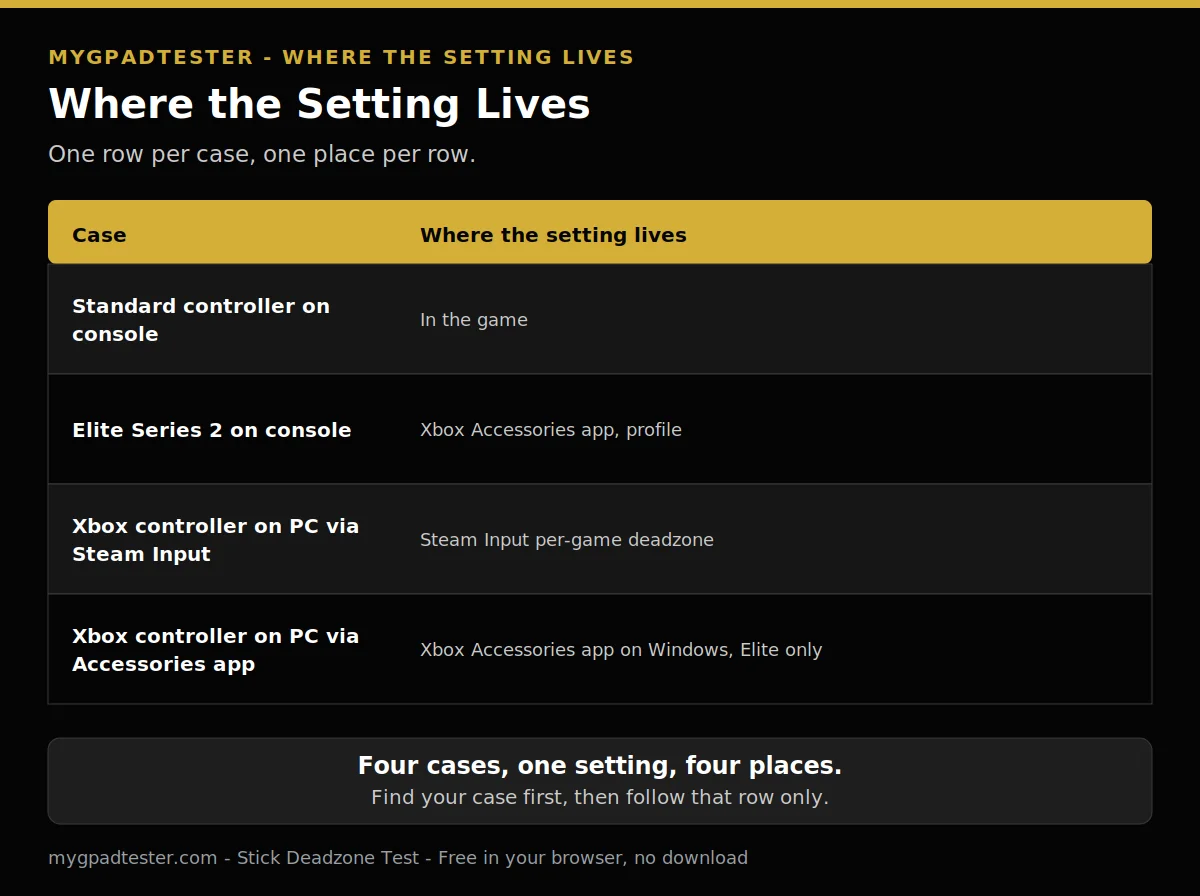
| Case | Where the setting lives |
|---|---|
| Standard controller on console | In the game |
| Elite Series 2 on console | Xbox Accessories app, profile |
| Xbox controller on PC via Steam Input | Steam Input per-game deadzone |
| Xbox controller on PC via Accessories app | Xbox Accessories app on Windows, Elite only |
The next section turns the four cases above into a short checklist.
Does a standard Xbox Wireless Controller have a deadzone setting?
A standard Xbox Wireless Controller has no deadzone slider in the Xbox Accessories app, so the deadzone setting lives in the game you play, or in Steam Input on PC. The app still handles button remapping and profiles, but it does not give a standard pad a deadzone slider.
That no-slider claim is a guide claim, not a Microsoft-verified fact in this run, and the live deadzone post states the same boundary in its platform table. The route is the same either way: set the deadzone in the game, or in Steam Input on PC, and leave the app to remapping and profiles.
Measure first, then set. Test the stick at rest in the browser tester, record the resting reading per stick, then start from resting plus 0.01. That is a tester guide, never a vendor specification.
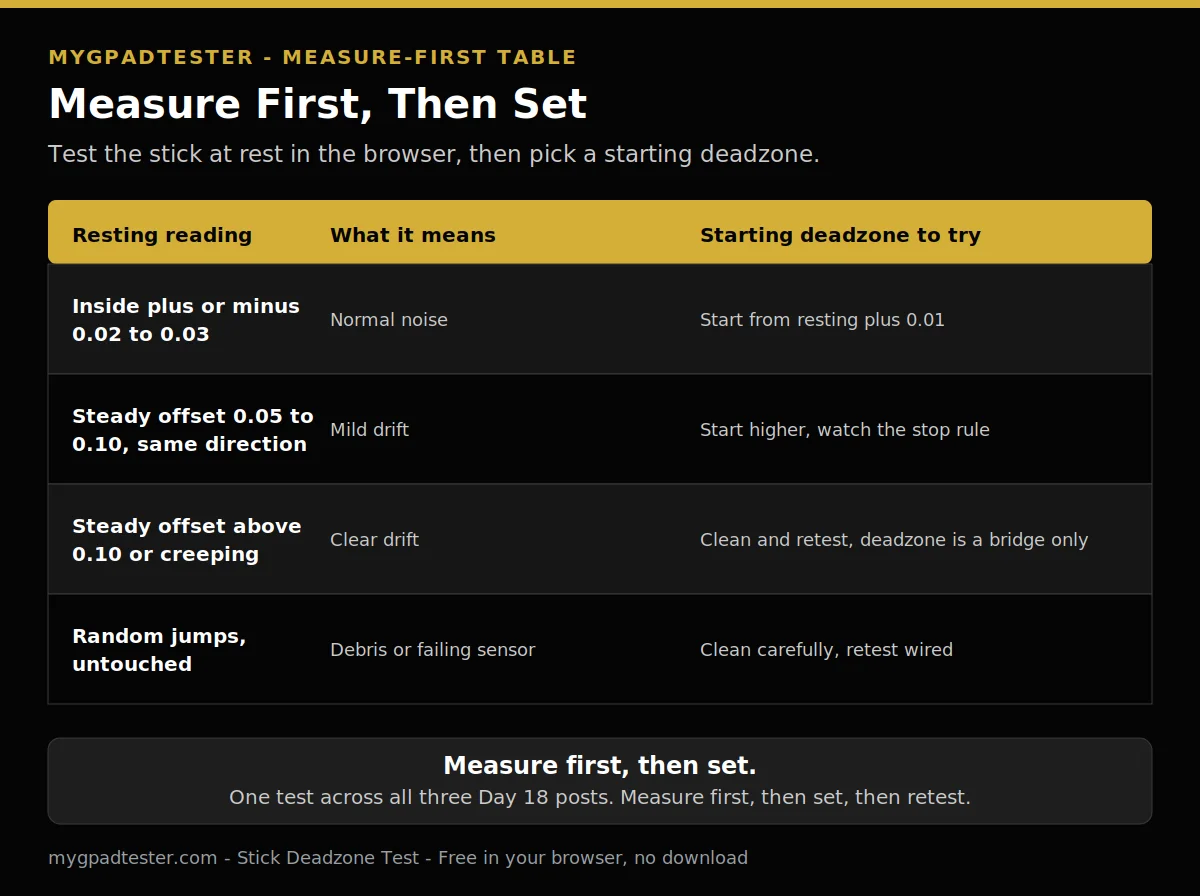
| Resting reading | What it means | Starting deadzone to try |
|---|---|---|
| Inside plus or minus 0.02 to 0.03 | Normal noise | Start from resting plus 0.01 |
| Steady offset 0.05 to 0.10, same direction | Mild drift | Start higher, watch the stop rule |
| Steady offset above 0.10 or creeping | Clear drift | Clean and retest, deadzone is a bridge only |
| Random jumps, untouched | Debris or failing sensor | Clean carefully, retest wired |
Which controller you have decides which slider you get:
- Standard Xbox Wireless Controller: no deadzone slider in the app. Use the game setting, or Steam Input on PC.
- Elite Series 2: thumbstick sensitivity curves and trigger deadzone in the Xbox Accessories app. Profiles save to the controller.
How do I set deadzone on an Xbox Elite Series 2?
Set deadzone on an Xbox Elite Series 2 in the Xbox Accessories app, where the app offers thumbstick sensitivity curves and trigger deadzone for the Elite. Create or open a profile, adjust the curve for the stick you want to change, save the profile to the controller, then test in one game before changing anything else.
A sensitivity curve changes how stick movement maps to input. It is not the same as a numeric deadzone control, and no curve setting maps to a particular deadzone value. Adjust the curve in the app, then use the game’s deadzone setting if you need to filter tiny inputs. Do not present a curve preset as a deadzone number.
Profiles save to the controller, so they travel with it. The controller holds up to three custom profiles saved on the controller, per the official Elite Series 2 manual, Tier 2. Create or open a profile, adjust one stick, save it, and test in one game before changing anything else.
Trigger deadzone appears in the app next to the stick setting on the Elite. It is mentioned here only where the menu shows it. No trigger section is built in this post; the trigger post publishes on the 30 Nov row. Thumbstick tension is a physical adjustment with three settings per guide claims. It changes resistance, not the electronic deadzone.
How do I set Xbox deadzone on PC?
On PC set the Xbox deadzone in the game first, and use Steam Input per game only when the game setting cannot reach the problem. The Xbox Accessories app on Windows is the other route for an Elite, but pick one layer at a time, and close the other tool before testing so two filters do not stack.
Steam Input Deadzone runs 0.0 to 1.0, the radius of the central region to ignore, per Valve Steamworks Documentation, Tier 1 and 2. Set it per game, not for all of Steam at once. If the game setting can do the job, leave Steam Input alone.
Close the other tool before testing. If the Xbox Accessories app and Steam Input both filter the stick, two filters stack and hide which change helped. Pick one layer, test it, record the result, and only then touch the other layer. A full Steam deadzone settings post is planned as a spillover post.
What is the difference between inner and outer deadzone on Xbox?
Inner deadzone decides where input starts, and outer deadzone decides where input reaches full output, so the two settings do different jobs. Set the inner deadzone first to hide centre noise, then check full stick travel to see whether the outer setting needs a change, and test one stick at a time.
Inner hides centre noise. Outer sets where full output is reached. Set the inner deadzone first, then check full stick travel. The outer guide is 0.95 to 0.98, a tester guide, then test and adjust per stick. That is the whole explainer here. A separate inner versus outer deadzone post is planned for 21 Nov.
What is anti-deadzone in Steam Input, and should I use it for Xbox?
Anti-deadzone in Steam Input subtracts away the game’s own deadzone and gives finer control within the remaining range, so it is useful only when a game has a deadzone you cannot reach. Do not stack it on top of drift, and never use it as a first step when the game setting itself can do the job.
The higher the slider, the more is added to the smallest output value. If all deadzone is removed entirely, all positions will cause input. The Anti-Deadzone Buffer then acts as the new deadzone, a radius from the centre within which no input will be sent. That behaviour is verified against Valve Steamworks Documentation, Tier 1 and 2.
Anti-deadzone is a per-game setting, and it is the last resort, not the first step. If the game setting can reach the problem, use the game setting. If the stick drifts, fix the drift first. Anti-deadzone on top of drift hides the drift and costs fine aim.
My Xbox controller drifts on PC but not on console. Is that a deadzone problem?
A controller that drifts on PC but not on console points to a layer difference, not automatically to wear, so test the same controller in the browser tester on PC first. If the resting reading is quiet on PC, the console and PC layers differ, and a deadzone change on one side will not fix the other side.
Test the same controller in the browser tester on PC first. The test procedure lives in How to Test and Visualize Your Controller Deadzone, linked in Related Guides below. If the resting reading is quiet on PC, the controller itself is quiet, and the difference sits in the layers around it.
On console the game and the app filter the stick. On PC the game, the app, and Steam Input can each filter it. Compare one layer at a time, and change only one thing per test. The connection is one layer too: wired, Bluetooth, and dongle behave differently on PC, and the USB versus Bluetooth polling comparison explains the connection side. If the drift follows the controller to every layer, the Xbox drift fix lives in Xbox Series X/S Stick Drift Fix, linked in Related Guides below.
What deadzone should I use for Warzone or Apex on Xbox?
Use the console per-game setting for Warzone or Apex, and set it from your own measured resting reading, not from a copied number. Start from resting plus 0.01, test in a real match, and use the per-game settings table in the FPS deadzone post for the starting points, because the same stick needs a separate test in each game.
The per-game table lives in the FPS deadzone post. Its rows are Warzone 0 to 5 and Apex 0 to 3, both labelled community patterns. Use those rows as starting points only, set from your own resting reading.
Test in a real match, in the game you play, on the console you play on. A setting that feels right in Warzone can feel loose or slow in Apex, because each game filters the stick its own way. Set each game separately, and keep one setting per game.
How do I set Xbox deadzone step by step?
Set Xbox deadzone in this order: test the stick at rest in the browser, record the resting reading for each stick, pick one layer, game setting or Elite profile or Steam Input, and set one stick from resting plus 0.01. Play one game, retest, and change sensitivity only after the deadzone is settled.
About 30 minutes for the full check sequence, including one match. If the match runs long, allow extra time.
- Browser test at rest. Test the stick at rest in the browser tester, hands off, and watch the reading for a few seconds.
- Record the resting reading. Write down the resting reading for each stick, left and right separately.
- Pick one layer. Pick one layer only: the game setting, an Elite profile, or Steam Input on PC.
- Set one stick. Set one stick from its resting reading plus 0.01, on the layer you picked.
- Play one game. Play one full game and watch small aim corrections at rest.
- Retest. Test the stick at rest in the browser again, and compare the reading with the first test.
- Restore if worse. If the aim feels worse, restore the game default or the profile default and start again. Change sensitivity only after the deadzone is settled.
How do I set Xbox deadzone step by step?
Total Time: 30 minutes
Browser test at rest.
Test the stick at rest in the browser tester, hands off, and watch the reading for a few seconds.
Record the resting reading.
Write down the resting reading for each stick, left and right separately.
Pick one layer.
Pick one layer only: the game setting, an Elite profile, or Steam Input on PC.
Set one stick.
Set one stick from its resting reading plus 0.01, on the layer you picked.
Play one game.
Play one full game and watch small aim corrections at rest.
Retest.
Test the stick at rest in the browser again, and compare the reading with the first test.
Restore if worse.
If the aim feels worse, restore the game default or the profile default and start again. Change sensitivity only after the deadzone is settled.
No fix in this post promises a millisecond saving. Each step isolates one change, and the step that clears the problem names the cause.
Related Tools
- Stick Deadzone Test (pillar, highlighted)
- Polling Rate Test
- Button Test
- Trigger Test
- Vibration Test
- Stick Drift Test
- Input Lag Test
- Gamepad Health Checker
Related Guides
- How to Test and Visualize Your Controller Deadzone
- Xbox Series X/S Stick Drift Fix
- How to Test Stick Drift Online
About the Author
Marcus Sterling, Lead Engineer and Founder of MyGpadTester, Austin, Texas. Profile: https://mygpadtester.com/marcus-sterling/ X: https://x.com/marcussterlin
On Xbox the deadzone lives where your controller and your setup put it. Find the layer first, set it once from a measured reading, and keep the change that holds the stick quiet.
Frequently Asked Questions
Does the Xbox Accessories app work for a standard Xbox controller?
Yes, the app works for a standard controller, but it does not give it a deadzone slider. Use the app for button remapping and profiles, and use the game setting or Steam Input on PC for deadzone.
Can I set deadzone on Xbox without the Accessories app?
Yes. The game setting is the route for a standard controller on console, and Steam Input per game is the route on PC. The app is needed only for Elite profiles and curves.
Does the Elite Series 2 save deadzone settings on the controller?
Profiles save to the controller, so they travel with it. The controller holds up to three custom profiles saved on the controller, per the official Elite Series 2 manual, Tier 2.
Why does my Xbox controller feel different on PC than on console?
Because the layers differ. On console the game and the app filter the stick; on PC the game, the app, and Steam Input can each filter it. Test the same controller in the browser tester on PC first, then compare one layer at a time.
Should I recalibrate my Xbox controller before changing deadzone?
Only if the app offers a verified recalibration step for your controller. No verified recalibration step is described in this post, so measure the resting reading in the browser tester first, then set the deadzone from that reading.
Does changing deadzone void my warranty?
Changing a software setting does not open the controller, so it is not a hardware change. For warranty terms, check Microsoft support for your controller and region. No warranty promise is made in this post.
On Xbox the deadzone setting hides in a different place for each controller and each setup. A standard pad takes the game setting or Steam Input. An Elite takes the app profile. One layer at a time, set from a measured resting reading, is the whole method. Run the browser test again any time on MyGpadTester.
Next Steps
Test the stick again with the Stick Deadzone Test, then work the steps in order. Read How to Reduce Controller Input Lag on PC for the PC lag fix order. Read Best Deadzone Settings for FPS for the per-game settings table. Read PS5 Deadzone Settings for the PS5 platform route.