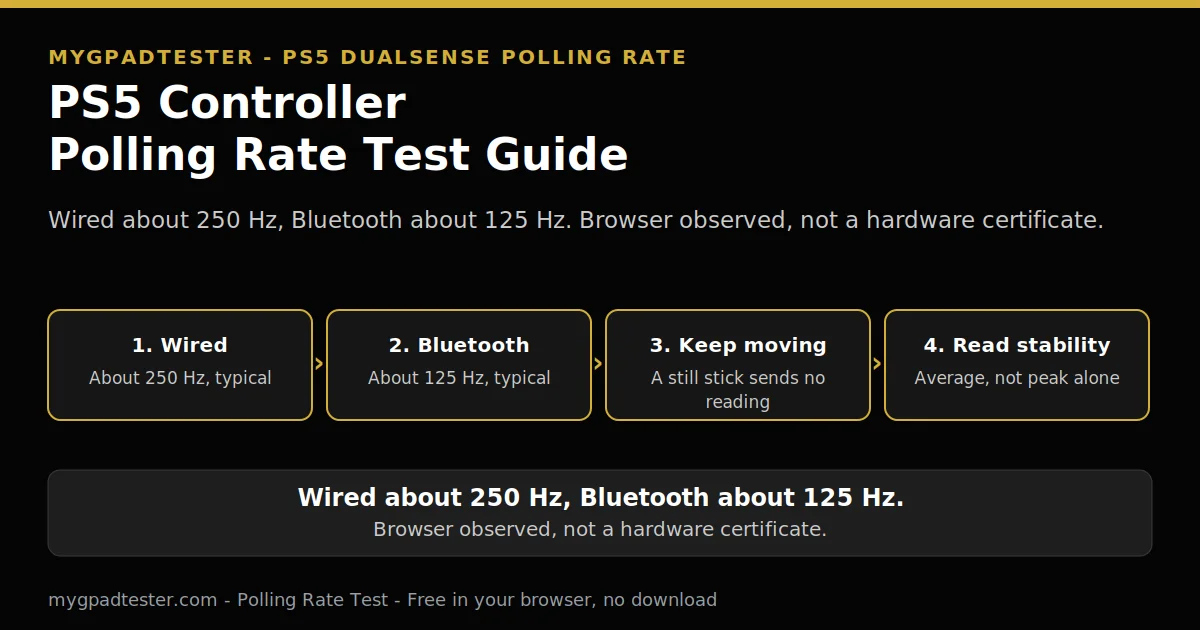
Your browser test shows 125 Hz, but you expected 250 Hz from your DualSense. Is the controller broken? Is the cable bad? Most of the time, the answer is none of those. A browser number is not the same as a hardware number, and a still stick can pull the reading down on its own.
Polling rate, in Hz, is how often a controller reports a fresh reading. This guide gives you the DualSense numbers, the browser test in order, and the reading rule. A browser result is browser observed, via the Gamepad API, gated by frame rate. It is for comparison and stability, not for certifying hardware Hz. For the general numbers, see the polling rate ladder.
Last updated: 16 November 2026 | Category: Controller Testing Tools | Reading time: about 15 minutes | Tested with Chrome/Edge, Gamepad API
Quick Answer
Your DualSense runs at about 250 Hz wired and about 125 Hz over Bluetooth, both typical browser observed readings, not Sony specifications. Test it wired first in Chrome or Edge while you keep moving a stick, then repeat over Bluetooth. Read the average and the stability, not the peak alone. A steady 250 Hz wired reading is normal.
Test your DualSense polling rate
No download. No account. Data stays in your browser.
What rate the DualSense runs at
A PS5 DualSense runs at about 250 Hz wired and about 125 Hz over Bluetooth. Both numbers are typical, browser observed readings, not Sony specifications. The wired number means a report interval of about 4 ms, and the Bluetooth number means about 8 ms. Use these numbers as a comparison guide, not as a hardware certificate.
Report interval is the time between two reports. The maths is Tier 1: 1000 divided by Hz. So 125 Hz is 8 ms, 250 Hz is 4 ms, 500 Hz is 2 ms, and 1000 Hz is 1 ms. Say report interval, not wait, for these maths-only numbers. Typical means most DualSense pads read near this number in a browser test. Wired means a USB data cable to the PC, into a direct port, not a hub.
How to test it in the browser, step by step
Connect the DualSense wired first, then open the Polling Rate Test in Chrome or Edge. Keep moving a stick the whole time so the controller keeps reporting new readings. Read the average rate and how steady it stays, not the peak alone. Allow about 15 minutes for the full run, with a repeat over Bluetooth.
Chrome and Edge are reference browsers for testing. Firefox has basic support. Safari and mobile have limited support. Use the same browser for both runs.
The 7 steps in order
- Connect the DualSense, wired first for the baseline reading.
- Open the Polling Rate Test in Chrome or Edge.
- Keep moving a stick so the controller keeps reporting.
- Read the average rate and the stability, not the peak alone.
- Repeat the test over Bluetooth, same browser, same stick movement.
- Compare the two readings, wired against Bluetooth, one change only.
- Change one variable at a time and retest before judging the controller.
How to test it in the browser, step by step
Total Time: 15 minutes
Connect the DualSense, wired first for the baseline reading.
Open the Polling Rate Test in Chrome or Edge.
Keep moving a stick so the controller keeps reporting.
Read the average rate and the stability, not the peak alone.
Repeat the test over Bluetooth, same browser, same stick movement.
Compare the two readings, wired against Bluetooth, one change only.
Change one variable at a time and retest before judging the controller.
Step 3 is the step most readers miss. A still stick sends no new reading, so the test has nothing to count. Move a stick in slow, steady circles for the whole run. For Step 4, read the average rate and how steady it stays. A high peak with wide jumps is not a good result.
Test checklist
| Check | What to do |
|---|---|
| Same browser | Use Chrome or Edge for both runs. |
| Same connection | Test wired first, then Bluetooth, as two runs. |
| Keep moving a stick | Move a stick in slow, steady circles. |
| Compare one change only | Compare before and after one change only. |
Record stick, direction, value, connection, and browser for each reading.
Why the browser shows 125 Hz when it should be 250 Hz
The browser shows what it observes through the Gamepad API, gated by frame rate, not the hardware rate itself. A still stick sends no reading, so the number can fall to 125 Hz on a wired pad. A 60 Hz display reads in 16.7 ms frames, which limits what the browser can observe. Keep moving a stick and retest wired.
Frame interval maths is Tier 1: 60 Hz is 16.7 ms, 120 Hz is 8.3 ms, 144 Hz is 6.9 ms, and 240 Hz is 4.2 ms. The browser reads the controller through a poll loop, and the frame rate gates what it can observe. Never promise 1000 Hz in a browser on a 60 Hz display. Polling rate and refresh rate are independent variables, so never state a rule that one should be higher than the other.
The Gamepad API exposes the controller description, buttons, axes, and timestamps. Axes run from minus 1.0 to 1.0, for X and Y, Tier 1. What it cannot tell you is the hardware Hz. Gamepad API Explained, owns the full API explanation. If the wired reading rises to about 250 Hz once the stick keeps moving, the pad was reporting normally all along.
Why Bluetooth is slower than wired
Bluetooth polls lower and more variable than wired, and that is normal for this connection. The DualSense typically reads about 125 Hz over Bluetooth, browser observed, against about 250 Hz wired. Idle throttling can lower the reading further on some devices, firmware, and browsers. Compare the two readings in the same browser, with the same stick movement.
Bluetooth polling is typically lower and more variable than wired, Tier 3, typical. It varies by controller, adapter, and operating system. The general comparison belongs to the USB vs Bluetooth polling post, which owns it. Bluetooth idle throttling can lower the reading on some devices, firmware, and browsers, with can only, never as a universal rule. For comparison only, one sentence: Xbox Bluetooth reads about 125 Hz, lower and more variable, Tier 3, typical, browser observed.
Can you raise it to 1000 Hz, and is it safe?
You can raise the rate to 1000 Hz on a PC only, wired only, with PC tools. There is no console-side polling setting, and no steps for overclocking are given here. The full procedure belongs to the separate overclocking guide, named in Related Guides. Do not chase a bigger number before you know your normal wired reading.
Overclocking a DualSense to 1000 Hz is PC only, wired only, with PC tools, Tier 3, typical. The console does not expose a polling setting to the player. No safety promise is given here, and no overclocking steps are given here. The full procedure belongs to the separate overclocking guide, Controller Polling Rate Overclocking Guide, named in text only until its go-live check confirms it live. Overclocking changes the hardware rate, not the browser gate.
Does a higher rate actually help in games?
A steadier rate helps more than a higher peak, because consistency is what you feel in play. A jumping 1000 Hz reading can feel worse than a steady 250 Hz reading. The benefit is smoother, more regular reports, not a guaranteed win or a faster reaction. A browser number cannot grade your play, so read stability first.
A controller that reports every 4 ms, on time, every time, gives the game a steady stream. A controller that reports in bursts gives the game an uneven stream. Take a fast-paced shooter: a steady 250 Hz wired reading means the aim moves in regular steps, while a jumping reading means uneven steps. No claim is made here that a higher polling rate always helps in games.
Why the number jumps around
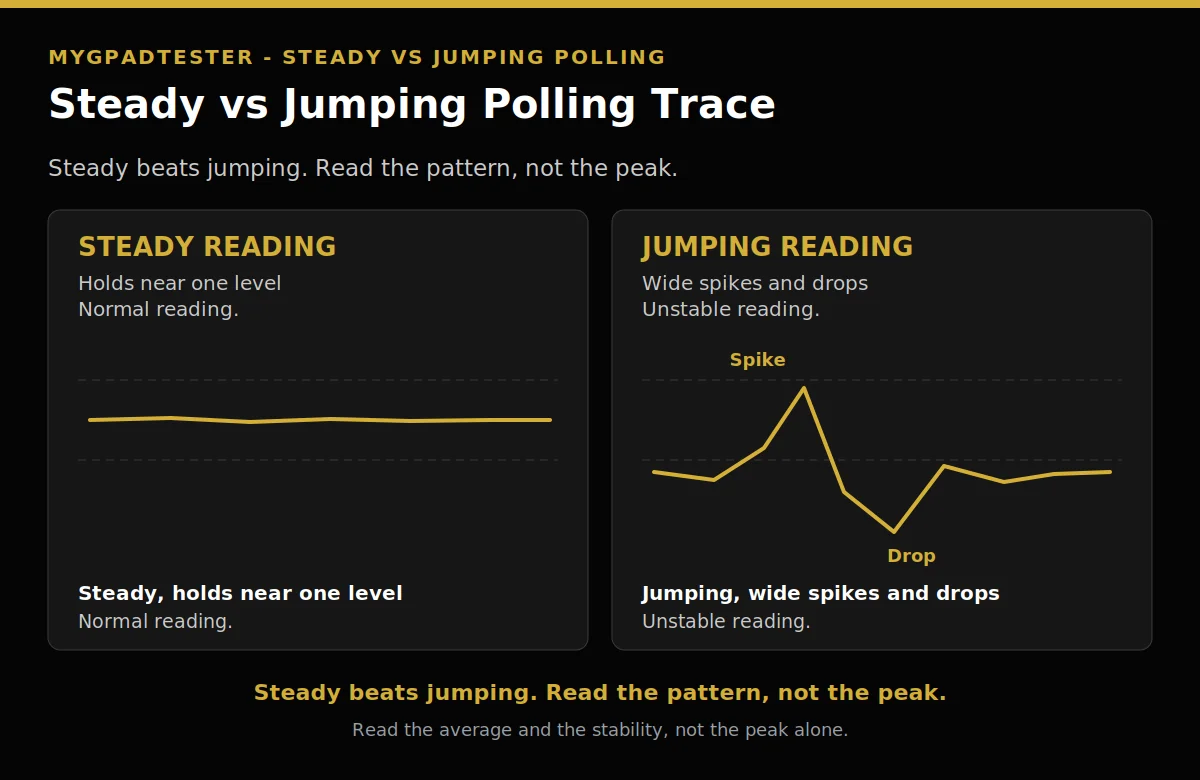
The number jumps because jitter, connection changes, and a still stick all move the reading. Jitter means wide, unstable, spikes and drops, in words only, with no percent threshold used here. A still stick stops reporting, so the reading falls. Change one variable at a time and retest before you judge the controller.
Jitter is described in words only: wide, unstable, spikes and drops. No percent threshold for jitter is used in this post. Use the same reading in the same browser on the same connection before and after each change, one variable at a time.
| Pattern | What it means |
|---|---|
| Steady | Holds near one level. Normal reading. |
| Jumping | Wide spikes and drops. Unstable reading. |
Table 2: reading quality, steady versus jumping
| Pattern | What it means | What to change first |
|---|---|---|
| Steady near 250 Hz wired | Normal wired reading, browser observed. | Nothing. Record it as your baseline. |
| Steady near 125 Hz Bluetooth | Normal Bluetooth reading, browser observed. | Nothing. Compare it with the wired baseline. |
| Jumping, wide spikes and drops | Jitter, a connection change, or a still stick. | Keep moving a stick, then retest. |
| Falls when the stick rests | No new reading while the stick is still. | Keep the stick moving for the whole run. |
Lag bands are a browser estimate guide only, never end to end lag. Under 8 ms is excellent, 8 to 16 ms is normal, and over 16 ms is investigate, as a browser estimate guide.
Pairing, haptics, and the limits that change the test
Pair the controller the right way, remember haptics need USB on PC, and accept that Sony gives no compatibility guarantee. Pairing mode needs the USB cable out first, then the create button and the PS button held together. Firmware comes with PS5 console updates or through the PlayStation Accessories app on a Windows PC.
Pairing mode, Tier 2, PlayStation Support. Disconnect the USB cable first. Make sure the player indicator is off. Press and hold the PS button until it turns off. While pressing and holding the create button, press and hold the PS button until the light bar blinks. Enable Bluetooth on the device and select the controller. When pairing is complete the light bar blinks and then the player indicator lights up. Source: PlayStation DualSense pairing page.
If the browser sees nothing at all, use the OS detection fixes first, then return to this test. Haptic feedback on PC requires a USB connection, Tier 2, PlayStation Support. There is no guarantee that all devices are compatible with the controller, Tier 2. Controller health is a composite, not a single score: per-component pass or fail, for sticks, buttons, triggers, vibration, and connection. What Is Controller Circularity Error and How to Test It, owns the circularity test.
Read your result and decide what to do next
Compare the wired reading against the Bluetooth reading, judge stability first, then decide what to do next. A steady 250 Hz wired reading is normal, and a steady 125 Hz Bluetooth reading is normal too. A jumping reading means retest, not replace. Change one variable, retest, and only then judge the controller.
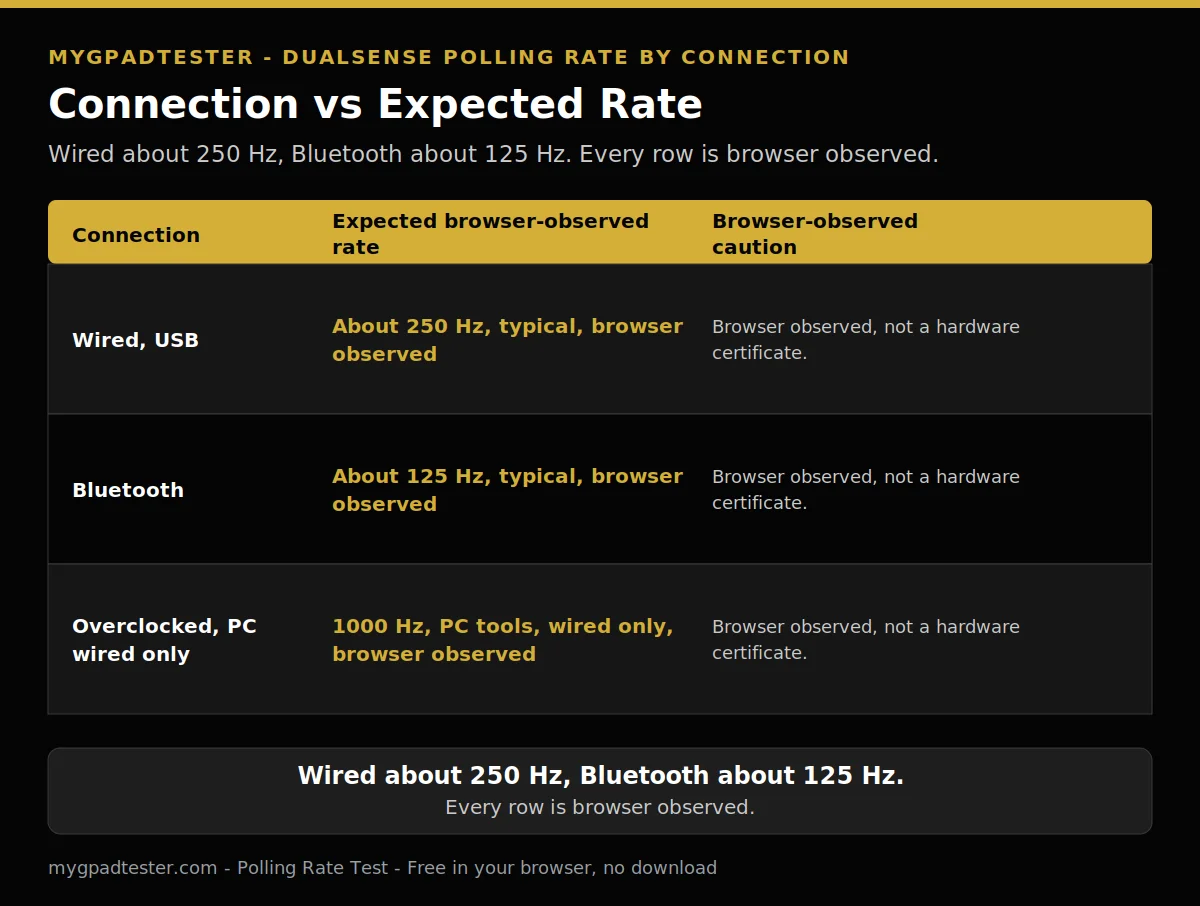
Use Table 1 below as the reading guide. Every row carries the browser-observed caution. That caution stops you calling a normal 250 Hz wired reading a fault.
Table 1: connection versus expected browser-observed rate
| Connection | Expected browser-observed rate | Browser-observed caution |
|---|---|---|
| Wired, USB | About 250 Hz, typical, browser observed | Browser observed, not a hardware certificate. |
| Bluetooth | About 125 Hz, typical, browser observed | Browser observed, not a hardware certificate. |
| Overclocked, PC wired only | 1000 Hz, PC tools, wired only, browser observed | Browser observed, not a hardware certificate. |
| Connection | Expected browser-observed rate |
|---|---|
| Wired, USB | About 250 Hz, typical, browser observed |
| Bluetooth | About 125 Hz, typical, browser observed |
| Overclocked, PC wired only | 1000 Hz, PC tools, wired only, browser observed |
Work the fork in order. Steady near 250 Hz wired and steady near 125 Hz Bluetooth means normal: record both readings and play. Low wired reading with a still stick means keep moving a stick and retest wired. Jumping reading on either connection means change one variable at a time and retest. Low on Bluetooth only, with steady wired, means the fault sits in the Bluetooth path: check pairing, then retest. For the full lag reading, use the Input Lag Test and read the browser estimate bands only.
Related Tools
- Polling Rate Test (pillar, highlighted)
- Vibration Test
- Trigger Test
- Stick Drift Test
- Stick Deadzone Test
- Button Test
- Input Lag Test
- Gamepad Health Checker
Related Guides
- 125 Hz vs 250 Hz vs 500 Hz vs 1000 Hz Controller Polling Rate
- USB vs Bluetooth Controller Polling Rate
- Gamepad Not Detected by Browser? Fix It in 5 Minutes
- Gamepad API Explained.
- What Is Controller Circularity Error and How to Test It.
- Controller Polling Rate Overclocking Guide, named in text only until its go-live check confirms it live.
About the Author
Marcus Sterling, Lead Engineer and Founder of MyGpadTester, Austin, Texas. Profile: https://mygpadtester.com/marcus-sterling/ X: https://x.com/marcussterlin
Test wired first, read the average and the stability, then compare one change at a time. The reading rule names the next check.
Frequently Asked Questions
What polling rate does the PS5 console itself use?
No published figure was found for the PS5 console polling rate. This post asserts no console Hz number. Treat the wired and Bluetooth numbers in H2 1 as browser observed readings, not as a console figure.
My DualSense shows 250 Hz wired. Is that a fault?
No. About 250 Hz wired is the normal native wired rate, Tier 3, typical, browser observed. A steady 250 Hz wired reading is normal. Only retest if the reading jumps or falls while the stick keeps moving.
Does the DualSense Edge poll faster than the standard DualSense?
No verified number was found for the DualSense Edge polling rate at writing time. This post states that plainly and gives no Edge number. Test an Edge the same way as a standard DualSense, wired first, then Bluetooth.
Can I raise my DualSense to 1000 Hz?
Yes, on a PC only, wired only, with PC tools. There is no console-side polling setting. The full procedure belongs to the separate overclocking guide, named in Related Guides, with no steps given here.
Why does my polling number jump around?
Jitter and a still stick move the reading. Jitter means wide, unstable, spikes and drops, in words only, with no percent threshold used here. Keep the stick moving, change one variable at a time, and retest.
Does a higher polling rate help in games?
A steadier rate helps more than a higher peak, because consistency is what you feel in play. The benefit is smoother, more regular reports, not a guaranteed win or a faster reaction. A browser number cannot grade your play.
Test wired first in Chrome or Edge, keep moving a stick, read the average and the stability, then repeat over Bluetooth. A steady 250 Hz wired reading is normal, and a steady 125 Hz Bluetooth reading is normal too. When the number jumps, change one variable and retest.
Next Steps
Retest with the same browser and the same connection after each change. Change one variable at a time, and record each reading with its connection and browser. If a reading still looks wrong, use the decision fork in H2 9 to name the next check.