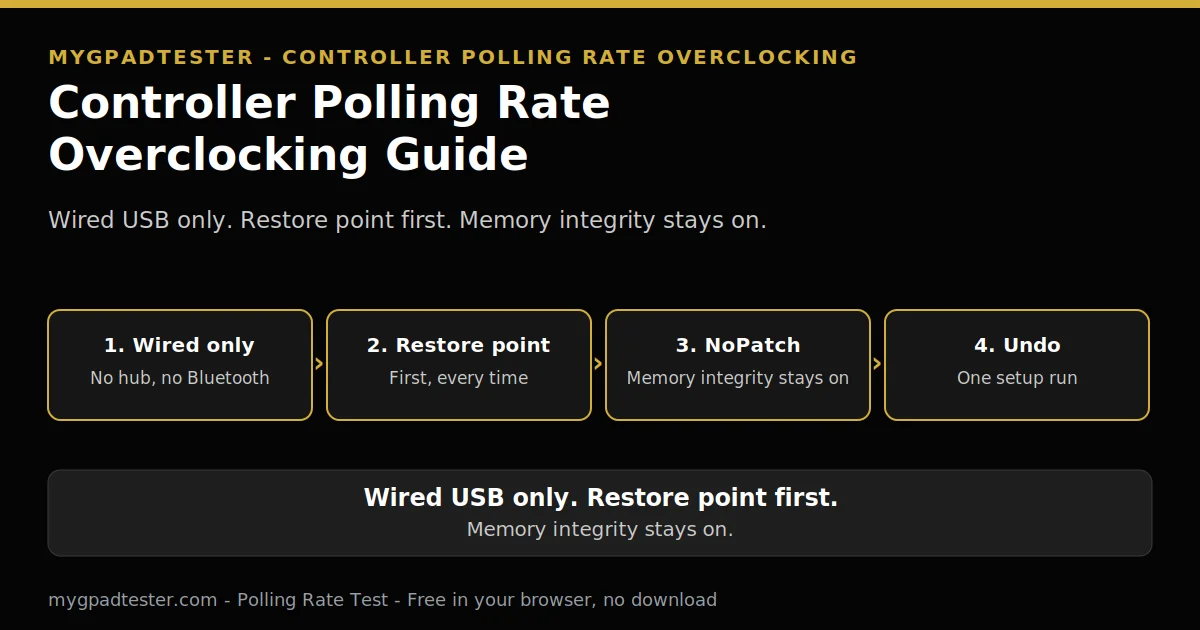
Controller Polling Rate Overclocking Guide
You heard your DualShock 4 or DualSense can run at 1000 Hz, and you want to try it. Is it safe? Will it break Windows? Will you get banned? How do you undo it if it goes wrong? This guide answers all four, with the safety rules first and the procedure second.
Last updated: 17 November 2026 | Category: Performance Optimization | Reading time: about 15 minutes | Tested with Chrome/Edge, Gamepad API
Quick Answer
Overclocking raises the USB polling rate with a filter driver, it does not change your controller firmware. It works on DualShock 4 and DualSense over wired USB, not on Xbox controllers, not over Bluetooth, and not on console. It is reversible, and you never turn Memory integrity off for it.
Test your polling rate
No download. No account. Data stays in your browser.
The tool in this guide is hidusbf, a free, open-source filter driver by an independent developer, Tier 3. It is not made, tested, or supported by Microsoft, Sony, or any controller maker. It loads at kernel level. This post names the tool only. Get it from the official source. No download link appears here, and no repository link either.
What does overclocking a controller actually mean?
It means making Windows ask the controller for reports more often, using a filter driver, without changing the firmware. Polling rate is the report rate, measured in Hz. Report interval is its inverse, measured in ms. Input latency covers the whole chain, jitter is how much report timing varies, and browser measurement is what the browser observes, frame-rate gated.
Overclocking is a borrowed word. Nothing is overclocked in the chip sense. The filter driver sits between Windows and the controller, and it asks for reports more often than the controller asked for. The controller firmware stays untouched, and the declared USB interval stays untouched, Tier 3, Tier 2 concept.
The maths is Tier 1: 1000 divided by Hz. 125 Hz is 8 ms, 1000 Hz is 1 ms. The filter changes the rate Windows asks for, from 8 ms to 1 ms in the 1000 Hz case. Whether the controller sends fresh data at the new rate is a separate question, and the next section answers it per controller. The full input lag chain lives in the lag foundation post.
Which controllers can be overclocked, and which cannot?
DualShock 4 and DualSense are the reported cases, and Xbox controllers are not reliably overclockable. A single independent tester reports DualShock 4 overclocking to 1000 Hz with stick reports at the same rate. DualSense reads 8000 Hz in the tool at 1000 Hz, Tier 3, same tester. Check the report for your own model before you start.
DS4Windows, a separate mapping tool, also lists Xbox controllers as not supported, Tier 3. Its supported list names Xbox Elite Series 2, Xbox Core Controller, and Xbox Adaptive Controller as not supported, verified live 14 Nov 2026. That is a second, separate tool with the same Xbox answer, and it is not the tool in this guide.
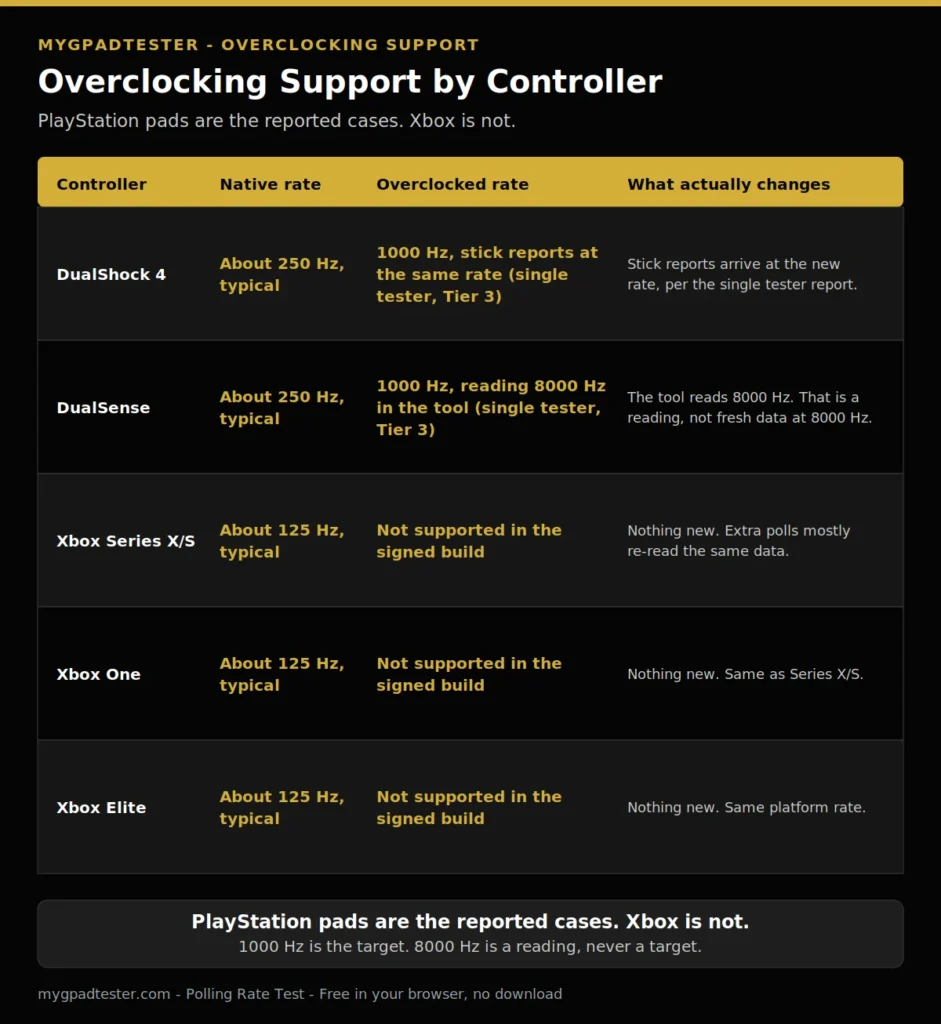
| Controller | Native rate | Overclocked rate | What actually changes |
|---|---|---|---|
| DualShock 4 | About 250 Hz, typical | 1000 Hz, stick reports at the same rate (single tester, Tier 3) | Stick reports arrive at the new rate, per the single tester report. |
| DualSense | About 250 Hz, typical | 1000 Hz, reading 8000 Hz in the tool (single tester, Tier 3) | The tool reads 8000 Hz. That is a reading, not fresh data at 8000 Hz. |
| Xbox Series X/S | About 125 Hz, typical | Not supported in the signed build | Nothing new. Extra polls mostly re-read the same data. |
| Xbox One | About 125 Hz, typical | Not supported in the signed build | Nothing new. Same as Series X/S. |
| Xbox Elite | About 125 Hz, typical | Not supported in the signed build | Nothing new. Same platform rate. |
Native rates are Tier 3 typical, own live tool page, verified live 14 Nov 2026. The DualSense 8000 Hz figure is a reading, never a target. 1000 Hz is the target, 8000 Hz is an enthusiast ceiling, not a goal. The Xbox limit lives in full in Xbox Controller 125Hz Explained.
How to overclock on Windows 11, step by step
The procedure is wired USB only, with a restore point first, the NoPatch setup, and a retest after. The 15 minutes is hands-on time for a smooth NoPatch run, with no restart and no patching-build detour. If a restart is needed, or the device needs a patching build, the time becomes 30 minutes, and the wording changes together with it.
Work the steps in order. Do not skip the restore point. Do not use a hub, Bluetooth, or a dongle for any step.
- Check the current rate with the polling rate test, wired. Write the number down.
- Create a restore point. Name it so you can find it later.
- Connect wired USB only. No hub, no Bluetooth, no dongle.
- Run the NoPatch setup if your device is Full Speed (DualShock 4). If the setup says your device needs a patching build (DualSense, High Speed), stop: do not switch to a patching build that needs Memory integrity off. Skip the overclock.
- Select 1000 Hz and apply the filter to the device.
- Retest with the polling rate test and compare before and after one change.
- Undo steps if it fails, and recheck after a Windows update.
How to overclock on Windows 11, step by step
Total Time: 15 minutes
Check the current rate with the polling rate test, wired. Write the number down.
Create a restore point. Name it so you can find it later.
Connect wired USB only. No hub, no Bluetooth, no dongle.
Run the NoPatch setup if your device is Full Speed (DualShock 4). If the setup says your device needs a patching build (DualSense, High Speed), stop: do not switch to a patching build that needs Memory integrity off. Skip the overclock.
Select 1000 Hz and apply the filter to the device.
Retest with the polling rate test and compare before and after one change.
Undo steps if it fails, and recheck after a Windows update.
Get the tool from its official source only. No download link is given here. If the setup offers a patching build, read step 4 again and stop.
How do I check the overclock actually worked?
Run the polling rate test wired, before and after, and change nothing else between the two runs. A browser result is browser observed, gated by frame rate, Tier 1 concept. Compare the same browser, the same test, and the same cable, and read the rate after one change only.
A changed number proves the filter attached. An unchanged number proves nothing by itself, and the next section lists the three causes.
The browser measurement method, with its limits, lives in the lag measurement post. That post owns the measurement method. This post owns the before and after rule: one change, two readings, same setup.
Why does my controller still show the old rate?
It still shows the old rate when the filter did not attach. It shows the old rate when the pad is not on wired USB, or when the pad sends fresh data at its own rate. A filter works on USB devices only, Tier 3. A controller paired over Bluetooth, or connected through a wireless dongle, keeps its normal timing.
Check the three causes in order. First, re-run the setup and check the device list for the filter. Second, switch to wired USB, direct, no hub, and retest. Third, remember the Xbox case: the pad still sends fresh data at about 124 times a second even at 1000 Hz polling, Tier 3, one tester. The poll rate can rise while the fresh-data rate stays put.
Recheck after a Windows update. The recheck costs one minute.
Is overclocking safe?
It is reversible, and the risk found in this run is a driver conflict, not a change to the controller itself, but no safety promise is made either way. Memory integrity stays on, the NoPatch path is the default, and the skip rule applies if the only working path needs it off.
Memory integrity is on by default on clean installs of Windows 11 on compatible hardware and on all Secured-core PCs, Tier 2, Microsoft Learn. Auto-enablement applies to clean installs only, not upgrades of existing devices. Never turn Memory integrity or any Windows security feature off for a polling tweak. If the only working path needs it off, skip the overclock. Microsoft’s own advice is to turn it off only when a needed driver cannot load and no updated driver exists. A polling tweak is not that case.
Incompatible drivers can cause malfunction and in rare cases a boot failure (blue screen), Tier 2, Microsoft Learn. Microsoft Q and A records hidusbf.sys flagged as an incompatible driver by Memory integrity, Tier 3, which confirms the conflict is real. The project documentation warns that patching builds may require disabling Memory Integrity, Tier 3. Signed drivers now exist (December 2024 update), so Secure Boot can stay on, Tier 3. Create a restore point before changing a driver.

| Build | Device speed | System code patching | Memory integrity | Secure Boot | House advice |
|---|---|---|---|---|---|
| NoPatch path | Full Speed (DualShock 4) | No system code patching | Stays on | Stays on | Use this path where it supports the device. |
| Patching build | High Speed (DualSense) | Patches system code | May need it off | Can stay on with signed drivers | Skip the overclock if this is the only path. |
Bluetooth, dongles, and consoles: what the tool cannot touch
The tool works on wired USB only, so Bluetooth, dongles and consoles are out of reach. A filter attaches to a USB device, and a wireless connection has no USB device for it to attach to, Tier 3. There is no console-side polling setting, so the tool is Windows only.
Bluetooth keeps its normal timing because the filter never sees it. A wireless dongle keeps its normal timing for the same reason. The filter sits on the USB path, and wireless traffic never travels that path. Switching to Bluetooth after a wired overclock returns the pad to its normal rate at once.
On Xbox consoles third-party pads are capped at 250 Hz by the platform, Tier 3. There is no console setting that raises it. The tool in this guide is Windows only, and no console procedure is given here.
Will overclocking get me banned?
No anti-cheat vendor names the tool as banned or safe, and bans are reported as rare but possible. Easy Anti-Cheat scans loaded kernel drivers against a cheat signature database, Tier 2 vendor, Easy Anti-Cheat support. A polling filter does not change game data and does not automate input, but no one can promise it is undetectable, because detection rules change.
Kernel anti-cheats operate at the highest privilege level and scan drivers and memory, Tier 3. A filter driver loads at kernel level, so the scanner can see it. Seeing it is not the same as banning for it. No anti-cheat vendor names hidusbf as banned or safe.
Community reports of bans for polling tools are rare but exist, Tier 3, not a hidusbf case. The tool is not promised undetectable, and no game is promised safe. If a game blocks the tool, uninstall it before playing that game.
How do I undo it and go back to normal?
Run the setup again and uncheck Filter On Device, then retest to confirm the rate is back to normal. The change is reversible, Tier 3. If the rate is still high after the undo, restart once and retest wired, with no filter attached.
The undo is the same tool, run again. Uncheck Filter On Device, or remove the filter from the device. Both paths return the device to its native rate. Retest with the polling rate test and compare with the number you wrote down in step 1. If the number matches the native rate, the undo worked.
If the game still feels late after the undo, the lag sits elsewhere in the chain. The settings that reduce lag live in the reduce lag on PC post. That post owns the settings layers, and this post does not repeat them.
Quick checklist: the whole procedure, in order
Work the list in order. Tick each step as you go.
- Wired only. No hub, no Bluetooth, no dongle.
- Restore point first. Name it so you can find it later.
- Memory integrity stays on. NoPatch path only.
- Verify after. Retest wired, compare before and after one change.
- Recheck after Windows updates. One minute.
- Undo before competitive play if the game blocks the tool.
If any step fails, stop there. Undo first, then retest. Do not keep a filter attached to a game that blocks it.
Related Tools
- Polling Rate Test (pillar, highlighted)
- Button Test
- Vibration Test
- Trigger Test
- Stick Drift Test
- Stick Deadzone Test
- Input Lag Test
- Gamepad Health Checker
Related Guides
- What Is Controller Input Lag?
- How to Measure Controller Input Lag Online
- How to Reduce Controller Input Lag on PC
- 125Hz vs 250Hz vs 500Hz vs 1000Hz Controller Polling Rate
- Gamepad API Explained.
About the Author
Marcus Sterling, Lead Engineer and Founder of MyGpadTester, Austin, Texas. Profile: https://mygpadtester.com/marcus-sterling/ X: https://x.com/marcussterlin
A filter is not firmware. This guide names the controllers it works for, the rules that keep it safe, and the undo that takes it back.
Frequently Asked Questions
Do I need to turn off Memory integrity?
No, never. Use the NoPatch path where it supports the device. If the only working path needs Memory integrity off, skip the overclock.
Can I overclock on Linux or Mac?
The tool in this guide is Windows only, from Windows 98 to Windows 11 in the project documentation, Tier 3. No Linux or Mac procedure is given.
My controller disconnects after the filter, what now?
Undo first. Run the setup again and uncheck Filter On Device, then retest wired with no filter.
Does overclocking work on a laptop USB port?
Yes, any data-capable USB port, direct, not through a hub.
Should I overclock for a single-player game?
The ban question only applies where an anti-cheat runs, and some games run one even in single-player modes, so never treat offline play as automatically safe. Where no anti-cheat runs, the risk is the driver itself, and the undo steps still apply.
What rate should I pick, 500 or 1000Hz?
1000 Hz is the established baseline; 500 Hz is the halfway step if 1000 Hz is unstable. Never target 8000 Hz.
Overclocking is a filter, not a firmware change. It works on DualShock 4 and DualSense over wired USB, it does not work on Xbox controllers, and it never touches Bluetooth, dongles, or consoles. Memory integrity stays on, the change is reversible, and the undo is one setup run. Try it with the safety rules in place, or skip it. Both are good answers.
Next Steps
Open the Polling Rate Test and read your rate wired first. For the Xbox limit, use Xbox Controller 125Hz Explained. For the full does-it-matter answer, use Does Polling Rate Affect Gaming Performance?. For the Gamepad API foundation, use Gamepad API Explained. For the Bluetooth test procedure, use How to Test a Bluetooth Controller in Browser.