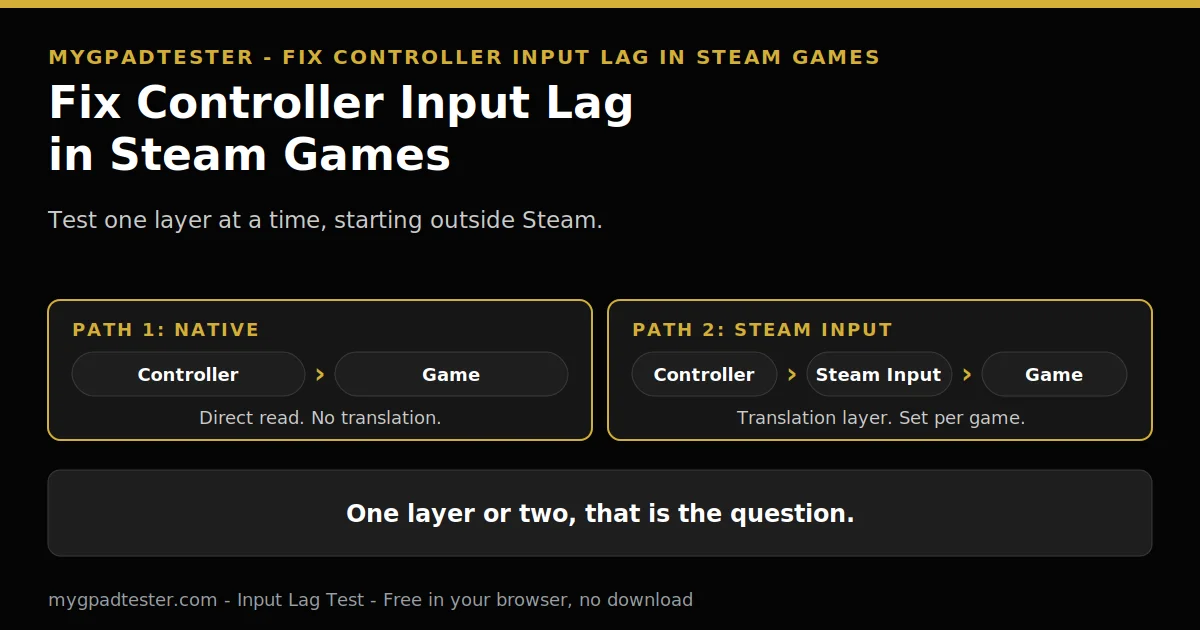
Your controller feels fine on the desktop. In a Steam game, every press arrives late. Is Steam Input slowing you down? Should you just turn it off? This post finds the slow layer before you change anything, so you fix the right setting once.
Last updated: 19 November 2026 | Category: Controller Issues & Fixes | Reading time: about 16 minutes | Tested with Chrome/Edge, Gamepad API
Quick Answer
Steam Input adds a small processing layer, but on a healthy setup it is rarely the reason a game feels slow. The usual causes are stacked input layers, the wrong per-game setting, or a rendering problem that only looks like lag. Test one layer at a time, starting outside Steam, and change one setting per test.
No download. No account. Data stays in your browser.
Steam Input sits between your controller and the game. It translates inputs so games can read pads they were not built for. This post tests one layer at a time, starting outside Steam. You will learn which change fixed it, and when to keep Steam Input on.
Does Steam Input add input lag?
Yes, Steam Input adds a small amount of processing, because it sits between your controller and the game and translates every input. On a healthy setup that cost is small, and it is rarely the reason a game feels slow. The cases where Steam Input genuinely hurts are specific, and each one has its own test.
Steam Input is a translation layer that can present a standard virtual gamepad to the game. It can also map inputs to keyboard keys, mouse movement, gyro controls, or custom action sets. It covers Xbox, PlayStation, and Switch Pro pads, plus the Steam Controller. No verified size for that cost exists, so this post gives no number for it. The one-change tests below show whether the layer matters on your setup.
Four specific cases cause most Steam-only lag: stacked layers, the wrong per-game setting, the overlay, and a rendering problem that only looks like lag. Each case has its own section below, with its own test.
Why does my controller lag only in Steam games?
If your controller feels fine outside Steam but slow inside a Steam game, the slow link is in the Steam layer or the game, not in the controller hardware. Prove it before changing settings: test the controller in the browser first, then in a game that does not run through Steam.
Start with the browser test. Press a button first, because the tester needs a press to wake the controller. A blank result before a press is normal. If the browser test is clean, the controller reports cleanly outside Steam. The slow link is then in the Steam layer or the game. The full measurement procedure is in How to Measure Controller Input Lag Online.
Next, test a game that does not run through Steam. Use the same controller and the same connection. If that game feels fine, Steam is the difference. If both games feel slow, the problem sits outside Steam. The broken-or-game fork helps you split a faulty controller from a game problem.
If no test sees the controller at all, that is a detection problem, not lag. Do not chase lag settings for a pad the system cannot see. The detection steps are in Gamepad Not Detected by Browser.
Should I disable Steam Input for one game or for all of Steam?
Disable Steam Input for one game at a time, never for all of Steam at once, because some games need it to see your controller at all. Use the per-game override in the game Properties, relaunch the game, and test before you touch the next setting.
Open the game in your Library. Right-click it, open Properties, then Controller. The override offers Use default settings, Enable Steam Input, or Disable Steam Input. Pick one option for that game only. Steam labels change between client versions. Look for Properties, then Controller, and the override options, rather than relying on an old screenshot.
Steam also has global support boxes under Settings, then Controller. Each controller family has its own box there. Leave the global boxes alone at first. Many titles scan for controllers at startup only, so a change made mid-session can look like it failed.
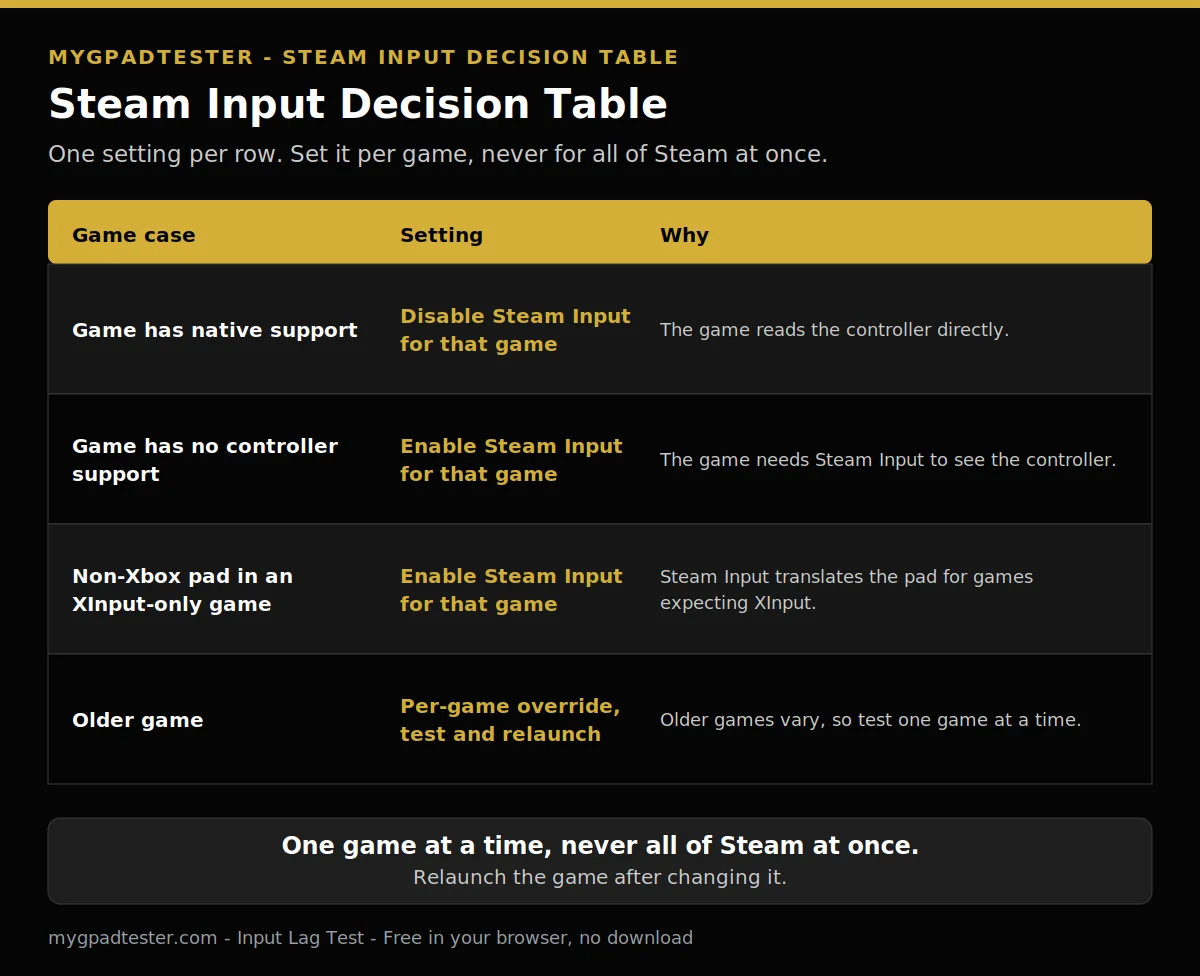
| Game case | Setting | Why |
|---|---|---|
| Game has native support | Disable Steam Input for that game | The game reads the controller directly. |
| Game has no controller support | Enable Steam Input for that game | The game needs Steam Input to see the controller. |
| Non-Xbox pad in an XInput-only game | Enable Steam Input for that game | Steam Input translates the pad for games expecting XInput. |
| Older game | Per-game override, test and relaunch | Older games vary, so test one game at a time. |
A pad can work in Steam but not outside it. Without Steam, Windows sees a Switch Pro pad as a DirectInput controller. Games expecting XInput may not pick it up unless Steam Input is running. The full fork lives in Is My Controller Broken or Is It the Game?, named here in plain text. It is linked in the isolation section above.
What happens when Steam Input runs with another remapper?
Running Steam Input with a second remapper means two translation layers process every input, and one press can reach the game twice. Pick one translator for each game: either Steam Input handles the controller, or the other tool does, never both at the same time.
A second remapper is a tool such as DS4Windows or InputMapper. With both running, every input passes through two translators. One press can then reach the game twice. That is a double input: one press, two actions in the game.
Valve documents this case. When a remapping tool is running, Steam Input does not use the PlayStation controller directly. It reads the emulated Xbox 360 controller the tool generates instead, and Steam shows a warning. Treat that warning as a prompt to pick one translator.
Collapse to one layer before testing. Close the other remapper, and let Steam Input handle the pad. Or disable Steam Input for that game, and let the other tool handle it. After collapsing, retest with one layer only. If the double inputs stop, the stacked layers were the cause.
Does the Steam overlay add lag?
The Steam overlay can add a small amount of overhead, but it is rarely the main cause of slow controls, and turning it off can break controller support in some games. Test it as one isolated change: overlay off, relaunch, test, then restore it if the controller stops working.
Test it on its own, after the per-game test. Do not change the overlay and another setting in the same test.
Steam Input depends on the overlay hook in some games. Turning the overlay off can therefore break controller support entirely in those games. If the controller stops working after you turn the overlay off, restore the overlay at once. Then relaunch and test again.
Is it lag or stutter?
If the game stutters but your FPS number looks fine, you may be seeing a rendering problem, not input delay. Frame-time spikes, V-Sync, and frame limits can make controls feel late without adding any input delay, so check the frame behaviour before blaming the controller.
Input delay and rendering delay feel alike. Input delay is the time from a press to the game acting on it. Rendering delay is the time the game takes to draw the next frame. Frame-time spikes are the sign to check first.
At 60 Hz a frame lasts 16.7 ms. At 120 Hz it lasts 8.3 ms. At 144 Hz it lasts 6.9 ms. At 240 Hz it lasts 4.2 ms. Polling and refresh rate are independent, so a faster report rate does not fix a slow frame. Check V-Sync, the frame limit, and the monitor refresh setting next. Change one of them, then test.
The full lag chain is explained in the lag foundation post, named here in plain text and linked in Related Guides below. Report interval, frame time, display processing, and engine processing are separate links in that chain. Fix the link that is slow, not the whole chain at once.
Which connection should I test first in Steam?
Test wired first, because a cable removes the radio link from the chain and gives you a clean baseline. Then test the dongle, then Bluetooth, in the same game and the same scene, and compare how steady each connection feels, not one single number.
Use the same game and the same scene for every test. If the game feels fine wired, the radio link is the suspect. If it still feels slow wired, the slow link sits elsewhere in the chain.
Compare how steady each connection feels across the run. One good moment proves nothing. A connection that spikes is worse than a steady one, even if its best moment feels fast. Where Bluetooth is the slow link, the general fix order is in the Bluetooth Controller Lag Fix post.
The data comparison across all three connections lives in Wired vs Wireless Controller Input Lag, Data Comparison. This post stays with the Steam layer and the test order.
Do Steam controller settings change how lag feels?
Yes, Steam controller settings can change how lag feels, because deadzone and response curve settings change when input starts and how fast it ramps up. They do not change the report interval, so they cannot fix a genuinely slow link, but a wrong setting can make a healthy link feel slow.
Steam Input exposes per-stick deadzone and response curve settings in the per-game configuration. The settings include inner deadzone, outer deadzone, and response curve, plus anti-deadzone. Deadzone settings change when input starts. Response curve settings change how input ramps up after it starts.
A response curve controls how stick position maps to in-game movement speed after input starts. Linear means stick displacement and movement scale at the same rate. Aggressive or dynamic curves ramp up faster toward full deflection.
Change one setting at a time, and test after each change. This post gives no setting values. If a change makes the game feel worse, restore the previous value before trying the next setting. A future post on Steam deadzone settings will cover deadzone settings in full. It is named here in text only until it is published.
How do I test Steam lag step by step, one change at a time?
Test Steam lag with one change at a time, in this order: browser test, wired test, per-game Steam Input off, overlay off, second remapper closed. Record pass or fail after each step, and stop as soon as the delay is gone, because the last change you made is the layer that was slow.
The 15 minutes covers a smooth run, and a second round takes extra time.
- Browser test. Test the controller in the browser first, outside Steam.
- Wired test. Test the same game on a cable, in the same scene.
- Per-game Steam Input off. Disable Steam Input for that game only, relaunch, and test.
- Overlay off. Turn the overlay off as one change, relaunch, and test. Restore it if the controller stops working.
- Second remapper closed. Close the other remapper, and test with one layer only.
- Undo. Reset the per-game configuration, and restore the defaults.
- Retest with one layer only. Test again with a single translator and the restored settings.
How do I test Steam lag step by step, one change at a time?
Total Time: 15 minutes
Browser test.
Test the controller in the browser first, outside Steam.
Wired test.
Test the same game on a cable, in the same scene.
Per-game Steam Input off.
Disable Steam Input for that game only, relaunch, and test.
Overlay off.
Turn the overlay off as one change, relaunch, and test. Restore it if the controller stops working.
Second remapper closed.
Close the other remapper, and test with one layer only.
Undo.
Reset the per-game configuration, and restore the defaults.
Retest with one layer only.
Test again with a single translator and the restored settings.
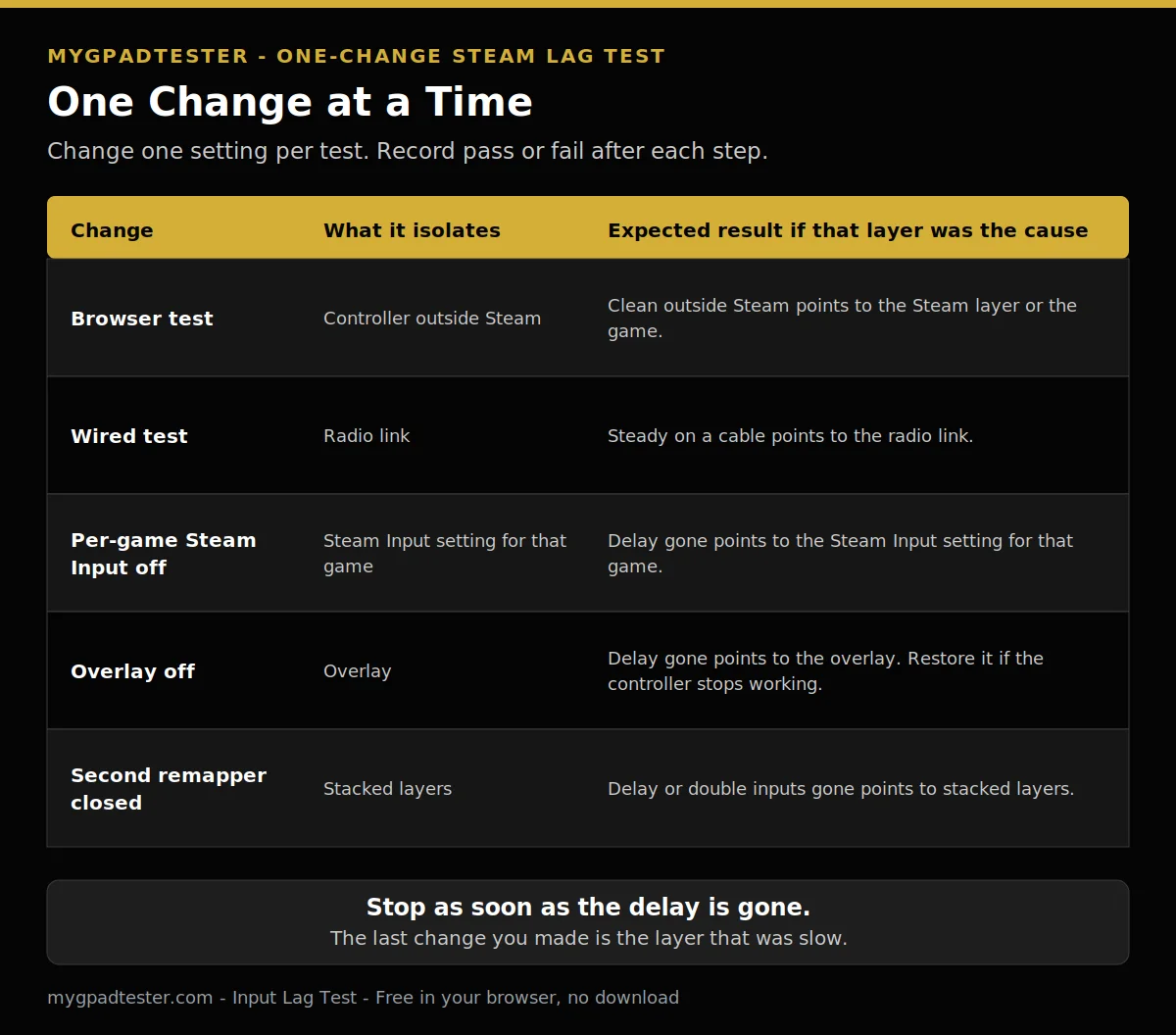
| Change | What it isolates | Expected result if that layer was the cause |
|---|---|---|
| Browser test | Controller outside Steam | Clean outside Steam points to the Steam layer or the game. |
| Wired test | Radio link | Steady on a cable points to the radio link. |
| Per-game Steam Input off | Steam Input setting for that game | Delay gone points to the Steam Input setting for that game. |
| Overlay off | Overlay | Delay gone points to the overlay. Restore it if the controller stops working. |
| Second remapper closed | Stacked layers | Delay or double inputs gone points to stacked layers. |
No fix in this post promises a millisecond saving. Each step isolates one layer. The step that clears the delay names the slow layer.
Related Tools
- Input Lag Test (pillar, highlighted)
- Polling Rate Test
- Button Test
- Trigger Test
- Vibration Test
- Stick Drift Test
- Stick Deadzone Test
- Gamepad Health Checker
Related Guides
About the Author
Marcus Sterling, Lead Engineer and Founder of MyGpadTester, Austin, Texas. Profile: https://mygpadtester.com/marcus-sterling/ X: https://x.com/marcussterlin
Steam Input is rarely the slow layer on its own. Test one layer at a time, and keep the setting that fixed the game.
Frequently Asked Questions
Does reinstalling Steam fix controller lag?
No, not as a first step. Reinstalling does not change the input layers, and it wipes settings that took time to set. Work the one-change test first. Reinstall only if Steam itself is broken in other ways too.
Why does Steam show my PlayStation controller as an Xbox controller?
Because a remapping tool is running, and Steam is reading the emulated Xbox 360 controller that tool generates. Valve documents this behaviour and shows a warning. Close the remapper, or pick one translator.
Does Steam Input work for non-Steam games?
Only when the game is added to Steam as a non-Steam game and launched from Steam. Steam Input applies to games started through Steam. Outside Steam, the game reads the controller directly.
Why do my button prompts show Xbox buttons on a PlayStation controller?
Because Steam Input presents the pad as an Xbox-style pad to the game, so the game shows Xbox glyphs. That is a prompt mismatch, not a fault, and it is different from double inputs. Native support shows the correct glyphs where the game supports the pad directly.
Do I need Steam Input for an Xbox controller?
Usually no for games with native Xbox support, because the game reads the XInput pad directly. Keep Steam Input for games without native support, or where you use remapping, gyro, or per-game layouts.
Can Steam Input cause stick drift?
No. Steam Input cannot cause hardware drift. Deadzone settings can hide drift or reveal it by changing when input starts, but the stick hardware is unchanged. Test drift in the browser with Steam closed.
Steam Input adds a small processing layer, but it is rarely the reason a Steam game feels slow. Stacked layers, the wrong per-game setting, and rendering problems cause most Steam-only lag. Test one layer at a time, starting outside Steam, and keep the change that clears the delay. You can run the browser test again any time on MyGpadTester.
Next Steps
Test the controller with the Input Lag Test, then work the one-change steps in order. Read How to Reduce Controller Input Lag on PC for the general PC fix order. Read How to Test a Bluetooth Controller in Browser for the Bluetooth test procedure. Read Wired vs Wireless Controller Input Lag, Data Comparison, for the data comparison across connections.